31 Replace Content
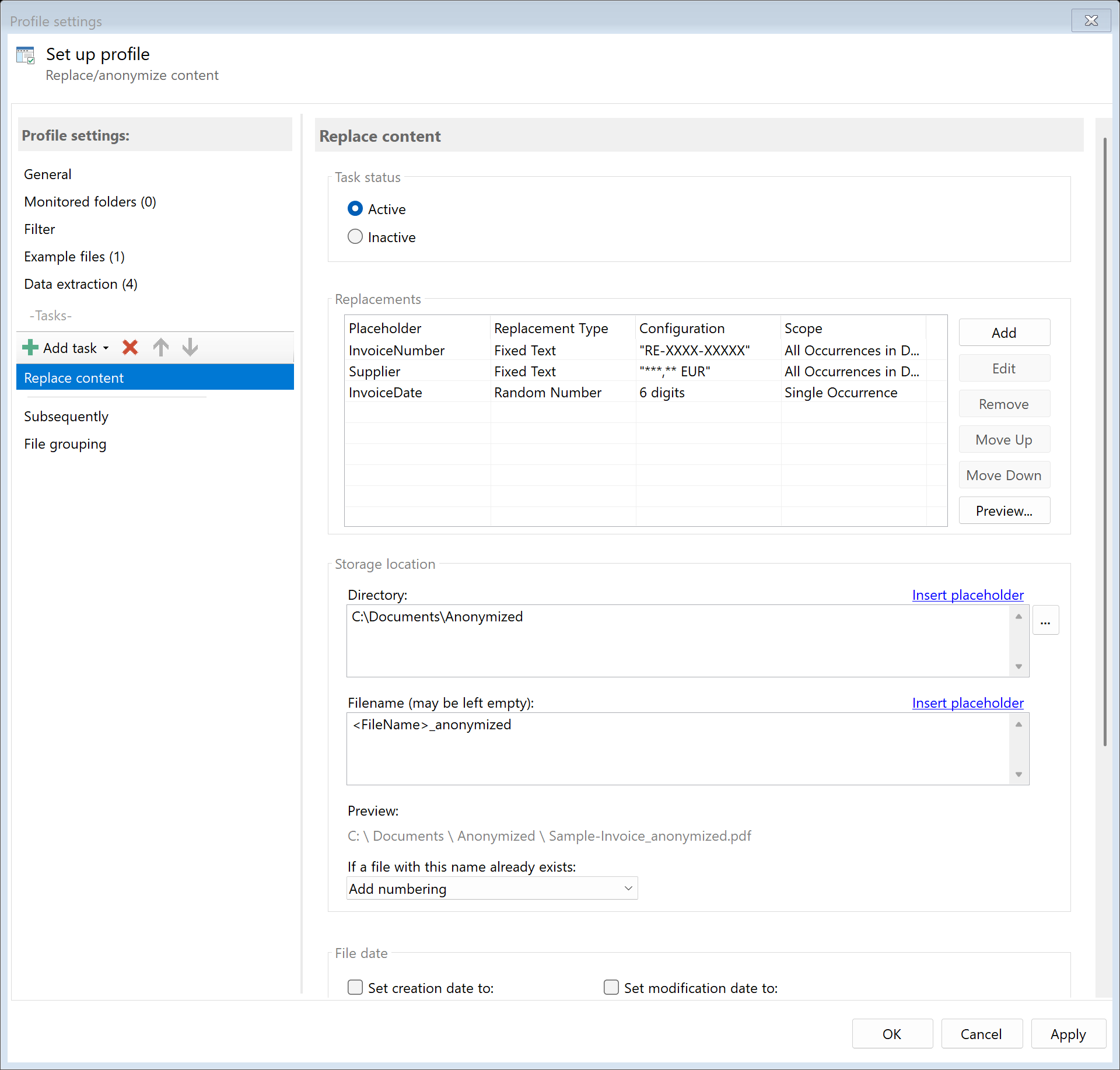 Task: Replace Content
31.1 Description
The Replace Content task enables privacy-compliant replacement of text content in PDF documents. The original text is actually removed from the document (true redaction) and replaced with a new value.
Typical Use Cases
- Anonymization: Replace personal data (names, addresses, customer numbers) with placeholders
- Data Protection: Make sensitive information unrecognizable for GDPR compliance
- Standardization: Replace dynamic content with uniform values
- Numbering: Replace document numbers with sequential numbers
- Archiving: Replace original reference numbers with archive IDs
Important: This task creates a new file in the configured target folder. The original file remains unchanged.
31.2 General Settings
Enabled
Enable this option so the task is executed for matching PDF files. Disabled tasks are skipped.
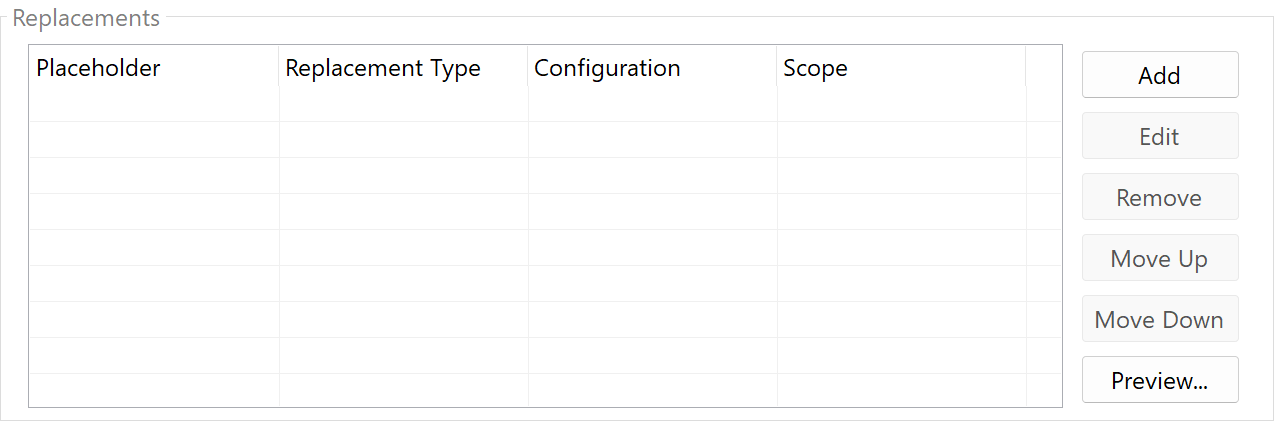 Replacements
Replacements are managed through a list. Each replacement consists of:
- Placeholder (Extraction Rule): Defines which area in the PDF should be replaced
- Replacement Source: Determines where the new value comes from
- Scope: Specifies how many occurrences are replaced
Add Replacements
Click Add to configure a new replacement.
Edit Replacements
Select a replacement from the list and click Edit to adjust the configuration.
Remove Replacements
Select a replacement and click Remove to delete it.
Change Order
Use the arrow buttons to adjust the order of replacements. Replacements are processed from top to bottom.
The placeholder determines the area in the PDF whose content should be replaced. The profile’s configured data extraction rules are used.
Prerequisites
- The extraction rule must be configured in the profile under “Data Extraction”
- The rule must have a defined area (position or keyword-based)
Fallback Rules
If multiple rules with the same name exist (fallback configuration), the first successful rule is used.
31.5 Replacement Sources
Select where the new value for the replacement comes from:
Fixed Text
An unchangeable text that is always inserted the same way.
| Examples |
Application |
ANONYMIZED |
Data protection marking |
***REMOVED*** |
Mark sensitive data |
| (empty) |
Completely remove text |
[COMPANY XY] |
Uniform company designation |
Current Date/Time
The current date and/or time, formatted according to your specifications.
| Format |
Example |
MM/dd/yyyy |
01/12/2026 |
yyyy-MM-dd |
2026-01-12 |
HH:mm:ss |
14:30:45 |
MM/dd/yyyy HH:mm |
01/12/2026 14:30 |
dddd, MMMM d, yyyy |
Monday, January 12, 2026 |
UTC Time: Optionally, UTC time can be used instead of local time.
Sequential Number
An automatically incremented number saved per profile and rule.
| Setting |
Description |
| Start Value |
The first number (e.g., 1 or 1000) |
| Increment |
Increase per document (e.g., 1, 10, 100) |
| Format |
Output format (e.g., “D8” for 8 digits with leading zeros) |
| Delete After Days |
Automatic reset after X days (optional) |
Example: Start value 1000, increment 1, format “D8” → “00001000”, “00001001”, “00001002”, …
Random Number
A randomly generated number within a defined range.
| Setting |
Description |
| Number of Digits |
Total length of the number (with leading zeros) |
| Minimum |
Smallest possible value (optional) |
| Maximum |
Largest possible value (optional) |
Example: 8 digits, Min 0, Max 99999999 → “00123456”, “87654321”, …
Random Value from List
A randomly selected value from a text file.
| Setting |
Description |
| List Path |
Path to the text file (one value per line) |
Example List File:
John Smith
Jane Doe
Robert Johnson
Lisa Williams
Values are randomly selected. Previously used values are stored internally to minimize repetitions.
CSV Lookup
A value is looked up from a configured DynamicQueryList (CSV file).
| Setting |
Description |
| List Name |
Name of the DynamicQueryList (from program options) |
Process: 1. The extracted value (from the placeholder rule) is used as search term 2. The corresponding replacement value is found in the CSV list 3. The replacement value is inserted
Example: Extracted value “CU-123” → CSV lookup → “Anonymous Customer A”
31.6 Scope
The scope determines how many occurrences in the document are replaced:
| Scope |
Description |
Use Case |
| Single Occurrence |
Only the occurrence found by the rule |
Standard for individual data fields |
| All Pages (Same Position) |
The text at the same position on all pages |
Headers/footers with recurring content |
| All Occurrences in Document |
Every occurrence of the text throughout the document |
Consistent replacement (e.g., company name) |
Single Occurrence (Default)
Replaces only the one location found by the extraction rule. Ideal for: - Individual data fields (customer number, invoice number) - One-time text locations
All Pages (Same Position)
Finds the position on the first page and replaces the text at exactly this position on all pages. Ideal for: - Headers with document number - Footers with page number or company name - Recurring elements at fixed position
All Occurrences in Document
Searches the entire document for all occurrences and replaces every match. Ideal for: - Company names that appear multiple times - Person names in contracts - Terms that should be consistently replaced
31.7 Preview
Use the Preview button to test replacements on a sample file.
Preview Window
The preview window shows a comparison: - Left: Original PDF - Right: PDF with applied replacements
Select Sample File
Choose one of the configured sample files from the dropdown menu.
Preview Notes
- Preview does not save any changes
- Sequential numbers are simulated (not saved)
- Random values are regenerated
31.8 Storage Location
Directory
Specify the target directory for the processed file.
Note: It’s recommended to use a separate folder for each processing step.
Filename
Set the name for the processed file.
Examples:
| Input |
Result |
| (empty) |
Document.pdf (original name) |
<FileName>_anon |
Document_anon.pdf |
<RuleId:1(ArchiveNo)> |
A-2024-001234.pdf |
Name Collisions
Choose what should happen if a file with the target name already exists.
31.9 File Date
Adjust Creation and Modification Date
Optionally, you can change the file date of the processed file.
31.10 Afterwards
Call External Program
After replacement, an external program can be started automatically.
Parameters: Available placeholders: - <PathIncludingFilename> - Full path of the processed file - <ParentDirectory> - Path of parent folder - <Filename> - Filename
31.11 Example: Anonymize Customer Data
Initial Situation
Invoices contain customer names and customer numbers that should be anonymized for archiving.
Configuration
- Create Extraction Rules:
- Rule “CustomerName” (position or keyword-based)
- Rule “CustomerNumber” (position or keyword-based)
- Replacement 1: Customer Name
- Placeholder: CustomerName
- Replacement Source: Fixed Text
- Fixed Text:
ANONYMIZED
- Scope: All Occurrences in Document
- Replacement 2: Customer Number
- Placeholder: CustomerNumber
- Replacement Source: Sequential Number
- Start Value: 1, Increment: 1, Format: D6
- Scope: Single Occurrence
- Storage Location:
- Directory:
D:\Archive\Anonymized
- Filename:
<FileName>
Result
| Original |
Anonymized |
| “John Smith” |
“ANONYMIZED” |
| “CU-123456” |
“000001” |
Initial Situation
Multi-page documents have a header with the company name on each page that should be replaced with a new designation.
Configuration
- Create Extraction Rule:
- Rule “CompanyName” with header position
- Replacement:
- Placeholder: CompanyName
- Replacement Source: Fixed Text
- Fixed Text:
New Company Inc
- Scope: All Pages (Same Position)
Result
The company name is replaced on all pages at the header position with “New Company Inc”.
31.13 Example: Update Date
Initial Situation
Template documents should be updated with the current date.
Configuration
- Create Extraction Rule:
- Rule “Date” with date field position
- Replacement:
- Placeholder: Date
- Replacement Source: Current Date/Time
- Format:
MM/dd/yyyy
- Scope: Single Occurrence
Result
| Original |
Replaced |
| “01/01/2024” |
“01/12/2026” |
31.14 Tips and Notes
Font Handling
The new text is inserted in a similar font to the original text. With embedded subset fonts, the system automatically falls back to available system fonts.
True Redaction
Unlike simple text overlays, the original text is actually removed from the PDF: - The original text is no longer extractable via copy & paste - Forensic recovery is not possible - GDPR-compliant anonymization
Consider Order
If multiple replacements have overlapping areas, the list order is followed. Ensure replacements don’t interfere with each other.
Use Fallback Rules
For robust configurations, you can use fallback rules: - Multiple rules with the same name - The first successful rule is used - Enables different position variants
Combination with Other Tasks
Typical workflow order: 1. Extract data (extraction rules) 2. Replace content (anonymization) 3. Convert to PDF/A (archiving) 4. Send email or copy
With documents having many pages and the “All Pages (Same Position)” setting, processing may take longer. Test the configuration with sample files.
Manage Sequential Numbers
Current counter values are stored in the AppData configuration. If needed, you can: - Reset the start value - Enable automatic deletion after X days