11 Rename File
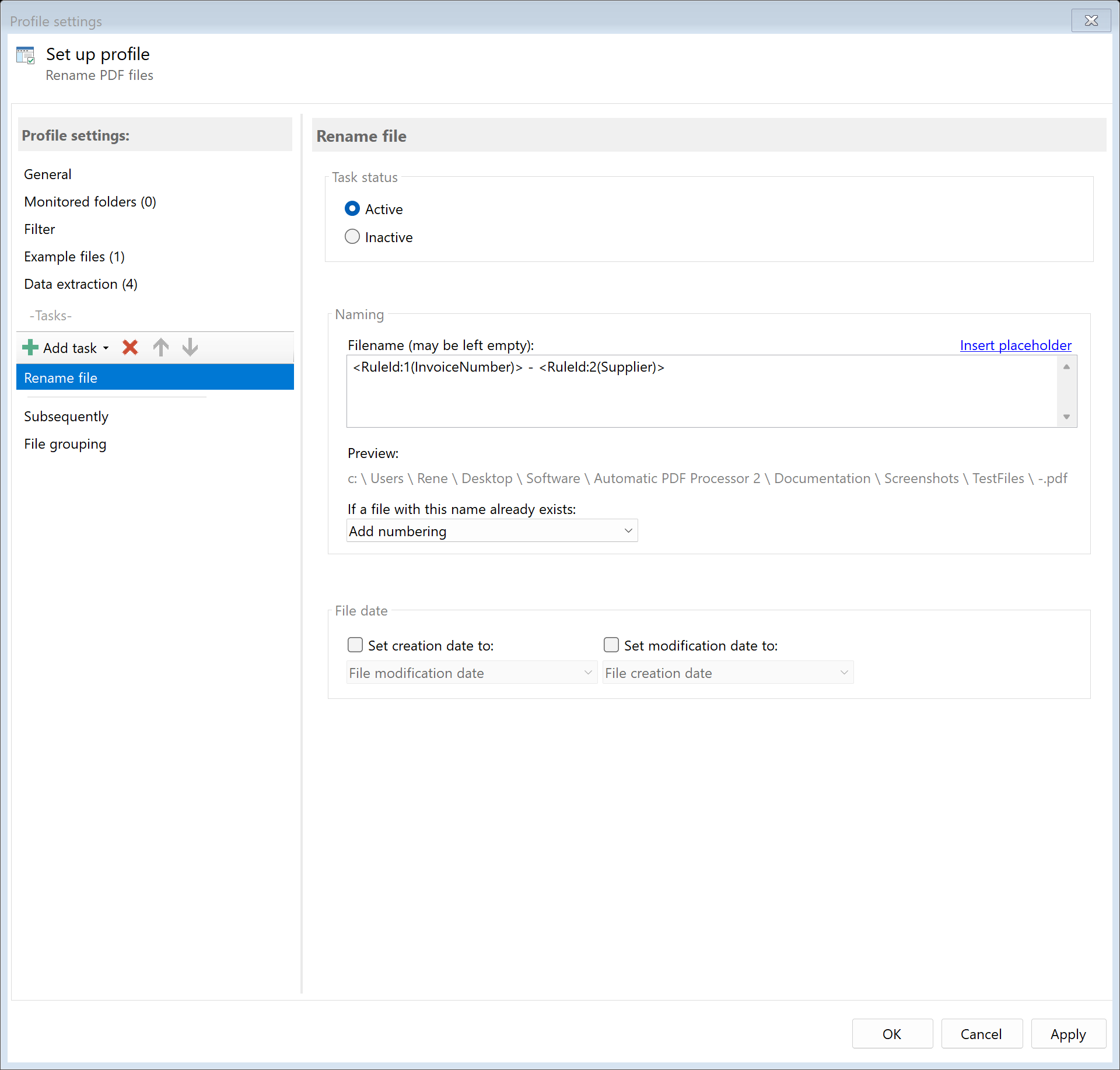 Task: Rename File
11.1 Description
The Rename File task changes the name of a PDF file according to a pattern you define. The original storage location remains unchanged - the file is only renamed, not moved.
Typical Use Cases
- Invoice Archiving:
Scan001.pdf becomes 2024-12-15_Invoice_INV-12345.pdf
- Document Management: Consistent naming convention for all documents
- Sorting: Filenames begin with date for chronological sorting
11.2 General Settings
Enabled
Enable this option so the task is executed for matching PDF files. Disabled tasks are skipped.
11.3 Filename
New Filename
Enter the desired naming pattern here. You can: - Enter fixed text - Use placeholders for dynamic values - Combine both
Examples:
| Input |
Result |
Invoice |
Invoice.pdf |
<Year4>-<Month>-<Day>_Document |
2024-12-15_Document.pdf |
<RuleId:1(Date)>_<RuleId:2(InvoiceNo)> |
2024-12-15_INV-12345.pdf |
<FileName>_archived |
Scan001_archived.pdf |
Using Placeholders
Click the Placeholders link above the input field to open a menu with all available placeholders.
Commonly Used Placeholders:
| Placeholder |
Description |
Example Value |
<FileName> |
Filename (without extension) |
Scan001 |
<Year4> |
Current year (4-digit) |
2024 |
<Month> |
Current month |
12 |
<Day> |
Current day |
15 |
<FileCreatedYear4> |
File creation year |
2024 |
<RuleId:N(RuleName)> |
Extracted value from rule N |
(variable) |
Tip: For archiving, use the extracted document date instead of the current date, so invoices from December are still named correctly in January.
Invalid Characters
Windows does not allow certain characters in filenames: \ / : * ? " < > |
If extracted values contain such characters, they are automatically replaced with underscores.
11.4 Name Collisions
Behavior When File Exists
Choose what should happen if a file with the new name already exists:
| Option |
Description |
| Overwrite |
The existing file is replaced. Caution: Data may be lost! |
| Append number |
Adds a number: Invoice.pdf, Invoice (1).pdf, Invoice (2).pdf |
| Append date |
Adds date and time: Invoice_2024-12-15_14-30-25.pdf |
| Cancel operation |
The rename is not performed, no error is logged |
Recommendation: For most use cases, Append number is the safest option.
11.5 File Date
Adjust Creation and Modification Date
Optionally, you can change the file date of the renamed file:
| Option |
Description |
| Do not change |
File dates remain unchanged |
| Creation date of original file |
Uses the original creation date |
| Modification date of original file |
Uses the modification date |
| PDF creation date |
Date from PDF metadata |
| Extracted date |
A date obtained with an extraction rule |
| Current date |
Sets today’s date and current time |
Use Case: When archiving invoices by invoice date, it makes sense to set the file date to the extracted invoice date. This way, Windows Explorer displays the correct date, and files can be sorted chronologically.
11.6 Afterwards
Call External Program
After renaming, an external program can be started automatically.
Program: Path to the executable file (e.g., C:\Program Files\...\program.exe)
Parameters: Command line parameters. Available placeholders: - <PathIncludingFilename> - Full path of the renamed file - <ParentDirectory> - Path of the parent folder - <Filename> - New filename
Example: Open renamed file in default PDF viewer: - Program: cmd.exe - Parameters: /c start "" "<PathIncludingFilename>"
11.7 Example: Name Invoices by Date and Number
Initial Situation
You receive scanned invoices with meaningless names like Scan001.pdf, Scan002.pdf. These should be automatically renamed according to the pattern YYYY-MM-DD_InvoiceNumber_Supplier.pdf.
Prerequisites
You have created extraction rules for: - Rule 1: “InvoiceDate” (extracts date in format DD.MM.YYYY) - Rule 2: “InvoiceNumber” (extracts invoice number) - Rule 3: “Supplier” (extracts company name)
Configuration
- Enabled: Yes
- Filename:
<RuleId:1(InvoiceDate){Year4}>-<RuleId:1(InvoiceDate){Month}>-<RuleId:1(InvoiceDate){Day}>_<RuleId:2(InvoiceNumber)>_<RuleId:3(Supplier)>
- On name collision: Append number
- File date: Extracted date (Rule 1: InvoiceDate)
Result
| Original File |
New Name |
Scan001.pdf |
2024-12-15_INV-12345_Sample Company Inc.pdf |
Scan002.pdf |
2024-12-10_INV-12340_Smith Corp.pdf |
11.5 Tips and Notes
Make Filenames Unique
Use multiple placeholders to create unique filenames. A name consisting only of the date quickly leads to collisions.
Good: <RuleId:1(Date)>_<RuleId:2(InvoiceNo)>_<RuleId:3(Customer)> Problematic: <RuleId:1(Date)> (multiple invoices on the same day)
Order with Other Tasks
The “Rename File” task should be placed before “Move File” or “Copy File” if the new name should be used in the target path.
Keep Original Name
If you want to keep the original name as part of the new name, use <FileName>:
<Year4>-<Month>-<Day>_<FileName> creates 2024-12-15_Scan001.pdf
Filename Length
Windows limits path length to 260 characters. Long paths combined with long filenames can cause problems. Therefore, keep filenames as short and concise as possible.
Extracted values may contain special characters that are not allowed in filenames. These are automatically replaced with underscores. If this leads to unsightly results, clean up the values in the extraction rules (Cleanup tab).