17 Merge PDFs
 Task: Merge PDFs
17.1 Description
The Merge PDFs task combines multiple PDF files or image files into a single PDF document. The order of merged files corresponds to the order in the configuration.
Typical Use Cases
- Document Bundling: Merge invoice with related delivery notes
- Scan Correction: Combine multiple scan pages into one document
- Archiving: Archive main document with attachments in one file
- Image Collection: Convert multiple image files (JPG, PNG, TIFF) into one PDF
Important: This task creates a new file in the configured target folder. The original files remain unchanged. Further tasks contained in the current profile all refer to the original file. The merged PDF created by this task must be further processed with a separate profile that monitors the corresponding output folder if needed.
17.2 General Settings
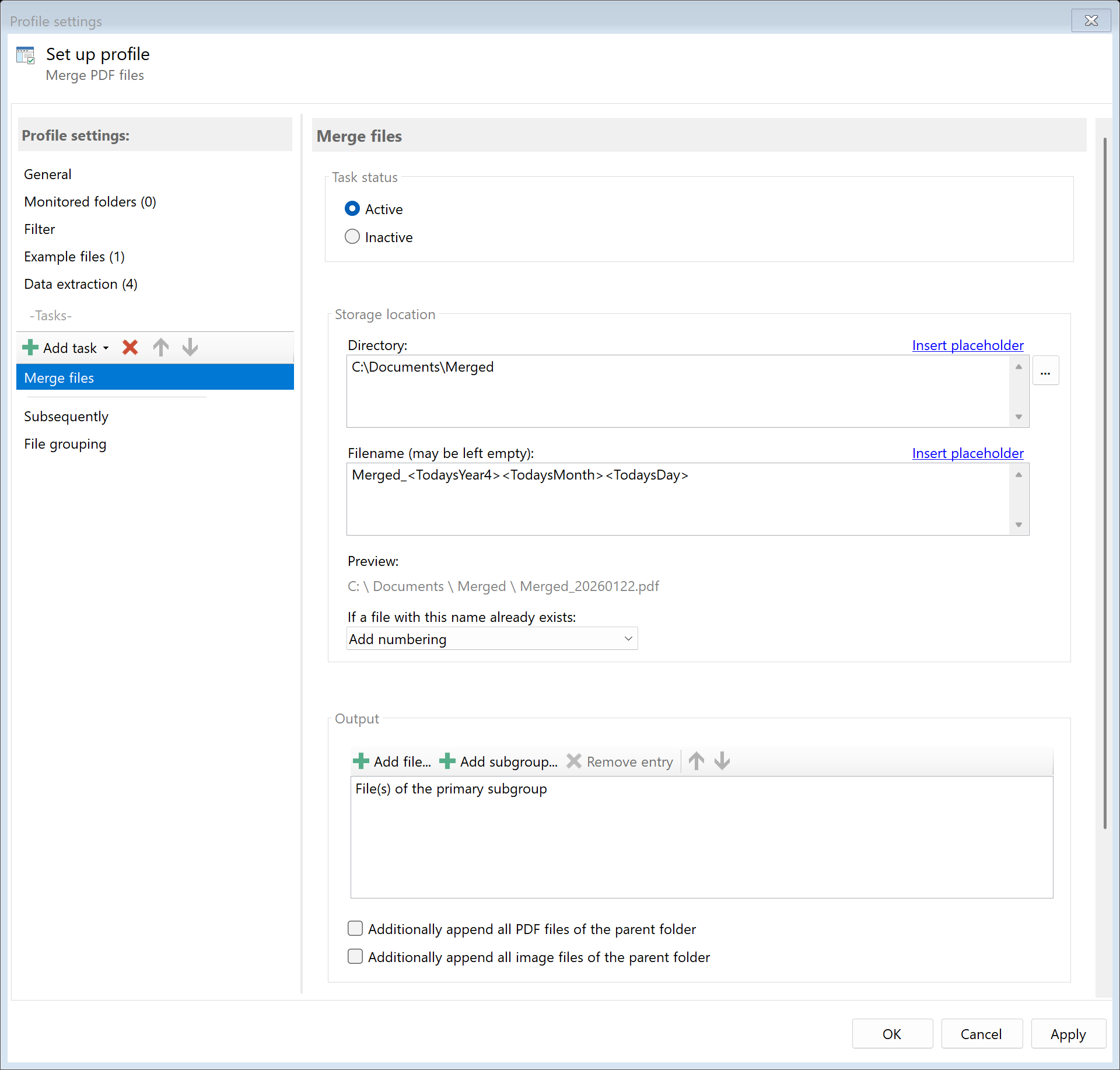
Enabled
Enable this option so the task is executed for matching PDF files. Disabled tasks are skipped.
17.3 Files to Merge
File and Subgroup Selection
In the file list, you specify which files should be merged. Via the toolbar you can:
- Add File: Select one or more PDF files that should always be added
- Add Subgroup: Add files from a configured file group (secondary file group)
- Remove: Deletes the selected entry from the list
- Move Up/Down: Changes the order of files in the merged PDF
Order of Merging:
- The triggering PDF file (or with file groups: all files from the primary file group)
- Files from secondary file groups (in list order)
- Manually added files (in list order)
- All PDFs from the parent folder (if enabled)
- All images from the parent folder (if enabled)
Additionally Append All PDF Files from Parent Folder
Enable this option to automatically append all PDF files from the same folder as the triggering file. Files are added in alphabetical order.
Use Case: You receive multi-page scans as separate PDF files (Page1.pdf, Page2.pdf, Page3.pdf). With this option, all are automatically merged.
Additionally Append All Image Files from Parent Folder
Enable this option to automatically convert and append all image files from the same folder. Images are sorted alphabetically and converted to PDF pages.
Supported Image Formats: - JPEG (.jpg, .jpeg, .jpe, .jfif, .jif) - PNG (.png) - TIFF (.tif, .tiff) - BMP (.bmp) - GIF (.gif)
Use Case: In addition to scanned PDFs, there are also photographed documents as JPEG files. All files should be combined in one PDF.
17.4 Storage Location
Directory
Specify the target directory for the merged file. You can: - Enter a fixed path (e.g., D:\Archive\Merged) - Select the folder via Browse… - Use placeholders for dynamic folder paths
Examples with Placeholders:
| Input |
Result |
D:\Archive\<TodaysYear4>\<TodaysMonth> |
D:\Archive\2024\12 |
D:\Customers\<RuleId:1(Customer)> |
D:\Customers\Sample Company Inc |
Note: It’s recommended to use a separate folder for each processing step to ensure clear separation.
Filename
Set the name for the merged file. You can: - Leave the field empty (original name is used) - Enter a fixed name - Use placeholders for dynamic names
Examples:
| Input |
Result |
| (empty) |
Scan001.pdf (original name) |
<RuleId:1(Date)>_Merged |
2024-12-15_Merged.pdf |
Complete_<FileName> |
Complete_Scan001.pdf |
Name Collisions
Choose what should happen if a file with the target name already exists:
| Option |
Description |
| Overwrite |
The existing file is replaced. Caution: Data may be lost! |
| Append number |
Adds a number: File.pdf, File(1).pdf, File(2).pdf |
| Append date |
Adds processing date: File(2024-12-15).pdf |
| Append date and time |
Adds date and time: File(2024-12-15_14-30-25).pdf |
| Cancel operation |
The merge is not performed |
Recommendation: For most use cases, Append number is the safest option.
17.5 File Date
Adjust Creation and Modification Date
Optionally, you can change the file date of the merged file:
| Option |
Description |
| Do not change |
File automatically receives current date |
| Creation date of original file |
Uses original creation date |
| Modification date of original file |
Uses modification date |
| PDF creation date |
Date from PDF metadata |
| Extracted date |
A date obtained with an extraction rule |
| Current date |
Sets today’s date and current time |
17.6 Afterwards
Call External Program
After merging, an external program can be started automatically.
Program: Path to the executable file (e.g., C:\Program Files\...\program.exe)
Parameters: Command line parameters. Available placeholders: - <PathIncludingFilename> - Full path of merged file - <ParentDirectory> - Path of parent folder - <Filename> - Filename of merged file
Example: Automatically open merged file: - Program: cmd.exe - Parameters: /c start "" "<PathIncludingFilename>"
17.7 Example: Merge Invoice with Delivery Note
Initial Situation
You receive invoices and related delivery notes as separate PDF files. Both should be automatically merged into one document.
Prerequisites
- Two profiles for file recognition:
- Profile “Invoices”: Recognizes invoice PDFs
- Profile “Delivery Notes”: Configured as secondary subgroup
- Extraction rule for customer number (for matching)
Configuration
- Enabled: Yes
- Files: Subgroup “Delivery Notes” added
- Directory:
D:\Archive\Complete
- Filename:
<RuleId:1(InvoiceNo)>_complete
- On name collision: Append number
Result
| Original Files |
Merged File |
Invoice_12345.pdf + DeliveryNote_12345.pdf |
D:\Archive\Complete\12345_complete.pdf |
17.8 Example: Merge All Scans from a Folder
Initial Situation
Your scanner saves each page as a separate PDF file (Scan_001.pdf, Scan_002.pdf, etc.). These should be automatically combined into one document.
Configuration
- Enabled: Yes
- Additionally append all PDF files from parent folder: Yes
- Directory:
D:\Documents\Merged
- Filename:
<TodaysYear4>-<TodaysMonth>-<TodaysDay>_Scan
- On name collision: Append number
Process
- Profile recognizes
Scan_001.pdf as triggering file
- All other PDFs in the same folder are automatically appended in alphabetical order
- Merged file is saved in target folder
Note: To prevent each individual scan file from triggering a separate merge operation, configure file grouping to wait for all files.
17.6 Tips and Notes
Consider Order
The order of files in the merged PDF corresponds to the configuration order. Use the Up/Down buttons to set the desired order.
Combine with File Grouping
For merging related documents (e.g., invoice + delivery note), using file grouping is recommended: 1. Configure the main profile with the triggering file 2. Create secondary file groups for related documents 3. Merging then automatically waits for all needed files
Prepare Images Optimally
When merging image files: - Name files so alphabetical sorting matches desired order (e.g., 01_Cover.jpg, 02_Content.jpg) - High image resolution leads to larger PDF files
Further Processing of Merged PDF
The created merged PDF is in the configured target folder. To process it further (e.g., OCR, email), create a separate profile that monitors this target folder.
Consider Storage Space
When merging many large files, the resulting file can become considerably large. Ensure sufficient storage space is available.
Password-Protected PDFs
Password-protected PDFs can be merged if the password is stored in the password list (program options) or in the profile.