15 Print
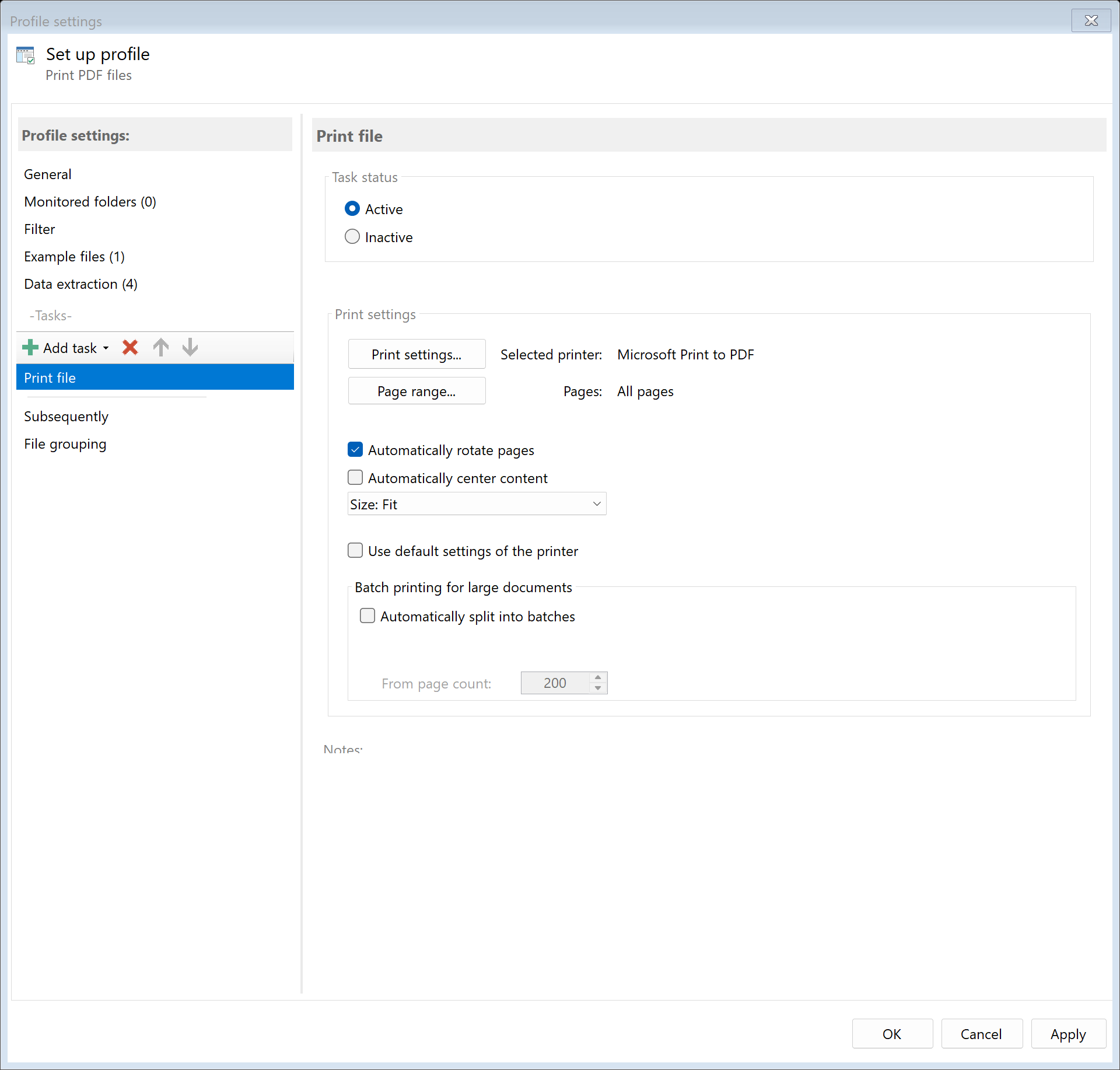 Task: Print
15.1 Description
The Print task automatically sends the PDF file to a printer. You can select any installed printer and configure various print settings.
Typical Use Cases
- Automatic Printing: Print incoming invoices directly
- Filing: Automatically print documents for paper filing
- Archiving: Create paper printout in addition to digital archiving
- Labels: Send PDF labels to a label printer
15.2 General Settings
Enabled
Enable this option so the task is executed for matching PDF files. Disabled tasks are skipped.
15.3 Printer
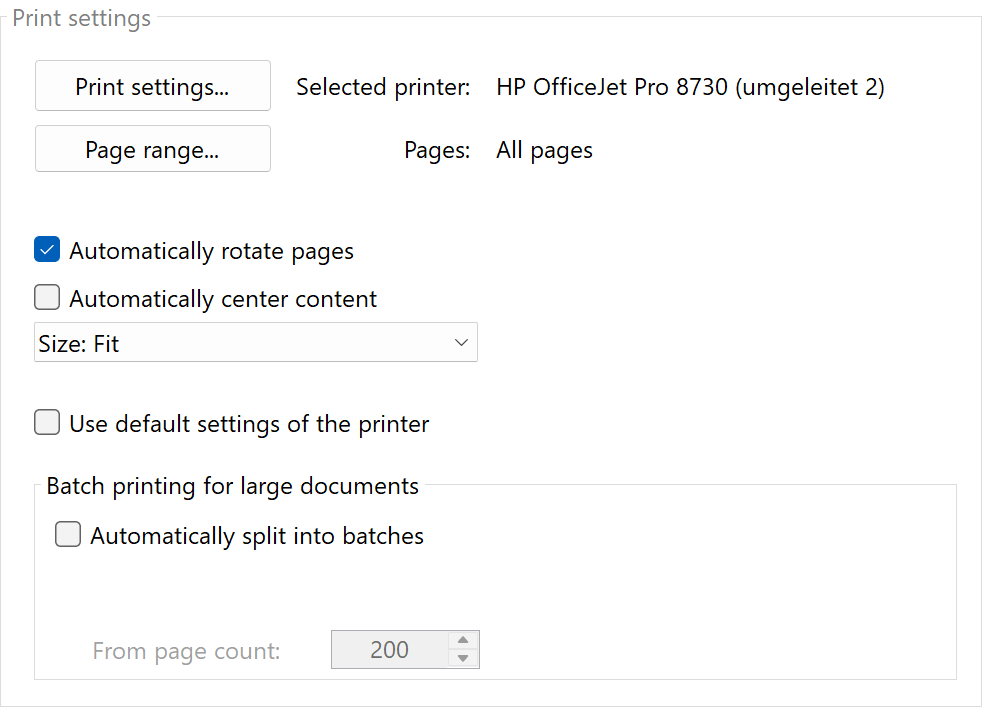 Print Settings
Printer Selection
Select the target printer from the list of installed printers. All locally installed and network printers are displayed.
Note: Make sure the selected printer is turned on and ready when files are processed.
Use Default Printer Settings
Enable this option to use the default settings of the selected printer. All other print settings are then ignored.
15.4 Copies
Number of Copies
Specify how many copies should be printed (1-999).
Collate
For multiple copies of multi-page documents: - Enabled: Prints complete documents sequentially (1-2-3, 1-2-3, 1-2-3) - Disabled: Prints all copies of one page sequentially (1-1-1, 2-2-2, 3-3-3)
15.5 Page Range
All Pages
Prints the entire document.
Pages From/To
Prints only a specific page range: - From: First page to print - To: Last page to print
Example: From 1 to 1 prints only the first page.
15.6 Duplex (Double-Sided Printing)
Available Options
| Option |
Description |
| Simplex |
Single-sided printing |
| Vertical |
Double-sided, sheet is flipped on long edge (like a book) |
| Horizontal |
Double-sided, sheet is flipped on short edge (like a notepad) |
Note: This option is only available if the printer supports duplex printing.
15.7 Color
Color Printing
- Enabled: Prints in color (if printer supports it)
- Disabled: Prints in black and white or grayscale
Tip: Black and white printing is often faster and more cost-effective.
15.8 Paper
Paper Size
Select the paper format: - A4 (210 × 297 mm) - Standard in Europe - A3 (297 × 420 mm) - Letter (8.5 × 11 in) - US Standard - Legal (8.5 × 14 in) - Additional printer-specific formats
Paper Source
Select the paper tray: - Automatic - Tray 1, Tray 2, etc. - Manual feed - Additional printer-specific options
15.9 Scaling and Orientation
Size Mode
| Option |
Description |
| Fit to page |
Scales PDF to paper size (enlarges or reduces) |
| Actual size |
Prints at original size (100%) |
| Custom scale |
Scales to a fixed percentage value |
| Use printer default |
Uses printer’s default setting |
Scale in Percent
For “Custom scale”: Enter the desired scaling factor (1-999%). - 100% = Original size - 50% = Halved - 200% = Doubled
Auto-Rotate
| Option |
Description |
| Auto-rotate |
Automatically rotates page for optimal fit |
| Do not auto-rotate |
Keeps original orientation |
| Use printer default |
Uses printer’s default setting |
Auto-Center
| Option |
Description |
| Auto-center |
Centers content on page |
| Do not auto-center |
Prints from top left corner |
| Use printer default |
Uses printer’s default setting |
15.10 Example: Automatically Print Invoices
Initial Situation
All incoming invoices should be automatically printed on the office printer.
Configuration
- Enabled: Yes
- Printer: “HP LaserJet Pro” (or your printer name)
- Copies: 1
- Page range: All pages
- Duplex: Simplex
- Color: No (Black and White)
- Paper size: A4
- Size mode: Fit to page
Result
Each processed PDF file is automatically printed in one copy on the configured printer.
15.11 Print Presets
Save Presets
In program options under Print Settings, you can save frequently used print configurations as presets. These are then available for quick selection in all profiles.
Advantages of Presets
- Quick configuration of new profiles
- Consistent print settings across multiple profiles
- Changes to a preset affect all profiles that use it
15.12 Batch Printing for Large Documents
Problem
When printing very large PDF files (1000+ pages), the following problems may occur: - Very long spooling times - Extremely large spool files (several GB) - Possible system instability due to memory usage - Printer not responding for long periods
Solution: Automatic Batch Splitting
The batch printing feature automatically splits large print jobs into smaller batches to relieve the printer spooler.
Settings
| Option |
Description |
Default |
| Automatically split into batches |
Enables batch printing |
Disabled |
| From page count |
Minimum pages for activation (50-10000) |
200 |
| Pages per batch |
Number of pages per print job (10-1000) |
100 |
How It Works
- The program checks the total page count of the print range
- If page count >= “From page count”, printing is split into batches
- Each batch is sent separately to the printer
- A short pause (500ms) is inserted between batches
- All pages are printed completely without gaps
Example
Document: 850 pages Settings: Activated from 200 pages, 100 pages per batch
Result: 9 print jobs - Batch 1: Pages 1-100 - Batch 2: Pages 101-200 - Batch 3: Pages 201-300 - … - Batch 9: Pages 801-850
When to Use?
Enable batch printing when: - You regularly print PDFs with more than 500 pages - The printer takes long or doesn’t respond with large documents - The printer spooler shows error messages - You observe memory problems when printing
Not necessary when: - You mostly print smaller documents (< 100 pages) - Your printer handles large jobs without problems
15.13 Print to PDF File
Overview
When you select a PDF printer (e.g., “Microsoft Print to PDF”, “Adobe PDF”, “Foxit PDF Printer”, “doPDF”, “CutePDF Writer”, “Bullzip PDF Printer”, or “PDFCreator”), an additional configuration section for the output path automatically appears.
Note: The program automatically detects PDF printers by name - all printers with “PDF” in their name are treated as PDF printers.
Output Path Configuration
When selecting a PDF printer, you can configure the following settings:
| Setting |
Description |
| Target directory |
The folder where the PDF file will be saved |
| Filename |
The name of the output file (supports placeholders) |
| If file exists |
Action when file already exists |
Placeholders in Filename
You can use placeholders to create dynamic filenames:
| Placeholder |
Description |
<FileName> |
Filename of source file (without extension) |
<ParentDirectory> |
Parent folder path |
<TodaysYear4> |
Current year (4 digits) |
<TodaysMonth> |
Current month (2 digits) |
<TodaysDay> |
Current day (2 digits) |
Example: <FileName>_printed.pdf → Invoice_printed.pdf
If File Exists
| Option |
Description |
| Add numbering |
Adds a number (e.g., File (1).pdf) |
| Overwrite |
Replaces the existing file |
| Cancel |
Cancels the operation |
Example: Create PDF and Archive
Initial situation: Incoming documents should be saved as PDF in an archive folder.
Configuration: 1. Printer: “Microsoft Print to PDF” 2. Target directory: C:\Archive\PDFs\<TodaysYear4> 3. Filename: <FileName>.pdf 4. If file exists: Add numbering
Result: The file Invoice.pdf is printed as PDF and saved to C:\Archive\PDFs\2026\Invoice.pdf. If the file already exists, it will be saved as Invoice (1).pdf.
15.14 Tips and Notes
Check Print Queue
When many files are processed simultaneously, print jobs may queue up. Check the Windows print queue if problems occur.
Network Printers
For network printers, ensure that: - The printer is reachable on the network - The Windows user running the program has print permissions - No print dialogs (e.g., PIN entry) are required
Multiple Printers
You can add multiple “Print” tasks to the same profile to send a file to different printers: 1. Task 1: Print on main printer 2. Task 2: Print on archive printer 3. Task 3: Print on label printer
Print Quality
Print quality (DPI) can be set via printer resolution. Higher resolutions lead to better quality but longer print times.