23 Change File Protection
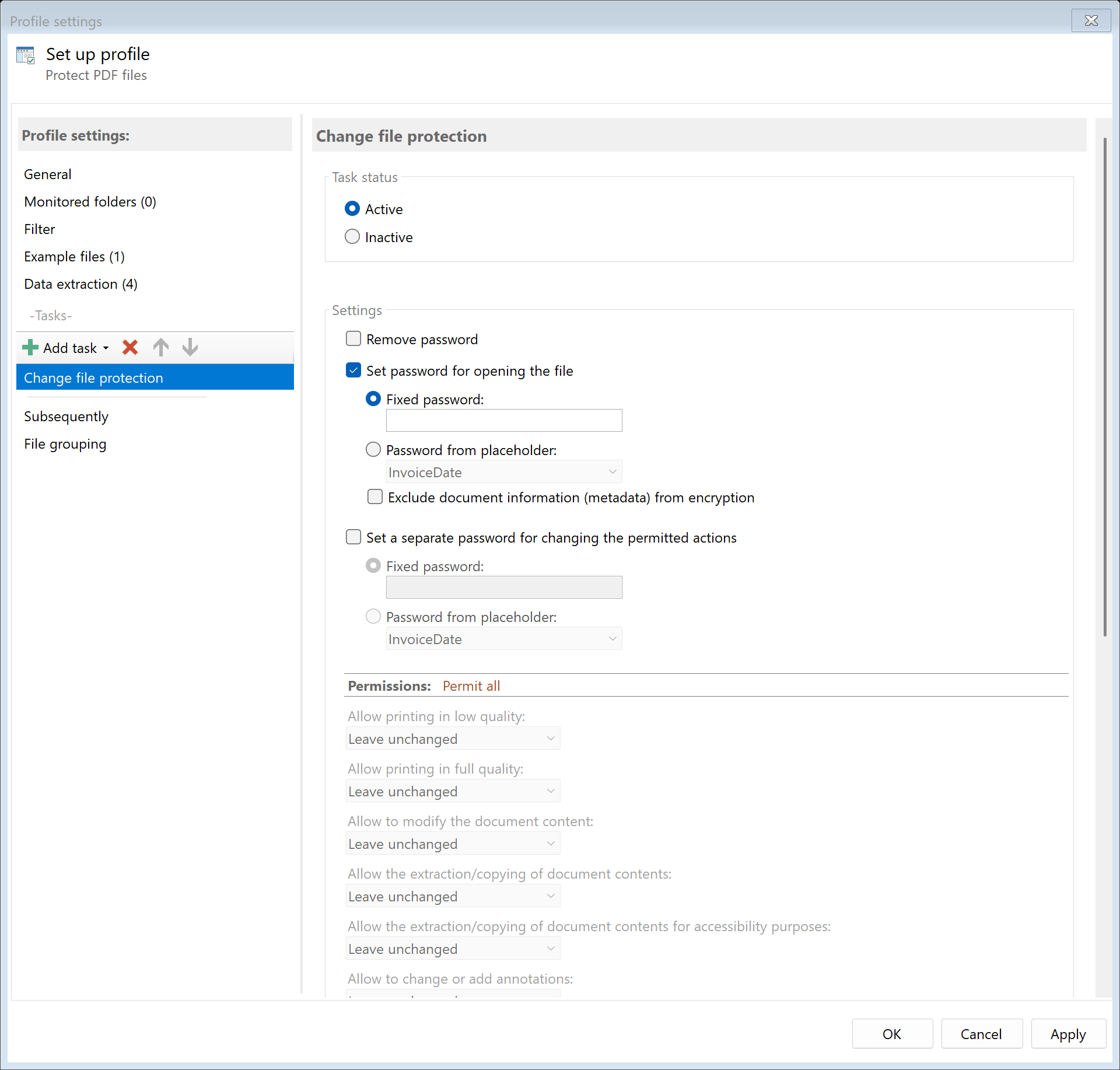 Task: Change File Protection
23.1 Description
The Change File Protection task allows adding, changing, or removing password protection and permissions for PDF files. You can manage both user passwords (for opening) and permission passwords (for restrictions).
Typical Use Cases
- Add Protection: Protect confidential documents with a password
- Remove Protection: Remove existing password protection for further processing
- Set Permissions: Restrict printing or editing
- Dynamic Passwords: Generate passwords from extracted data (e.g., customer number)
23.2 General Settings
Enabled
Enable this option so the task is executed for matching PDF files. Disabled tasks are skipped.
23.3 Remove Password
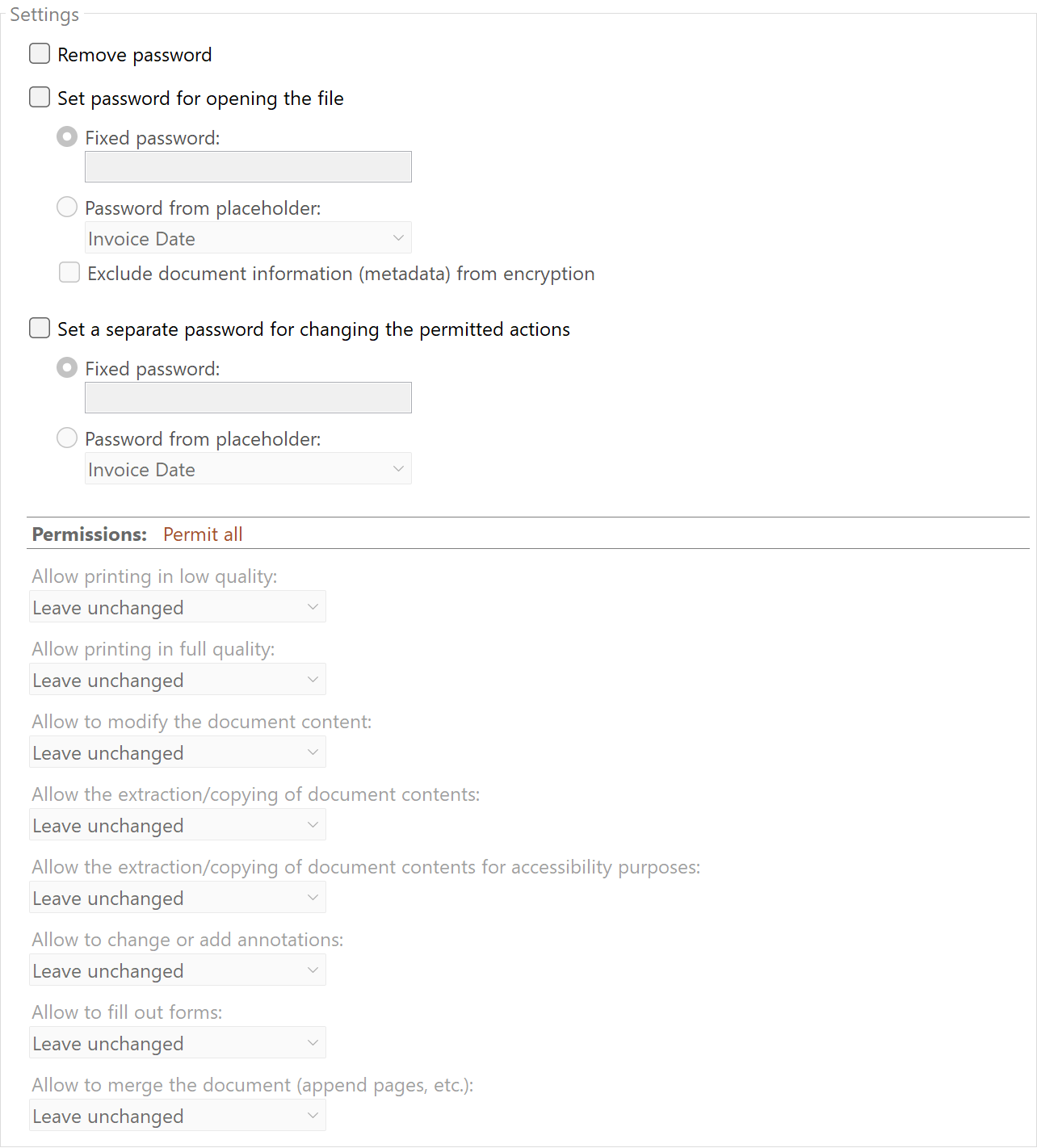 File Protection
Remove Password Protection
Enable this option to completely remove existing password protection. The file can then be opened and edited without a password.
Prerequisite: The current password must be stored in the password list (program options) or in the profile.
23.4 User Password
The user password (also called “open password”) is required to open the PDF.
Enable Encryption
Enable this option to set a user password.
Password Type
| Type |
Description |
| Static |
A fixed password that you enter |
| Dynamic |
The password is obtained from an extraction rule |
Static Password
Enter the desired password. This will be used for all processed PDFs.
Dynamic Password
Select an extraction rule whose value will be used as the password.
Example: The rule “CustomerNumber” extracts “CU-12345”. This is used as the password. The customer can only open the PDF if they know their customer number.
Enable this option so PDF metadata (title, author, etc.) remains readable without a password. This allows indexing by search systems.
23.5 Permission Password
The permission password (also called “owner password”) protects the permission settings. Without this password, the restrictions cannot be removed.
Enable Encryption
Enable this option to set a permission password.
Password Type
Same as user password: Static or Dynamic.
23.6 Permissions
For each permission, you can specify: - Leave unchanged - Keep current setting - Allow - Grant permission - Disallow - Deny permission
Available Permissions
| Permission |
Description |
| Print (low quality) |
Allow printing in low resolution |
| Print (high quality) |
Allow printing in full quality |
| Modify document |
Edit document content |
| Extract content |
Copy text and graphics |
| Accessibility extraction |
Extraction for assistive technologies |
| Annotations/Forms |
Edit annotations and forms |
| Fill forms |
Only fill form fields (not edit) |
| Assemble document |
Insert, rotate, delete pages |
23.7 File Date
Adjust Creation and Modification Date
Optionally, you can adjust the file date after changing the protection.
23.8 Afterwards
Call External Program
After changing the file protection, an external program can be started automatically.
Parameters: Available placeholders: - <PathIncludingFilename> - Full path of the file - <ParentDirectory> - Path of parent folder - <Filename> - Filename
23.9 Example: Protect Documents with Customer Number
Initial Situation
You send personalized documents to customers. Each document should be protected with the respective customer number as password.
Prerequisites
- Extraction rule “CustomerNumber” defined
Configuration
- Enabled: Yes
- User Password: Enabled
- Password Type: Dynamic
- Extraction Rule: CustomerNumber
- Permissions: All set to “Leave unchanged”
Result
| PDF |
Extracted Customer Number |
Password |
Invoice_001.pdf |
CU-12345 |
CU-12345 |
Invoice_002.pdf |
CU-67890 |
CU-67890 |
23.10 Example: Allow Printing, Forbid Editing
Initial Situation
Documents should be printable but not editable.
Configuration
- Enabled: Yes
- Permission Password: Enabled, static password
- Permissions:
- Print (high quality): Allow
- Modify document: Disallow
- Extract content: Allow
- Annotations/Forms: Disallow
- Fill forms: Allow
- Assemble document: Disallow
Result
The document can be opened, printed, and forms can be filled out. Editing and inserting/deleting pages is not possible.
23.5 Tips and Notes
Difference Between User and Permission Password
| Aspect |
User Password |
Permission Password |
| Required for |
Opening the PDF |
Changing permissions |
| Without password |
PDF not readable |
PDF readable but restricted |
| Typical use |
Confidentiality |
Protection against manipulation |
Combining Both Passwords
You can set both passwords simultaneously: - User password for opening - Permission password for restrictions
Dynamic Passwords
With dynamic passwords, ensure the extraction rule reliably returns a value. An empty password would provide no protection.
Communicating Passwords
Don’t forget to communicate the password to the recipient, e.g.: - In the email message (separate email recommended) - Via SMS or phone call - In the cover letter
Encryption Strength
Encryption is performed by default with AES-256, the current industry standard for PDF encryption.