19 OCR (Text Recognition)
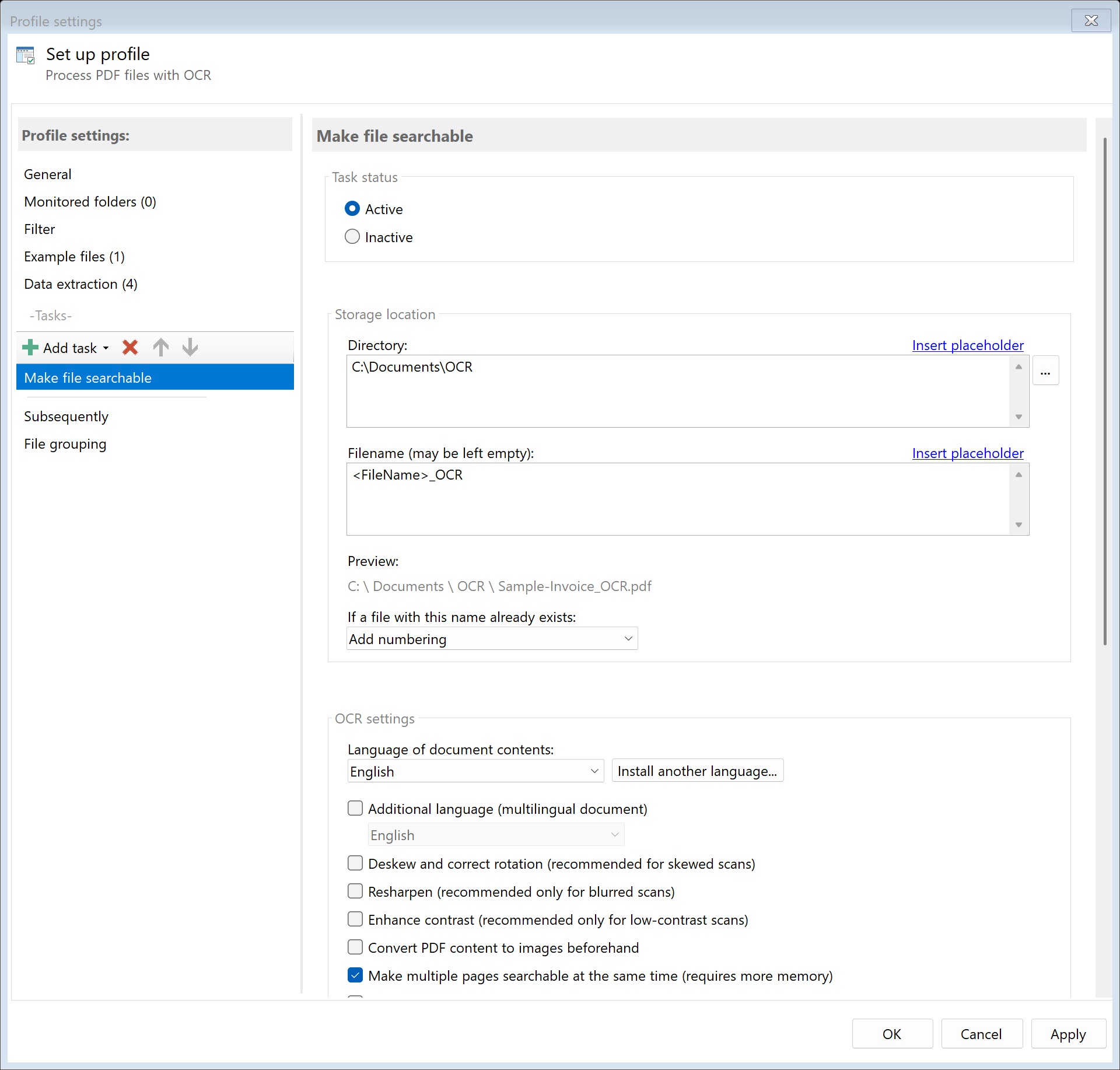 Task: OCR
19.1 Description
The OCR task (Optical Character Recognition) converts scanned documents or image PDFs into searchable PDFs. After processing, text in the PDF can be selected, copied, and searched.
Typical Use Cases
- Archiving: Make scanned documents searchable
- Data Extraction: Extract text from scanned invoices for further processing
- Compliance: Prepare documents for full-text search in document management systems
- Accessibility: Make PDFs accessible for screen readers
Important: This task creates a new file in the configured target folder. The original file remains unchanged. Further tasks contained in the current profile all refer to the original file. The searchable PDF created by OCR must be further processed with a separate profile that monitors the corresponding output folder if needed.
19.2 General Settings
Enabled
Enable this option so the task is executed for matching PDF files. Disabled tasks are skipped.
19.3 Language
Primary Language
Select the main language of the text to be recognized. Correct language selection significantly improves recognition accuracy.
Available Languages: Over 100 languages, including: - German (German Best) - English (English Best) - French, Spanish, Italian - And many more
Note: Languages not installed can be downloaded via Tools → Install Languages.
Use Secondary Language
Enable this option when documents contain text in two languages (e.g., German-English contracts).
Secondary Language
Select the second language appearing in the document.
19.4 DPI Setting (Resolution)
The DPI setting (Dots Per Inch) affects text recognition quality and output file size.
Optimized
The program automatically selects an optimal DPI setting based on document content.
Based on Images
DPI is determined based on the resolution of images contained in the PDF. This is the default setting.
Custom
You can set a fixed DPI value:
| DPI |
Usage |
| 96-150 |
Fast processing, lower quality |
| 175-225 |
Good balance between quality and speed (recommended) |
| 300 |
High quality, longer processing |
| 600-1200 |
Maximum quality, only for special requirements |
19.5 Image Optimization
Correct Skew (Deskew)
Automatically corrects slightly skewed scanned documents. Improves recognition for non-exactly aligned scans.
Sharpen
Increases image sharpness before text recognition. Helpful for slightly blurry scans.
Increase Contrast
Improves contrast between text and background. Useful for faded or weak text.
Convert PDF Content to Images First
Converts entire PDF content to images before OCR. Enable this option for PDFs containing both text and images with text.
Upscale Low Resolutions
Automatically upscales low-resolution images to improve recognition accuracy.
19.6 Handling Files That Already Contain Text
Specify how to handle PDFs that already contain searchable text:
| Option |
Description |
| Ignore |
PDF is not processed (default) |
| Process Anyway |
OCR is performed even if text is present |
| Only Copy to Target Directory |
PDF is copied to target folder without OCR |
Recommendation: Leave setting on “Ignore” unless you have a specific reason for another choice.
19.7 Character Restriction
Restrict Characters
Enable this option to limit recognition to specific characters. This can improve accuracy for specialized documents.
Only Allow Following Characters (Whitelist)
Specify characters that should be recognized. All others are ignored.
Default Characters: ABCDEFGHIJKLMNOPQRSTUVWXYZabcdefghijklmnopqrstuvwxyz0123456789.,-?!
Exclude Following Characters (Blacklist)
Specify characters that should not be recognized.
Use Case: When recognizing article numbers consisting only of numbers and letters, special characters can be excluded.
19.8 Processing
Multithreading
Enables parallel processing of multiple pages. Significantly speeds up OCR on systems with multiple processor cores.
Recommendation: Keep enabled unless stability issues occur.
19.9 Storage Location
Directory
Specify the target directory for searchable PDFs.
Note: It’s recommended to use a separate folder for each processing step to ensure clear separation.
Filename
Set the name for the output file. You can: - Leave field empty (original name is used) - Enter a fixed name - Use placeholders for dynamic names
Examples:
| Input |
Result |
| (empty) |
Scan001.pdf (original name) |
<FileName>_OCR |
Scan001_OCR.pdf |
<TodaysYear4>-<TodaysMonth>-<TodaysDay>_<FileName> |
2024-12-15_Scan001.pdf |
Name Collisions
Choose what should happen if a file with the target name already exists:
| Option |
Description |
| Overwrite |
Existing file is replaced |
| Append number |
Adds a number |
| Append date |
Adds processing date |
| Append date and time |
Adds date and time |
| Cancel operation |
OCR is not performed |
19.10 File Date
Adjust Creation and Modification Date
Optionally, you can change the file date of the output file:
| Option |
Description |
| Do not change |
File automatically receives current date |
| Creation date of original file |
Uses original creation date |
| Modification date of original file |
Uses modification date |
| PDF creation date |
Date from PDF metadata |
| Extracted date |
A date obtained with an extraction rule |
| Current date |
Sets today’s date |
19.11 Afterwards
Call External Program
After OCR, an external program can be started automatically.
Program: Path to executable file
Parameters: Command line parameters. Available placeholders: - <PathIncludingFilename> - Full path of OCR file - <ParentDirectory> - Path of parent folder - <Filename> - Filename of OCR file
19.12 Example: Make Scanned Invoices Searchable
Initial Situation
Your scanner creates image PDFs without searchable text. These should be automatically processed with OCR so you can later search for invoice numbers or amounts.
Configuration
- Enabled: Yes
- Primary Language: English Best
- DPI Setting: Based on Images
- Correct Skew: Yes
- Handling files with text: Only copy to target directory
- Directory:
D:\Archive\OCR
- Filename:
<FileName>
- On name collision: Append number
Result
| Original File |
OCR File |
C:\Scanner\Scan001.pdf (image) |
D:\Archive\OCR\Scan001.pdf (searchable) |
19.13 Example: Process Multilingual Documents
Initial Situation
You process international contracts containing both German and English text.
Configuration
- Primary Language: German Best
- Use Secondary Language: Yes
- Secondary Language: English Best
- DPI Setting: 225 (Custom)
- Sharpen: Yes
Note
Using two languages increases processing time but significantly improves recognition accuracy for mixed-language documents.
19.7 Tips and Notes
Further Processing of OCR PDF
The created searchable PDF is in the configured target folder. To process it further (e.g., data extraction, renaming, email), create a separate profile that monitors this target folder.
Install Languages
Not all OCR languages are installed by default. Use Tools → Install Languages to download additional languages.
Improve Recognition Quality
If text recognition is unsatisfactory: 1. Increase DPI setting 2. Enable image optimizations (Sharpen, Contrast, Deskew) 3. Ensure correct language is selected 4. For problems with certain characters: Use character restriction
Processing Time
OCR processing is computationally intensive. Factors affecting speed: - Document page count - Selected DPI setting - Enabled image optimizations - Use of two languages - Available processor power
Quality vs. Speed
| Priority |
Recommended Settings |
| Speed |
Low DPI (150), no image optimization |
| Balance |
DPI 225, Correct skew (default) |
| Quality |
DPI 300+, all image optimizations enabled |
Already Searchable PDFs
When you choose “Ignore” for files with text, already searchable PDFs are not processed again. This saves time and prevents quality loss from multiple processing.
Password-Protected PDFs
Password-protected PDFs can be processed if the password is stored in the password list (program options) or in the profile and content extraction is allowed.