28 Remove Pages
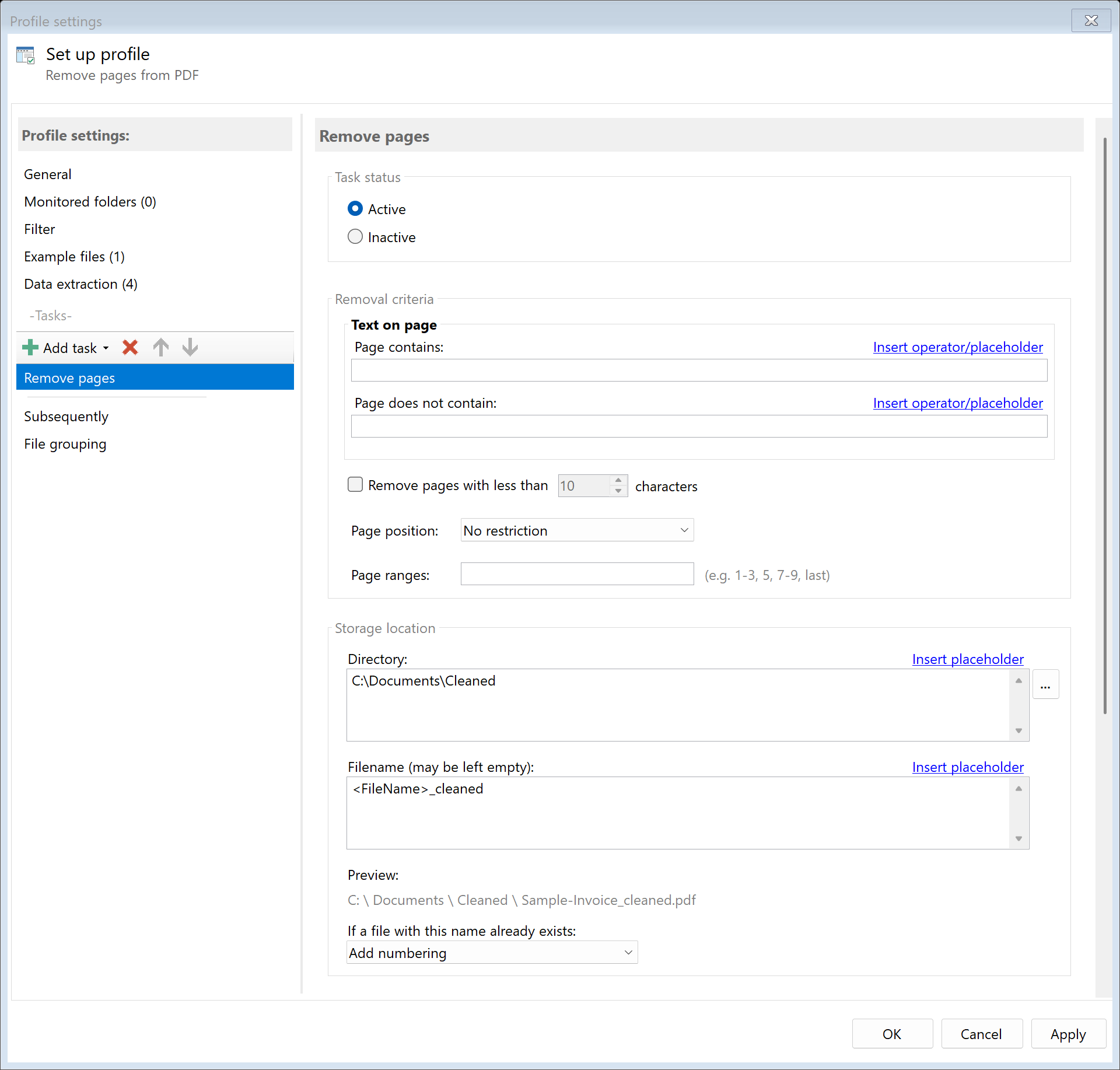 Task: Remove Pages
28.1 Description
The Remove Pages task deletes specific pages from a PDF document. The pages to remove can be determined by various criteria: text content, character count, page numbers, or page ranges.
Typical Use Cases
- Remove Cover Pages: Remove automatically generated cover pages from scans
- Remove Blank Pages: Delete pages with little or no content
- Remove Separator Pages: Remove pages with specific marker text
- Remove Advertising: Delete pages with promotional content from documents
- Standardization: Keep only specific pages (e.g., odd pages)
28.2 General Settings
Enabled
Enable this option so the task is executed for matching PDF files. Disabled tasks are skipped.
28.3 Removal Criteria
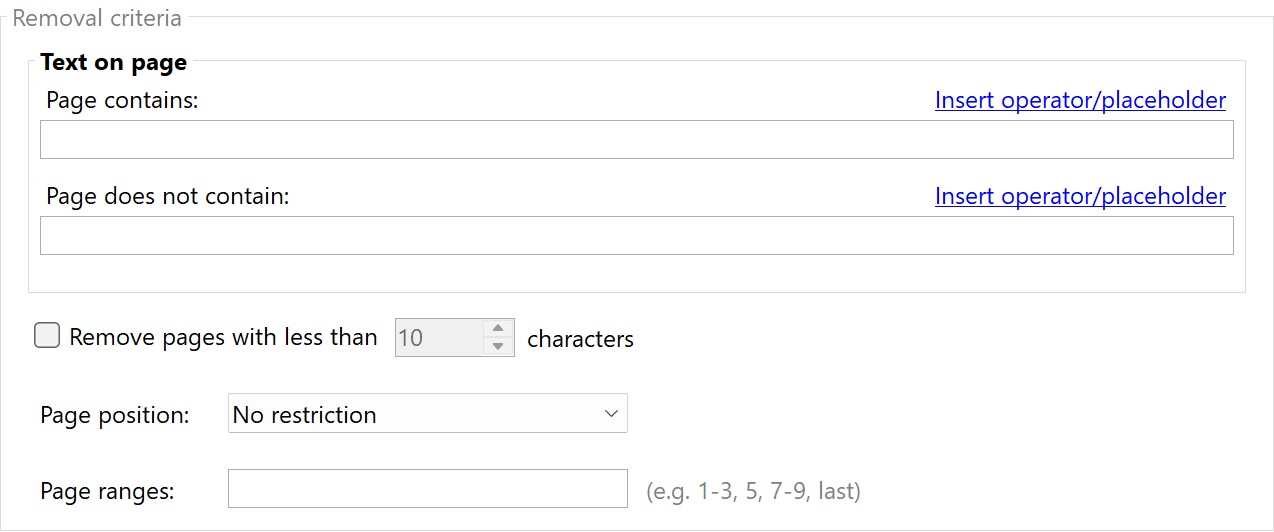 Removal Criteria
You can combine multiple criteria. Pages that match at least one of the enabled criteria will be removed.
Remove Pages with Specific Text
Removes all pages that contain the specified text.
Examples: - SEPARATOR - Removes all pages with the word “SEPARATOR” - Advertising - Removes all pages containing “Advertising”
Remove Pages Without Specific Text
Removes all pages that do not contain the specified text. Useful when you only want to keep pages with specific content.
Example: Invoice - Keeps only pages containing the word “Invoice”.
Remove Pages with Fewer Than X Characters
Enable this option and specify the minimum character count. Pages with fewer characters are removed.
Use Case: Automatically remove blank or nearly blank pages (e.g., only with page number).
| Setting |
Effect |
| 10 characters |
Removes almost empty pages |
| 50 characters |
Removes pages with very little text |
| 100 characters |
Removes pages with little content |
Remove Odd/Even Pages
| Option |
Description |
| None |
No page number-based removal |
| Remove odd pages |
Pages 1, 3, 5, 7… are removed |
| Remove even pages |
Pages 2, 4, 6, 8… are removed |
Use Case: With duplex-scanned documents, blank back pages (e.g., all even pages) can be removed.
Remove Page Ranges
Specify the pages to remove as a range.
Syntax: | Input | Effect | |——-|——–| | 1 | Removes page 1 | | 1-3 | Removes pages 1, 2, and 3 | | 1, 5, 7-9 | Removes pages 1, 5, 7, 8, and 9 | | last | Removes the last page | | last-2 | Removes the last 2 pages |
Examples:
| Input |
For a 10-page PDF |
1 |
Page 1 is removed |
1-3, last |
Pages 1, 2, 3, and 10 are removed |
last-3 |
Pages 8, 9, and 10 are removed |
28.4 Storage Location
Directory
Specify the target directory for the processed PDF file.
Note: It’s recommended to use a separate folder for each processing step to ensure clear separation.
Filename
Set the name for the processed file.
Examples:
| Input |
Result |
| (empty) |
Document.pdf (original name) |
<FileName>_cleaned |
Document_cleaned.pdf |
Name Collisions
Choose what should happen if a file with the target name already exists.
28.5 File Date
Adjust Creation and Modification Date
Optionally, you can change the file date of the processed file.
28.6 Afterwards
Call External Program
After removing pages, an external program can be started automatically.
Parameters: Available placeholders: - <PathIncludingFilename> - Full path of the processed file - <ParentDirectory> - Path of parent folder - <Filename> - Filename
28.7 Example: Remove Cover Pages from Scans
Initial Situation
A scanner automatically adds a cover page with device information that should be removed before archiving.
Configuration
- Enabled: Yes
- Remove Page Ranges:
1
- Directory:
D:\Archive\Cleaned
- Filename:
<FileName>
Result
| Original |
Processed |
Scan_001.pdf (5 pages) |
Scan_001.pdf (4 pages, without cover page) |
28.8 Example: Remove Blank Pages from Scans
Initial Situation
Duplex-scanned documents contain blank back pages that should be removed.
Configuration
- Enabled: Yes
- Remove Pages with Fewer Than X Characters: Yes, 20 characters
- Directory:
D:\Documents\Cleaned
- Filename:
<FileName>
Result
All pages with fewer than 20 characters are automatically removed.
28.9 Example: Remove Separator Pages from Batch Scan
Initial Situation
A batch scan contains separator pages with the text “— SEPARATOR —” that should be removed after splitting.
Configuration
- Enabled: Yes
- Remove Pages with Text:
--- SEPARATOR ---
- Directory:
D:\Documents\Cleaned
- Filename:
<FileName>
Result
All pages containing the separator text are removed.
28.5 Tips and Notes
Combining Criteria
You can enable multiple criteria simultaneously. A page is removed if it matches at least one of the criteria.
Example: “Remove pages with text ‘Advertising’” + “Remove pages with fewer than 50 characters” → Removes both advertising pages and nearly empty pages.
Caution with “Remove Pages Without Text”
The option “Remove pages without specific text” can unintentionally delete many pages. Test this setting carefully with sample files.
At Least One Page
The program ensures that at least one page remains in the document. If all pages would match the removal criteria, the first page is kept.
Order in Task List
Typically place “Remove Pages” before other tasks like Copy or Send Email, so subsequent tasks work with the cleaned document.
Backup Copy
Create a backup copy before removing pages by placing a “Copy File” task before the “Remove Pages” task.