18 Split PDFs
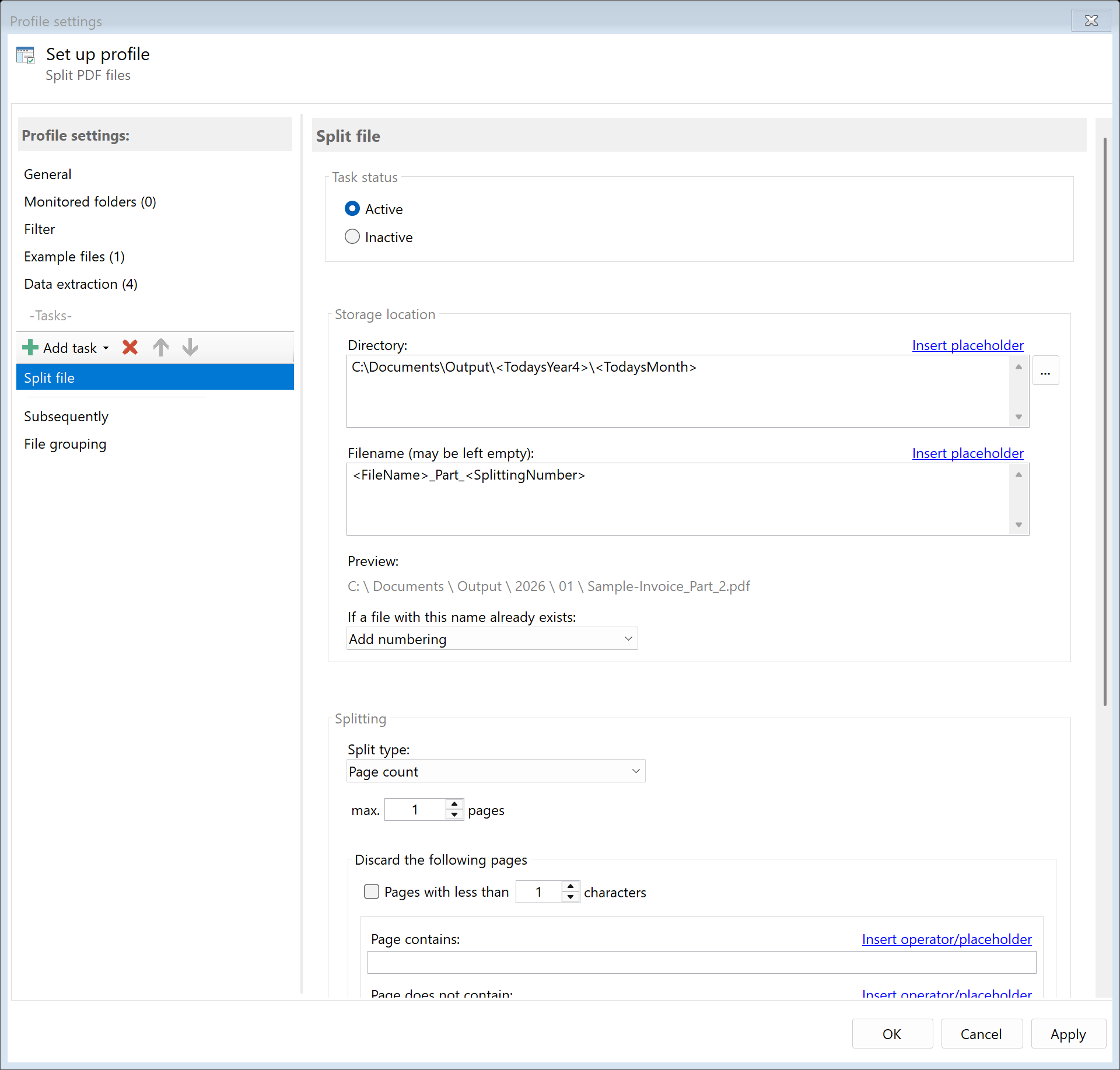 Task: Split PDFs
18.1 Description
The Split PDFs task divides a multi-page PDF document into multiple individual files. Splitting can be done according to various criteria: page count, file size, bookmarks, keywords, barcodes, blank pages, or separator pages.
Typical Use Cases
- Batch Processing: Split large scan files into individual documents
- Invoice Separation: Divide combined PDFs into individual invoices
- Archiving: Save documents by bookmark into separate files
- Form Processing: Split multi-page forms based on separator pages
Important: This task creates new files in the configured target folder. The original file remains unchanged. Further tasks contained in the current profile all refer to the original file. The partial documents created by this task must be further processed with a separate profile that monitors the corresponding output folder if needed.
18.2 General Settings
Enabled
Enable this option so the task is executed for matching PDF files. Disabled tasks are skipped.
18.3 Splitting Method
Choose the criterion by which the PDF should be split:
| Method |
Description |
| Page Count |
Split after a fixed number of pages |
| File Size |
When a certain file size is exceeded |
| Top-Level Bookmarks |
At each bookmark of the top level |
| Keywords |
When certain texts are present or not present on pages |
| Barcode |
Based on QR codes or barcodes |
| Placeholder (Value Change) |
When an extracted value changes |
| Separator Page with Text |
At pages with specific text content |
| Blank Pages |
At blank pages |
18.4 By Page Count
Pages per Document
Specify after how many pages a new partial document should begin.
Example: With a 10-page PDF and setting “3 pages”, the result is: - Partial document 1: Pages 1-3 - Partial document 2: Pages 4-6 - Partial document 3: Pages 7-9 - Partial document 4: Page 10
18.5 By File Size
Maximum File Size (MB)
Specify the maximum size per partial document in megabytes. When adding another page would exceed the limit, a new partial document begins.
Note: Actual size may vary depending on PDF content. The setting is a guideline.
18.6 By Top-Level Bookmarks
With this method, a new partial document is created at each top-level bookmark. This is particularly useful for structured documents like manuals or reports.
Prerequisite: The PDF must contain bookmarks.
Special Placeholder
When splitting by bookmarks, an additional placeholder is available for the filename: - <SplittingBookmarkTitle> - The title of the bookmark
Example: - Filename template: <FileName>_<SplittingBookmarkTitle> - Result: Manual_Chapter1.pdf, Manual_Chapter2.pdf, etc.
18.7 By Keywords
Splits the document when certain texts are found on a page.
Start New Document at Pages With
Enter the text that should trigger a split. When this text is found on a page, a new partial document starts there.
Example: “Invoice No.” - Each page containing this text starts a new document.
Start New Document at Pages Without
Enter text that is not present on separator pages. Useful when separator pages are blank pages or special pages.
End New Document at Pages With
Optional: Text that marks the end of a partial document.
End New Document at Pages Without
Optional: Ends partial document at pages that don’t contain this text.
Trigger Error if Keyword Not Found
Enable this option if processing should fail when the keyword is not found anywhere in the document.
18.8 By Barcode
Splits the document based on QR codes or barcodes.
Select the format of the barcode to recognize: - QR Code - Code 128 - Code 39 - EAN-13, EAN-8 - Data Matrix - PDF417 - Aztec - UPC-A, UPC-E
Image Noise Suppression and Rotation Correction
Determines how thoroughly to search for barcodes: - Low - Fast recognition, lower accuracy - Medium - Balanced setting (default) - High - Thorough search - Very High - Maximum accuracy, slowest processing
Trigger
Choose when a new split should occur:
| Trigger |
Description |
| All Occurrences of Barcode |
At every found barcode |
| Change in Barcode Data |
When barcode content changes |
| Barcode Data with Text |
When barcode contains specific text |
Additional Options
- Skip Pages Before First Valid Barcode - Pages without barcode at the beginning are not included in partial documents
- Skip Pages After Last Valid Barcode - Pages without barcode at the end are not included
- Exclude Separator Pages - Pages with the triggering barcode are not included in partial documents
18.9 By Placeholder (Value Change)
Splits the document when an extracted value changes from page to page.
Select a previously defined extraction rule. When the extracted value changes between two pages, a new partial document begins.
Example: You have a rule “CustomerNumber” that extracts the customer number from each page. With a combined invoice containing pages for different customers, it automatically separates at each new customer number.
Enable this option to skip pages at the beginning where no data can be extracted.
18.10 By Separator Page with Text
Recognizes special separator pages based on defined keywords.
Page Contains
Enter the text present on separator pages (e.g., “— SEPARATOR —”).
Page Does Not Contain
Optional: Text that must not be present on separator pages.
18.11 By Blank Pages
Splits the document at blank pages. A page is considered blank if it contains no text (0 characters).
Use Case: Scanned documents are often separated by blank pages between individual documents.
18.12 Page Exclusion
Timing of Exclusion
- After Splitting - Exclusion rules are applied to partial documents
- Before Splitting - Exclusion rules are applied to the entire document before splitting
Exclude Pages with Less Than X Characters
Removes pages with fewer than the specified character count. Useful for removing blank or separator pages.
Exclude Pages with Text
Excludes pages containing the specified text.
Exclude Pages Without Text
Excludes pages that don’t contain the specified text.
18.13 Source for New Documents
Start Partial Documents with Empty Document
Partial documents are created as new, empty PDFs and only relevant pages are inserted. This is the default setting and creates smaller files.
Partial documents retain the PDF structure and metadata (author, title, etc.) of the original. Choose this option when this information is important.
18.14 Storage Location
Directory
Specify the target directory for partial documents.
Note: It’s recommended to use a separate folder for each processing step to ensure clear separation.
Filename
Set the naming scheme for partial documents. In addition to standard placeholders, special placeholders are available:
| Placeholder |
Description |
Example |
<SplittingNumber> |
Sequential number of partial document |
1, 2, 3, … |
<SplittingNumberWithLeadingZeros{N}> |
Number with leading zeros (N digits) |
001, 002, … |
<SplittingBookmarkTitle> |
Bookmark title (only with bookmark splitting) |
Chapter1 |
Examples:
| Input |
Result |
<FileName>_Part<SplittingNumber> |
Invoice_Part1.pdf, Invoice_Part2.pdf |
<FileName>_<SplittingNumberWithLeadingZeros{3}> |
Invoice_001.pdf, Invoice_002.pdf |
<SplittingBookmarkTitle> |
Introduction.pdf, MainPart.pdf |
Name Collisions
Choose what should happen if a file with the target name already exists:
| Option |
Description |
| Overwrite |
Existing file is replaced |
| Append number |
Adds a number |
| Append date |
Adds processing date |
| Append date and time |
Adds date and time |
| Cancel operation |
Split is not performed |
18.15 File Date
Adjust Creation and Modification Date
Optionally, you can change the file date of partial documents:
| Option |
Description |
| Do not change |
Files automatically receive current date |
| Creation date of original file |
Uses original creation date |
| Modification date of original file |
Uses modification date |
| PDF creation date |
Date from PDF metadata |
| Extracted date |
A date obtained with an extraction rule |
| Current date |
Sets today’s date |
18.16 Afterwards
Call External Program
After splitting, an external program can be started automatically for each partial document.
Program: Path to executable file
Parameters: Command line parameters. Available placeholders: - <PathIncludingFilename> - Full path of partial document - <ParentDirectory> - Path of parent folder - <Filename> - Filename of partial document
18.17 Example: Split Combined Invoice by Customer
Initial Situation
You receive a monthly combined invoice as PDF containing invoices for multiple customers. Each customer invoice starts with the text “Invoice for:”.
Configuration
- Enabled: Yes
- Splitting Method: Keywords
- Start new document at pages with:
Invoice for:
- Directory:
D:\Invoices\Split
- Filename:
Invoice_<SplittingNumber>_<TodaysYear4><TodaysMonth>
- On name collision: Append number
Result
| Original File |
Partial Documents |
CombinedInvoice_December.pdf (30 pages) |
Invoice_1_202412.pdf, Invoice_2_202412.pdf, etc. |
18.18 Example: Split Manual by Chapters
Initial Situation
A manual with bookmarks for each chapter should be split into individual chapter PDFs.
Configuration
- Enabled: Yes
- Splitting Method: Top-Level Bookmarks
- Directory:
D:\Documents\Chapters
- Filename:
<FileName>_<SplittingBookmarkTitle>
- On name collision: Append number
Result
| Bookmark |
Partial Document |
| “Introduction” |
Manual_Introduction.pdf |
| “Chapter 1 - Installation” |
Manual_Chapter 1 - Installation.pdf |
| “Chapter 2 - Configuration” |
Manual_Chapter 2 - Configuration.pdf |
18.5 Tips and Notes
Further Processing of Partial Documents
Created partial documents are in the configured target folder. To process them further (e.g., OCR, renaming, email), create a separate profile that monitors this target folder.
Numbering with Leading Zeros
For better sorting in file manager, use <SplittingNumberWithLeadingZeros{3}> instead of <SplittingNumber>. Files are then sorted correctly: 001, 002, ... 010, 011 instead of 1, 10, 11, 2, 3.
Optimize Barcode Recognition
If barcodes are not reliably recognized: - Increase preprocessing to “High” or “Very High” - Ensure correct barcode format is selected - Enable machine learning for barcode recognition in program options
Remove Separator Pages
To not have separator pages in partial documents: - With barcode splitting: Enable “Exclude separator pages” - With other methods: Use page exclusion with separator page text
Combination of Criteria
If a single criterion is not sufficient, you can apply a second profile with a different splitting method to the partial documents after splitting.
Consider Storage Space
When splitting large PDFs, many individual files are created. Ensure sufficient storage space is available.