20 Save Attachments
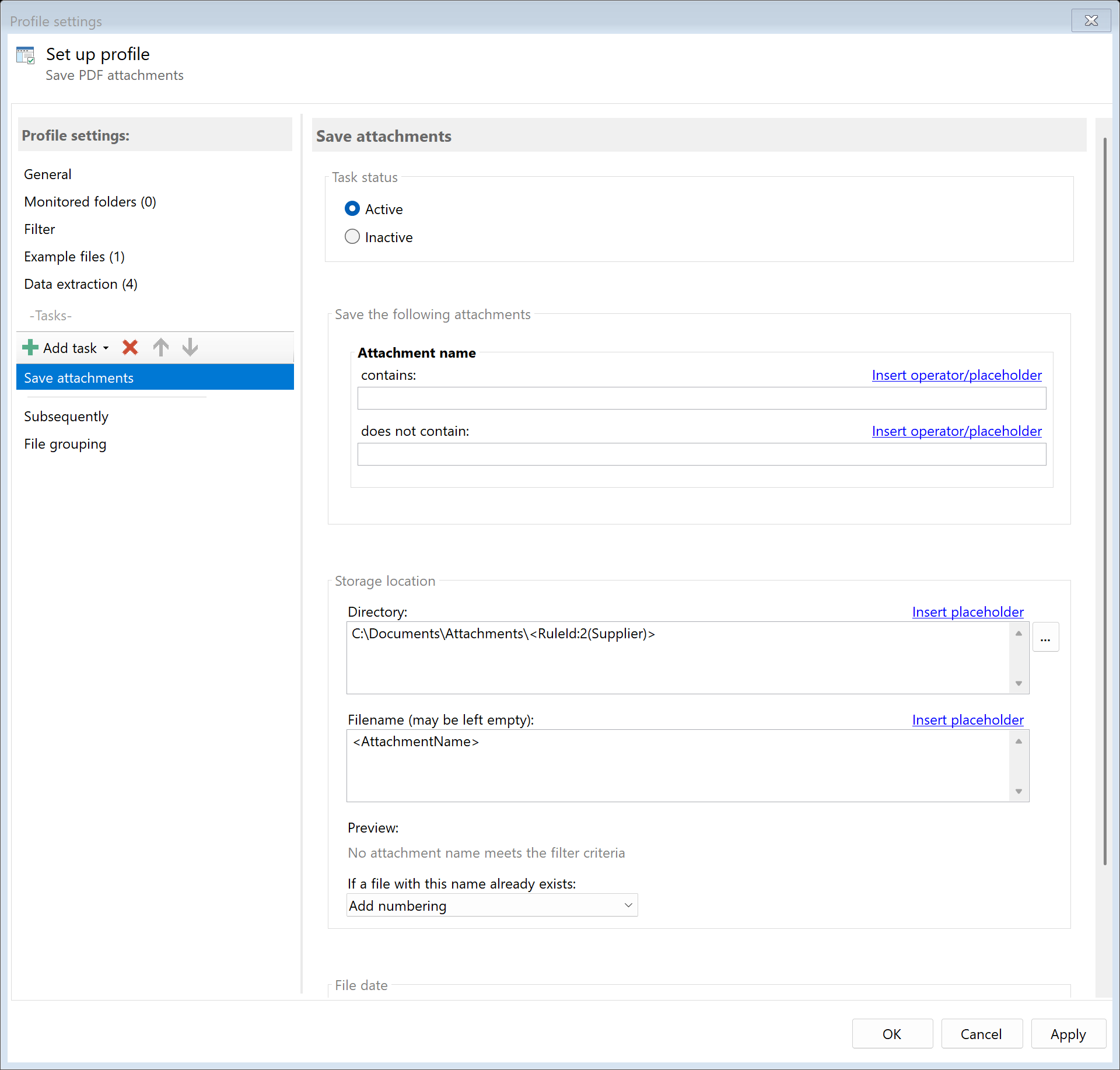 Task: Save Attachments
20.1 Description
The Save Attachments task extracts embedded files from a PDF document and saves them as separate files. PDF attachments can be any file type, such as Excel spreadsheets, Word documents, images, or additional PDFs.
Typical Use Cases
- E-Invoice: Extract XML data from ZUGFeRD/Factur-X invoices
- Document Archiving: Archive attached source files separately
- Data Processing: Extract embedded tables for further processing
- Backup: Save all attachments of a PDF file
20.2 General Settings
Enabled
Enable this option so the task is executed for matching PDF files. Disabled tasks are skipped.
20.3 Attachment Filter
Attachment Name Contains
Enter text that must be contained in the attachment name. Only attachments whose name contains this text are extracted.
Examples: - factur-x - Only ZUGFeRD XML files - .xlsx - Only Excel files - (empty) - All attachments
Attachment Name Does Not Contain
Enter text that must not be contained in the attachment name. Attachments with this text in the name are excluded.
Example: - thumbnail - Exclude preview images - .tmp - Exclude temporary files
Combined Filtering
You can combine both filters: - Contains: .xml - Does Not Contain: metadata
Result: All XML files except metadata files are extracted.
20.4 Storage Location
Directory
Specify the target directory for extracted attachments. You can: - Enter a fixed path (e.g., D:\Attachments) - Select the folder via Browse… - Use placeholders for dynamic folder paths
Examples with Placeholders:
| Input |
Result |
D:\Attachments\<TodaysYear4>\<TodaysMonth> |
D:\Attachments\2024\12 |
D:\Customers\<RuleId:1(Customer)>\Attachments |
D:\Customers\Sample Company Inc\Attachments |
Note: It’s recommended to use a separate folder for each processing step to ensure clear separation.
Filename
The attachment filename is preserved by default. However, you can set a custom name:
- Leave field empty (original attachment name is used)
- Enter a fixed name
- Use placeholders for dynamic names
Note: When multiple attachments exist and you use a fixed name, files are handled according to the selected name collision option.
Name Collisions
Choose what should happen if a file with the target name already exists:
| Option |
Description |
| Overwrite |
Existing file is replaced |
| Append number |
Adds a number: Attachment.pdf, Attachment(1).pdf |
| Append date |
Adds processing date |
| Append date and time |
Adds date and time |
| Cancel operation |
Attachment is not saved |
20.5 File Date
Adjust Creation and Modification Date
Optionally, you can change the file date of extracted attachments:
| Option |
Description |
| Do not change |
File automatically receives current date |
| Creation date of original file |
Uses PDF’s creation date |
| Modification date of original file |
Uses PDF’s modification date |
| PDF creation date |
Date from PDF metadata |
| Extracted date |
A date obtained with an extraction rule |
| Current date |
Sets today’s date |
20.6 Afterwards
Call External Program
After saving each attachment, an external program can be started automatically.
Program: Path to executable file
Parameters: Command line parameters. Available placeholders: - <PathIncludingFilename> - Full path of attachment - <ParentDirectory> - Path of parent folder - <Filename> - Filename of attachment
Example: Automatically open extracted Excel file: - Program: cmd.exe - Parameters: /c start "" "<PathIncludingFilename>"
Initial Situation
You receive electronic invoices in ZUGFeRD format. These contain an embedded XML file with structured invoice data that you want to extract for your accounting software.
Configuration
- Enabled: Yes
- Attachment name contains:
factur-x or zugferd
- Attachment name does not contain: (empty)
- Directory:
D:\ZUGFeRD\XML
- Filename:
<RuleId:1(InvoiceNo)>.xml
- On name collision: Append number
Result
| PDF File |
Extracted Attachment |
Invoice_2024001.pdf (contains factur-x.xml) |
D:\ZUGFeRD\XML\2024001.xml |
Initial Situation
You receive PDF documents with various embedded files (images, tables, additional PDFs) that should all be extracted.
Configuration
- Enabled: Yes
- Attachment name contains: (empty - all attachments)
- Attachment name does not contain: (empty)
- Directory:
D:\Extracted\<FileName>
- Filename: (empty - keep original names)
- On name collision: Append number
Result
For each PDF, a subfolder with the PDF name is created containing all extracted attachments:
D:\Extracted\
├── Report2024\
│   ├── Table.xlsx
│   ├── Chart.png
│   └── SourceData.csv
└── Presentation\
    ├── Logo.png
    └── Notes.docx
20.5 Tips and Notes
No Attachments Present
If a PDF contains no attachments, the task is skipped without error. Simply no files are extracted.
Check Attachments
To check if a PDF contains attachments: 1. Open PDF in a PDF viewer 2. Look for a paperclip symbol or attachments section 3. Or use the “Attachment count” filter in profile settings
Filtering with Regular Expressions
The “Attachment name contains” and “Attachment name does not contain” fields support regular expressions: - <BeginOfRegex>.*\.xml$<EndOfRegex> - All files with .xml extension
Combine with Other Tasks
Typical combinations: 1. Save Attachments + Copy File: Archive invoice and extract XML 2. Save Attachments + Send Email: Send XML to accounting 3. Save Attachments + Rename File: Rename PDF based on extracted data
ZUGFeRD/Factur-X Standard
For ZUGFeRD/Factur-X invoices, the embedded XML file is typically named: - factur-x.xml (Factur-X) - zugferd-invoice.xml (ZUGFeRD 1.0) - xrechnung.xml (XRechnung)
File Types
PDF attachments can have any file type. The task extracts files unchanged. The file extension is preserved.