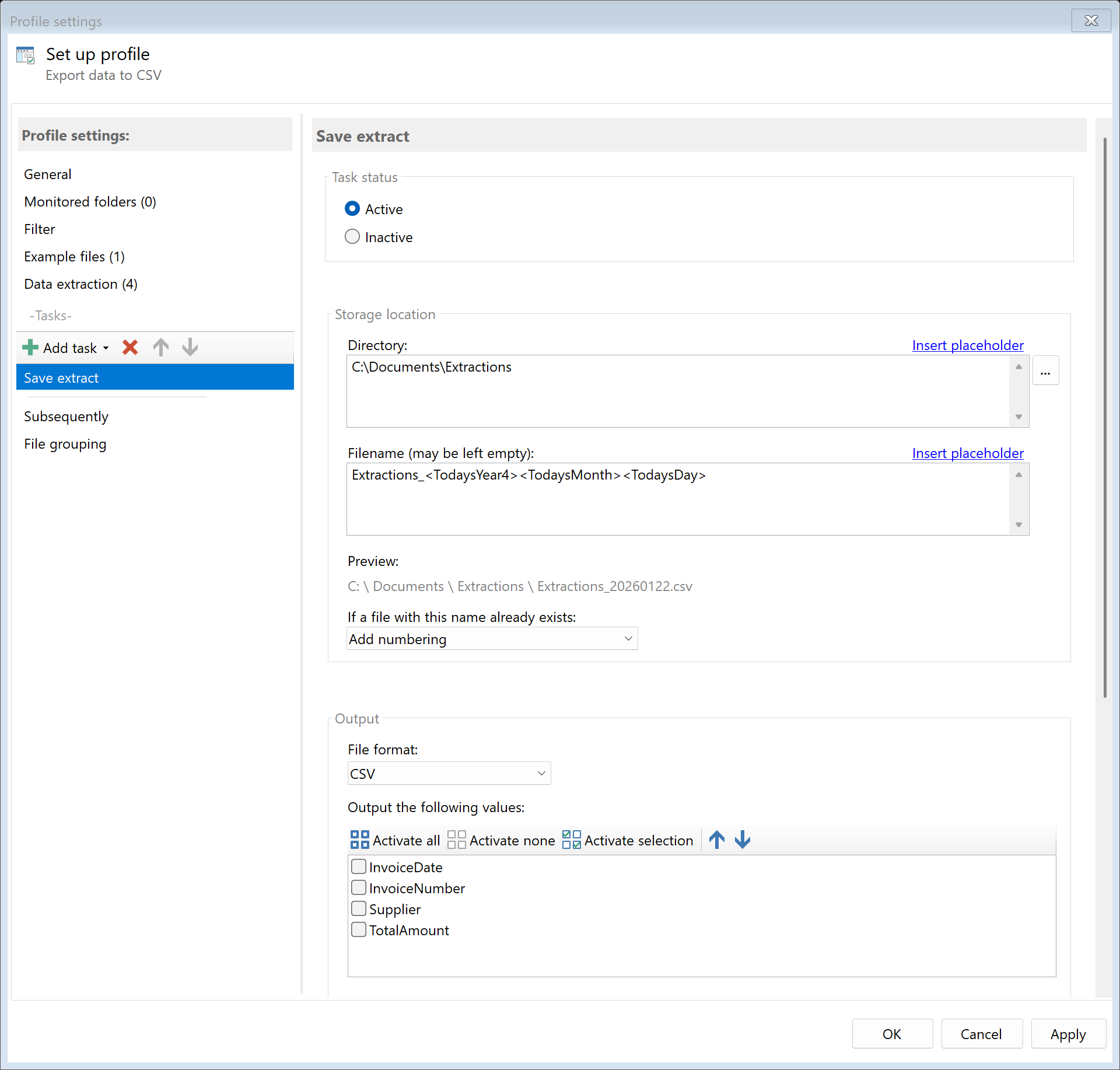
 Task: Save Extractions
21.1 Description
The Save Extractions task exports data obtained with extraction rules to an external file. Currently CSV format is supported, which can be imported by virtually all applications.
Typical Use Cases
- Accounting: Export invoice data (number, date, amount) for import into accounting software
- Document Management: Transfer metadata for indexing to a DMS
- Data Collection: Collect extracted information in a central table
- Automation: Provide structured data for subsequent processing steps
21.2 General Settings
Enabled
Enable this option so the task is executed for matching PDF files. Disabled tasks are skipped.
21.3 Rules to Export
Rule Selection
Select the extraction rules whose values should be written to the file. Each selected rule is represented as a separate column in the CSV file.
Note: Only rules defined in the profile that extract data can be exported. The order of rules in the selection determines the column order in the CSV file.
21.4 CSV Settings
Delimiter
The character that separates individual values (columns). By default, the system’s list separator is used.
| Delimiter |
Description |
, (Comma) |
International standard |
; (Semicolon) |
German standard, recommended for German Excel versions |
\t (Tab) |
For TAB-delimited files |
Tip: Use ; if you want to open the file with German Excel versions.
Column Headers
Enable this option to output extraction rule names as column headers in the first row.
Example with column headers:
InvoiceNumber;Date;Amount
INV-12345;12/15/2024;1250.00
INV-12346;12/16/2024;890.50
Example without column headers:
INV-12345;12/15/2024;1250.00
INV-12346;12/16/2024;890.50
Collection File
Enable this option to collect all extracted data in one shared file. New records are appended at the end of the file.
- Enabled: All PDFs write to the same CSV file (one row per PDF)
- Disabled: Each PDF creates a separate CSV file
Use Case: You process multiple invoices daily and want to collect all data in a single overview file.
Expand Multi-Line Values
When an extraction rule returns multi-line values (e.g., multiple line items of an invoice), you can specify how these are handled:
- Don’t expand (default): Multi-line text stays in one cell
- Select rule: Multi-line value is split into separate CSV rows (with repetition of other column values)
Example: An invoice with 3 line items - Without expansion: Item 1↵Item 2↵Item 3 in one cell - With expansion: 3 separate rows in CSV
21.5 Character Encoding
Select the character encoding for the output file:
| Encoding |
Description |
Recommended For |
| ANSI |
Windows standard encoding |
Older applications |
| UTF-8 |
Unicode without BOM |
Web, modern applications |
| UTF-8 with BOM |
Unicode with Byte Order Mark |
Excel (recommended) |
| UTF-16 LE/BE |
16-bit Unicode |
Special applications |
| ASCII |
Standard characters only |
Legacy systems |
Recommendation: Use “UTF-8 with BOM” for best compatibility with Excel and special characters.
21.6 Storage Location
Directory
Specify the target directory for the CSV file.
Note: It’s recommended to use a separate folder for each processing step to ensure clear separation.
Filename
Set the name for the CSV file.
Examples:
| Input |
Result |
Export |
Export.csv |
<TodaysYear4>-<TodaysMonth>-<TodaysDay>_Invoices |
2024-12-15_Invoices.csv |
<FileName>_Data |
Invoice123_Data.csv |
For collection file: Use a fixed name or date placeholder for daily/monthly files.
Name Collisions
Choose what should happen if a file with the target name already exists:
| Option |
Description |
| Overwrite |
Existing file is replaced |
| Append number |
Adds a number |
| Append date |
Adds processing date |
| Append date and time |
Adds date and time |
| Cancel operation |
File is not written |
For collection file: This setting only applies to new files. With collection file enabled, new rows are always appended.
21.7 File Date
Adjust Creation and Modification Date
Optionally, you can change the file date of the CSV file:
| Option |
Description |
| Do not change |
File automatically receives current date |
| Creation date of original file |
Uses PDF’s creation date |
| Modification date of original file |
Uses PDF’s modification date |
| PDF creation date |
Date from PDF metadata |
| Extracted date |
A date obtained with an extraction rule |
| Current date |
Sets today’s date |
21.8 Afterwards
Call External Program
After saving, an external program can be started automatically.
Program: Path to executable file
Parameters: Command line parameters. Available placeholders: - <PathIncludingFilename> - Full path of CSV file - <ParentDirectory> - Path of parent folder - <Filename> - Filename of CSV file
21.9 Example: Export Invoice Data for Accounting
Initial Situation
Incoming invoices should be automatically processed. Invoice data (number, date, supplier, amount) should be exported to a CSV file that is imported monthly into accounting software.
Prerequisites
Extraction rules defined for: - Rule 1: “InvoiceNumber” - Rule 2: “InvoiceDate” - Rule 3: “Supplier” - Rule 4: “GrossAmount”
Configuration
- Enabled: Yes
- Selected Rules: All four rules
- Delimiter:
;
- Column Headers: Yes
- Collection File: Yes
- Character Encoding: UTF-8 with BOM
- Directory:
D:\Accounting\Import
- Filename:
Invoices_<TodaysYear4>-<TodaysMonth>
Result
All invoices processed in December 2024 are collected in one file:
File: D:\Accounting\Import\Invoices_2024-12.csv
InvoiceNumber;InvoiceDate;Supplier;GrossAmount
INV-12345;12/15/2024;Sample Company Inc;1250.00
INV-12346;12/16/2024;Smith Corp;890.50
INV-12347;12/17/2024;Example Ltd;2100.00
21.10 Example: Individual CSV per PDF
Initial Situation
Each processed invoice should have its own CSV file with extracted data to add as companion file to a document management system.
Configuration
- Enabled: Yes
- Selected Rules: All relevant rules
- Collection File: No
- Directory:
D:\Archive\<TodaysYear4>\<TodaysMonth>
- Filename:
<FileName>
Result
| PDF File |
CSV File |
Invoice_12345.pdf |
D:\Archive\2024\12\Invoice_12345.csv |
Invoice_12346.pdf |
D:\Archive\2024\12\Invoice_12346.csv |
21.6 Tips and Notes
Special Characters in Values
If extracted values contain the delimiter (e.g., , in an amount), values are automatically enclosed in quotation marks:
"Sample, Company Inc";12/15/2024;1250.00
Empty Values
If an extraction rule returns no value for a specific PDF, an empty field is written:
INV-12345;;Sample Company Inc;1250.00
(Here the date is missing)
Column Order
Column order in the CSV file corresponds to the order of selected rules. Change the selection order to adjust column order.
Excel Import
For trouble-free import into Excel: 1. Use ; as delimiter (for German Excel version) or , (for English version) 2. Choose UTF-8 with BOM as encoding 3. Enable column headers
Combination with Other Tasks
The “Save Extractions” task combines well with other tasks: 1. Rename File: Rename PDF based on extracted data 2. Copy File: Copy PDF to archive 3. Save Extractions: Export data for import 4. Send Email: Send notification with extracted data