24 Compress PDF
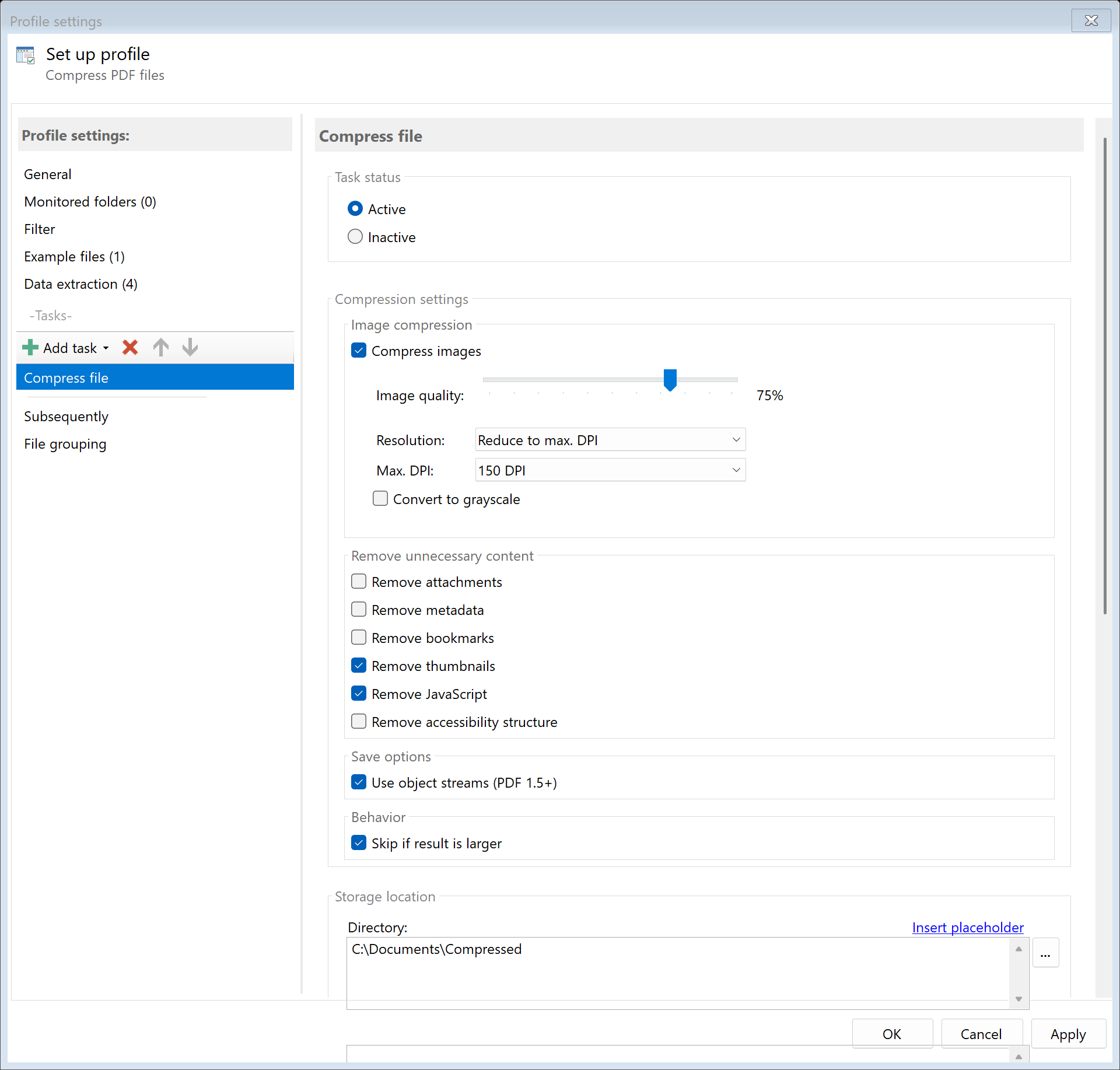 Task: Compress PDF
24.1 Description
The Compress PDF task reduces the file size of PDF documents by optimizing contained images and removing unnecessary elements. This is particularly useful for archiving or emailing large files.
Typical Use Cases
- Email Sending: Reduce large PDFs for attachments
- Archiving: Save storage space for long-term archiving
- Web Upload: Optimize files for online portals
- Scan Optimization: Reduce oversized scan files
Important: This task creates a new file in the configured target folder. The original file remains unchanged. Further tasks contained in the current profile all refer to the original file. The compressed PDF must be further processed with a separate profile that monitors the corresponding output folder if needed.
24.2 General Settings
Enabled
Enable this option so the task is executed for matching PDF files. Disabled tasks are skipped.
24.3 Image Compression
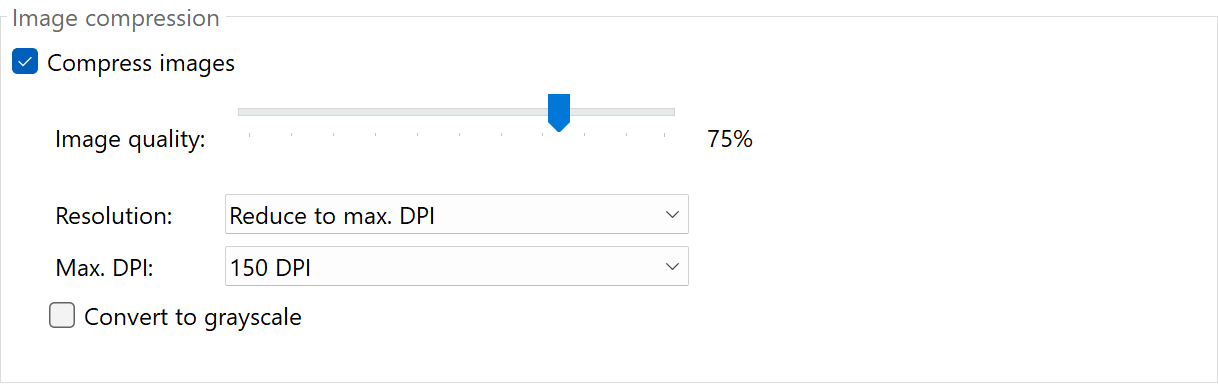 Image Compression
Image Quality
Set the JPEG quality for compressed images (1-100).
| Value |
Description |
| 90-100 |
High quality, low compression |
| 70-89 |
Good balance (recommended) |
| 50-69 |
Medium quality, significant compression |
| 1-49 |
Low quality, maximum compression |
Reduce Image Resolution
Enable this option to reduce the resolution of images.
Maximum DPI
The target resolution for images. Images with higher resolution will be downscaled.
| DPI |
Recommended for |
| 300 |
High-quality prints |
| 150-200 |
Screen display, standard archiving |
| 96-120 |
Screen viewing only, maximum compression |
Convert to Grayscale
Converts color images to grayscale. This significantly reduces file size but removes color information.
Use Case: Black and white documents like invoices or contracts where color is not relevant.
24.4 Remove Elements
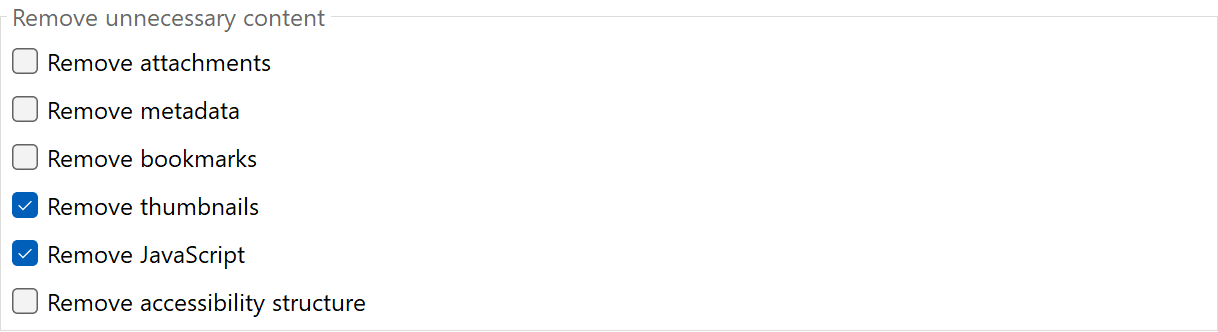 Remove Content
Removes PDF metadata such as author, title, subject, creation date.
Note: Only enable this option if the metadata is not needed.
Remove Attachments
Removes embedded files from the PDF.
Remove Bookmarks
Removes the table of contents (bookmarks).
Remove Thumbnails
Removes embedded page thumbnails.
Remove JavaScript Actions
Removes JavaScript code from the PDF (also increases security).
Remove Logical Structure
Removes structure information for accessibility.
Note: Do not enable if the PDF needs to be accessible.
24.5 Additional Options
 Behavior
Skip if Result is Larger
Enable this option to discard the compressed file if it’s larger than the original. In this case, no output file is created.
Recommendation: This option should be enabled to avoid unintended file enlargement.
Use Object Streams
Optimizes internal PDF storage. Can further reduce file size.
24.6 Storage Location
Directory
Specify the target directory for the compressed file.
Note: It’s recommended to use a separate folder for each processing step to ensure clear separation.
Filename
Set the name for the compressed file.
Examples:
| Input |
Result |
| (empty) |
Document.pdf (original name) |
<FileName>_compressed |
Document_compressed.pdf |
Name Collisions
Choose what should happen if a file with the target name already exists.
24.7 File Date
Adjust Creation and Modification Date
Optionally, you can change the file date of the compressed file.
24.8 Afterwards
Call External Program
After compression, an external program can be started automatically.
Parameters: Available placeholders: - <PathIncludingFilename> - Full path of the compressed file - <ParentDirectory> - Path of parent folder - <Filename> - Filename of the compressed file
24.9 Example: Optimize Scan Files for Archiving
Initial Situation
Your scanner creates high-resolution PDFs with 5-10 MB per page. A lower quality is sufficient for archiving.
Configuration
- Enabled: Yes
- Image Quality: 75
- Reduce Image Resolution: Yes
- Maximum DPI: 150
- Remove Thumbnails: Yes
- Skip if Larger: Yes
- Directory:
D:\Archive\Compressed
- Filename:
<FileName>
Result
| Original |
Compressed |
Savings |
| 8.5 MB |
1.2 MB |
85% |
24.5 Tips and Notes
Quality vs. File Size
Find the right balance for your use case: - Archiving: Higher quality (80-90) for long-term readability - Email: Medium quality (60-75) for smaller attachments - Quick View: Lower quality (40-60) for temporary files
Already Compressed PDFs
With already heavily compressed PDFs, recompression can even increase the file size. Enable “Skip if Result is Larger”.
Text PDFs vs. Image PDFs
- Text PDFs: Less compression potential, as text is already efficiently stored
- Image PDFs (Scans): Large savings possible through image compression
Further Processing
The compressed PDF is in the configured target folder. Create a separate profile for further processing if needed.