22 Use Template
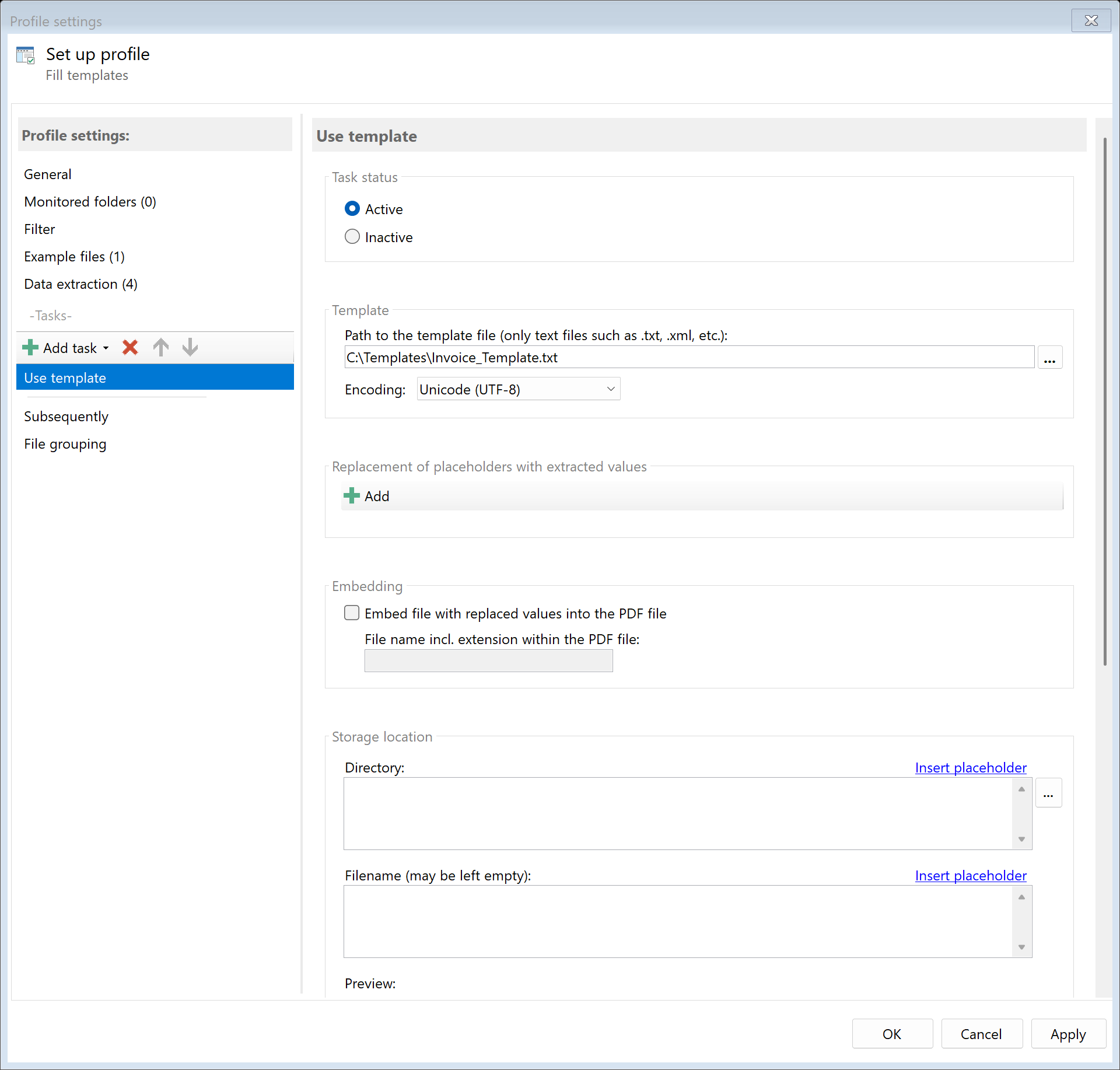 Task: Use Template
22.1 Description
The Use Template task fills a text template with extracted data and saves the result as a separate file. The placeholders in the template are replaced with actual values from the PDF.
Typical Use Cases
- Cover Letters: Automatically generated letters with invoice data
- Data Export: Create XML or JSON files with extracted values
- Reports: Generate structured text files for other systems
- Index Files: Metadata files for document management systems
22.2 General Settings
Enabled
Enable this option so the task is executed for matching PDF files. Disabled tasks are skipped.
22.3 Template
 Template Path
Template File
Specify the path to the template file. The template is a text file (e.g., .txt, .xml, .json) that contains placeholders.
Supported File Types: All text-based files
Character Encoding
Select the encoding of the template file:
| Encoding |
Description |
| ANSI |
Windows standard encoding |
| UTF-8 |
Unicode (recommended) |
| UTF-8 with BOM |
Unicode with Byte Order Mark |
| UTF-16 |
16-bit Unicode |
22.4 Replacements
 Replacements
Define Replacement Pairs
For each placeholder in the template, define a replacement pair:
- Search Term: The text in the template to be replaced (e.g.,
[INVOICENO])
- Extraction Rule: The rule whose value will be inserted
Example Template:
<?xml version="1.0"?>
<Invoice>
    <Number>[INVOICENO]</Number>
    <Date>[DATE]</Date>
    <Amount>[AMOUNT]</Amount>
    <Customer>[CUSTOMER]</Customer>
</Invoice>
Replacement Pairs: | Search Term | Extraction Rule | |————-|—————–| | [INVOICENO] | Rule “InvoiceNumber” | | [DATE] | Rule “InvoiceDate” | | [AMOUNT] | Rule “GrossAmount” | | [CUSTOMER] | Rule “CustomerName” |
22.5 Embedding (optional)
 Embed
Embed
Embed File in PDF
Enable this option to embed the generated file as an attachment in the PDF.
Embedding Filename
Specify the name under which the file should be displayed in the PDF.
Use Case: You create an XML file with structured invoice data and want to make it directly available in the PDF, similar to ZUGFeRD invoices.
22.6 Storage Location
Directory
Specify the target directory for the generated file.
Note: It’s recommended to use a separate folder for each processing step to ensure clear separation.
Filename
Set the name for the output file. The file extension should match the content (e.g., .xml, .json, .txt).
Name Collisions
Choose what should happen if a file with the target name already exists:
| Option |
Description |
| Overwrite |
Existing file is replaced |
| Append number |
Adds a number |
| Append date |
Adds processing date |
| Cancel operation |
File is not created |
22.7 File Date
Adjust Creation and Modification Date
Optionally, you can change the file date of the generated file.
22.8 Afterwards
Call External Program
After creating the file, an external program can be started automatically.
Parameters: Available placeholders: - <PathIncludingFilename> - Full path of the generated file - <ParentDirectory> - Path of parent folder - <Filename> - Filename of the generated file
22.9 Example: XML File for Accounting System
Initial Situation
Your accounting system expects an XML import in a specific format.
Template File (invoice_template.xml):
<?xml version="1.0" encoding="UTF-8"?>
<AccountingImport>
    <Document>
        <DocNo>%%DOCNO%%</DocNo>
        <Date>%%DATE%%</Date>
        <Supplier>%%SUPPLIER%%</Supplier>
        <Net>%%NET%%</Net>
        <Tax>%%TAX%%</Tax>
        <Gross>%%GROSS%%</Gross>
    </Document>
</AccountingImport>
Configuration
- Template File:
C:\Templates\invoice_template.xml
- Replacements: All 6 placeholders linked with corresponding rules
- Directory:
D:\Import\Accounting
- Filename:
<RuleId:1(DocNo)>.xml
Result
For an invoice with document number “INV-2024001”:
<?xml version="1.0" encoding="UTF-8"?>
<AccountingImport>
    <Document>
        <DocNo>INV-2024001</DocNo>
        <Date>12/15/2024</Date>
        <Supplier>Sample Company Inc</Supplier>
        <Net>1050.42</Net>
        <Tax>199.58</Tax>
        <Gross>1250.00</Gross>
    </Document>
</AccountingImport>
22.6 Tips and Notes
Use unique placeholders that won’t accidentally appear in regular text: - Good: [INVOICENO], %%DATE%%, {{CUSTOMER}} - Bad: Date, No (could appear in text)
Special Characters in XML
If extracted values contain XML special characters (<, >, &), they must be cleaned or escaped in the extraction rules.
Multiple Replacements
You can define any number of replacement pairs. Each pair is processed independently.
Empty Values
If an extraction rule returns no value, the placeholder is replaced with an empty string.