30 Insert Barcode
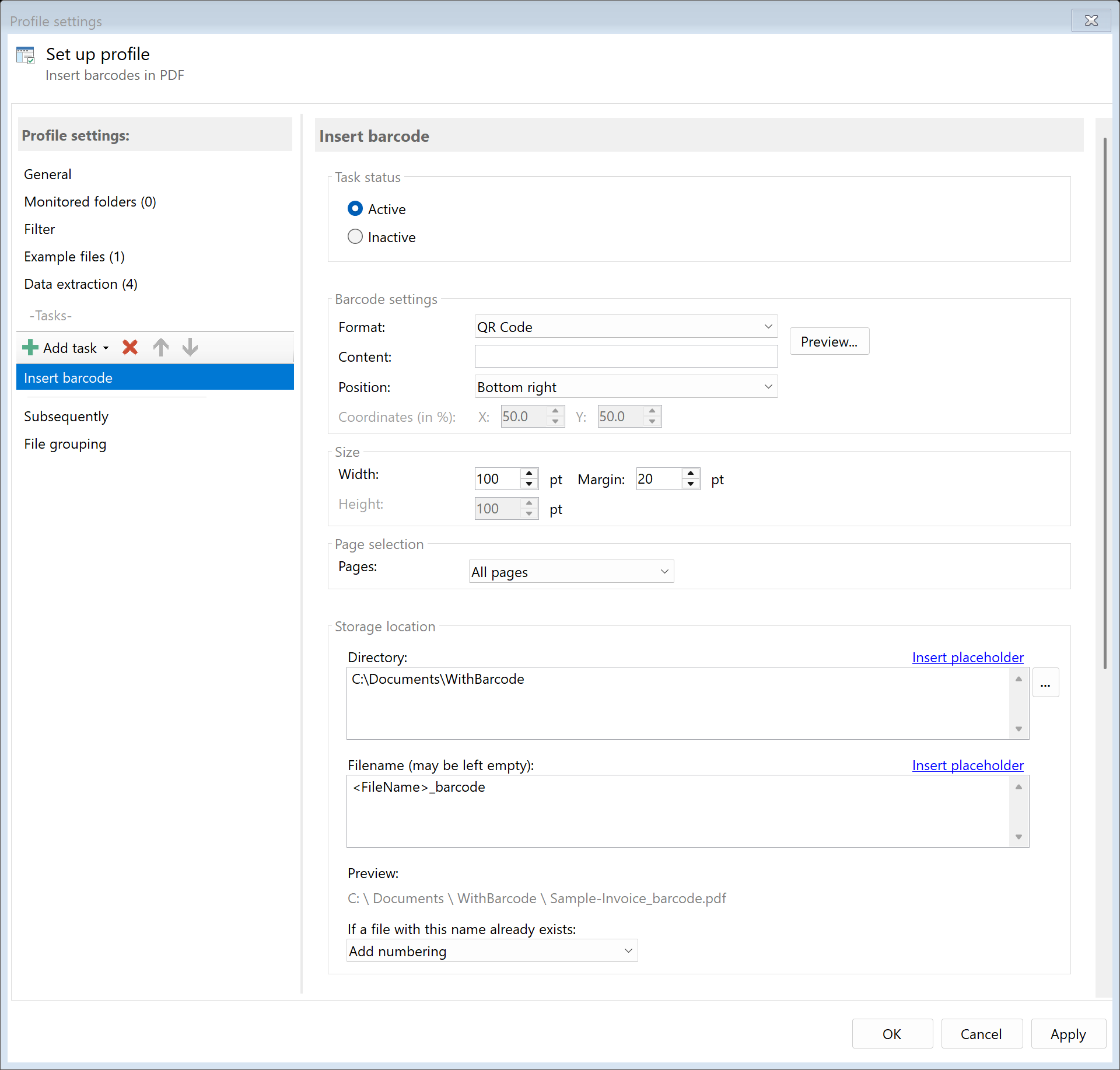 Task: Insert Barcode
30.1 Description
The Insert Barcode task adds QR codes or barcodes to PDF documents. The barcode content can be dynamically generated from extracted data or placeholders.
Typical Use Cases
- Document Identification: Unique ID as QR code for quick retrieval
- Archive Reference: Barcode with archive number for DMS integration
- Tracking: Shipment numbers or transaction numbers as scannable code
- Automation: Barcode for subsequent automatic processing
- Inventory: Article or document numbers as scannable code
30.2 General Settings
Enabled
Enable this option so the task is executed for matching PDF files. Disabled tasks are skipped.
 Barcode Settings
Select the desired barcode format:
| Format |
Description |
Capacity |
Application |
| QR Code |
Square 2D code |
Up to 4,296 characters |
URLs, text, contact data |
| DataMatrix |
Compact 2D code |
Up to 2,335 characters |
Industrial applications |
| PDF417 |
Stacked 2D code |
Up to 1,850 characters |
ID cards, transportation |
| Aztec |
Compact 2D code |
Up to 3,832 characters |
Transport tickets |
| Format |
Description |
Character Set |
Application |
| Code 128 |
Alphanumeric |
A-Z, a-z, 0-9, special characters |
General, logistics |
| Code 39 |
Alphanumeric |
A-Z, 0-9, some special characters |
Industry, military |
| EAN-13 |
13 digits |
Digits only |
Retail (Europe) |
| EAN-8 |
8 digits |
Digits only |
Small products |
| UPC-A |
12 digits |
Digits only |
Retail (USA) |
| UPC-E |
8 digits |
Digits only |
Small products (USA) |
| Use Case |
Recommended Format |
| URLs or longer texts |
QR Code |
| Short alphanumeric codes |
Code 128 |
| Numbers only |
EAN-13 or Code 128 |
| Maximum density |
DataMatrix |
| High error tolerance |
QR Code, Aztec |
30.4 Barcode Content
Content
Enter the content to be encoded in the barcode. Placeholders are supported.
Examples:
| Input |
Result |
https://company.com/doc/<FileName> |
https://company.com/doc/Invoice_001.pdf |
<RuleId:1(InvoiceNo)> |
INV-2024-12345 |
DOC-<TodaysYear4><TodaysMonth><TodaysDay>-<FileName> |
DOC-20241215-Invoice_001 |
INV:<RuleId:1(CustomerNo)>:<RuleId:2(Amount)> |
INV:CU-123:1,234.56 |
Placeholders
All standard placeholders can be used: - <FileName> - Filename without extension - <TodaysDate> - Current date - <TodaysYear4>, <TodaysMonth>, <TodaysDay> - Date parts - <RuleId:N(RuleName)> - Extracted data from rules - <FileCreatedDate>, <FileModifiedDate> - File dates
Character Restrictions
Note the character restrictions of different formats:
| Format |
Allowed Characters |
| QR Code |
All characters (Unicode) |
| Code 128 |
ASCII (0-127) |
| Code 39 |
A-Z, 0-9, -, ., $, /, +, %, space |
| EAN/UPC |
Digits only (fixed length) |
30.5 Position
Select the position of the barcode on the page:
| Position |
Description |
| Top left |
Left upper corner |
| Top center |
Top edge, centered |
| Top right |
Right upper corner |
| Middle left |
Left edge, vertically centered |
| Middle center |
Page center |
| Middle right |
Right edge, vertically centered |
| Bottom left |
Left lower corner |
| Bottom center |
Bottom edge, centered |
| Bottom right |
Right lower corner (Default) |
| Custom |
Free positioning in percent |
Custom Position
When selecting “Custom”, you can specify X and Y coordinates in percent: - X Position: 0% (left) to 100% (right) - Y Position: 0% (top) to 100% (bottom)
30.6 Size
 Size
Size
Width and Height
Set the size of the barcode in points:
| Setting |
Default |
Description |
| Width |
100 pt |
Width of the barcode |
| Height |
100 pt |
Height of the barcode |
Note: For square 2D formats (QR Code, DataMatrix, Aztec), the width is automatically used as height to achieve a square result.
Size Recommendations
| Format |
Recommended Size |
| QR Code |
80-150 pt (square) |
| DataMatrix |
60-120 pt (square) |
| Code 128 |
150-250 pt wide, 50-80 pt high |
| EAN-13 |
100-150 pt wide, 50-70 pt high |
Margin
The distance from the page edge in points (Default: 20 pt). This value determines the minimum distance between barcode and page edge.
30.7 Page Selection
 Page Selection
Determine on which pages the barcode should be inserted:
| Selection |
Description |
| All pages |
On every page of the document |
| First page |
Only on the first page |
| Last page |
Only on the last page |
| Page range |
Specific pages or ranges |
| Pages with text |
Pages containing specific text |
| Pages without text |
Pages not containing specific text |
Page Range
Specify pages as a range:
| Input |
Effect |
1 |
Only page 1 |
1-3 |
Pages 1, 2, and 3 |
1, 3, 5 |
Pages 1, 3, and 5 |
last |
Only the last page |
last-2 |
The last 2 pages |
30.8 Storage Location
Directory
Specify the target directory for the processed PDF file.
Note: It’s recommended to use a separate folder for each processing step to ensure clear separation.
Filename
Set the name for the processed file.
Examples:
| Input |
Result |
| (empty) |
Document.pdf (original name) |
<FileName>_barcode |
Document_barcode.pdf |
Name Collisions
Choose what should happen if a file with the target name already exists.
30.9 File Date
Adjust Creation and Modification Date
Optionally, you can change the file date of the processed file.
30.10 Afterwards
Call External Program
After inserting the barcode, an external program can be started automatically.
Parameters: Available placeholders: - <PathIncludingFilename> - Full path of the processed file - <ParentDirectory> - Path of parent folder - <Filename> - Filename
30.11 Example: QR Code with Archive Link
Initial Situation
Archived documents should receive a QR code that links directly to the document in the company intranet.
Configuration
- Enabled: Yes
- Barcode Format: QR Code
- Content:
https://archive.company.com/doc/<RuleId:1(ArchiveNo)>
- Position: Bottom right
- Width: 80
- Margin: 15
- Page Selection: First page
- Directory:
D:\Archive\With-QR
- Filename:
<FileName>
Result
| Original |
Processed |
Invoice_001.pdf |
Invoice_001.pdf (with QR code to https://archive.company.com/doc/A-2024-001234 on page 1) |
30.12 Example: Barcode with Invoice Number
Initial Situation
Incoming invoices should receive a Code 128 barcode with the invoice number to enable scanning in the accounting system.
Configuration
- Enabled: Yes
- Barcode Format: Code 128
- Content:
<RuleId:1(InvoiceNo)>
- Position: Top right
- Width: 180
- Height: 50
- Margin: 20
- Page Selection: First page
- Directory:
D:\Invoices\Scanned
- Filename:
<FileName>
Result
The first page contains a scannable barcode with the invoice number (e.g., “INV-2024-12345”).
30.13 Example: Tracking Code on All Pages
Initial Situation
Multi-page contracts should have a unique tracking code on each page.
Configuration
- Enabled: Yes
- Barcode Format: QR Code
- Content:
CONTRACT:<RuleId:1(ContractNo)>:P<PageNumber>
- Position: Bottom left
- Width: 60
- Margin: 10
- Page Selection: All pages
- Directory:
D:\Contracts\Tracking
Result
Each page contains a QR code with the contract number and page number (e.g., “CONTRACT:C-2024-001:P1”, “CONTRACT:C-2024-001:P2”, etc.).
30.6 Tips and Notes
Ensuring Scannability
For optimal scannability: - Size: QR codes should be at least 60-80 pt - Contrast: Black barcode on white background - Margin: Sufficient white space around the barcode (quiet zone) - Position: Don’t place over existing text or in the fold zone
| Data Volume |
Recommendation |
| Short number sequence (< 20 characters) |
Code 128 or QR Code |
| Medium text length (20-100 characters) |
QR Code |
| Longer texts or URLs |
QR Code, PDF417 |
| Binary data |
DataMatrix |
EAN/UPC Check Digit
For EAN and UPC codes, the check digit is calculated automatically. Enter only the payload data: - EAN-13: 12 digits (check digit is calculated) - EAN-8: 7 digits (check digit is calculated) - UPC-A: 11 digits (check digit is calculated)
Combination with Other Tasks
Typical workflow order: 1. Extract data (extraction rules) 2. Insert barcode (with extracted data) 3. Convert to PDF/A (for archiving) 4. Send email or copy
Error Correction in QR Codes
QR codes have built-in error correction. Even with slight damage, they can still be scanned. For critical applications, use larger QR codes.
Test Barcode Content
Test the generated barcode before production use: 1. Create a test PDF with the configured barcode 2. Scan the barcode with a smartphone or scanner 3. Verify the expected content is correctly recognized