14 Delete File
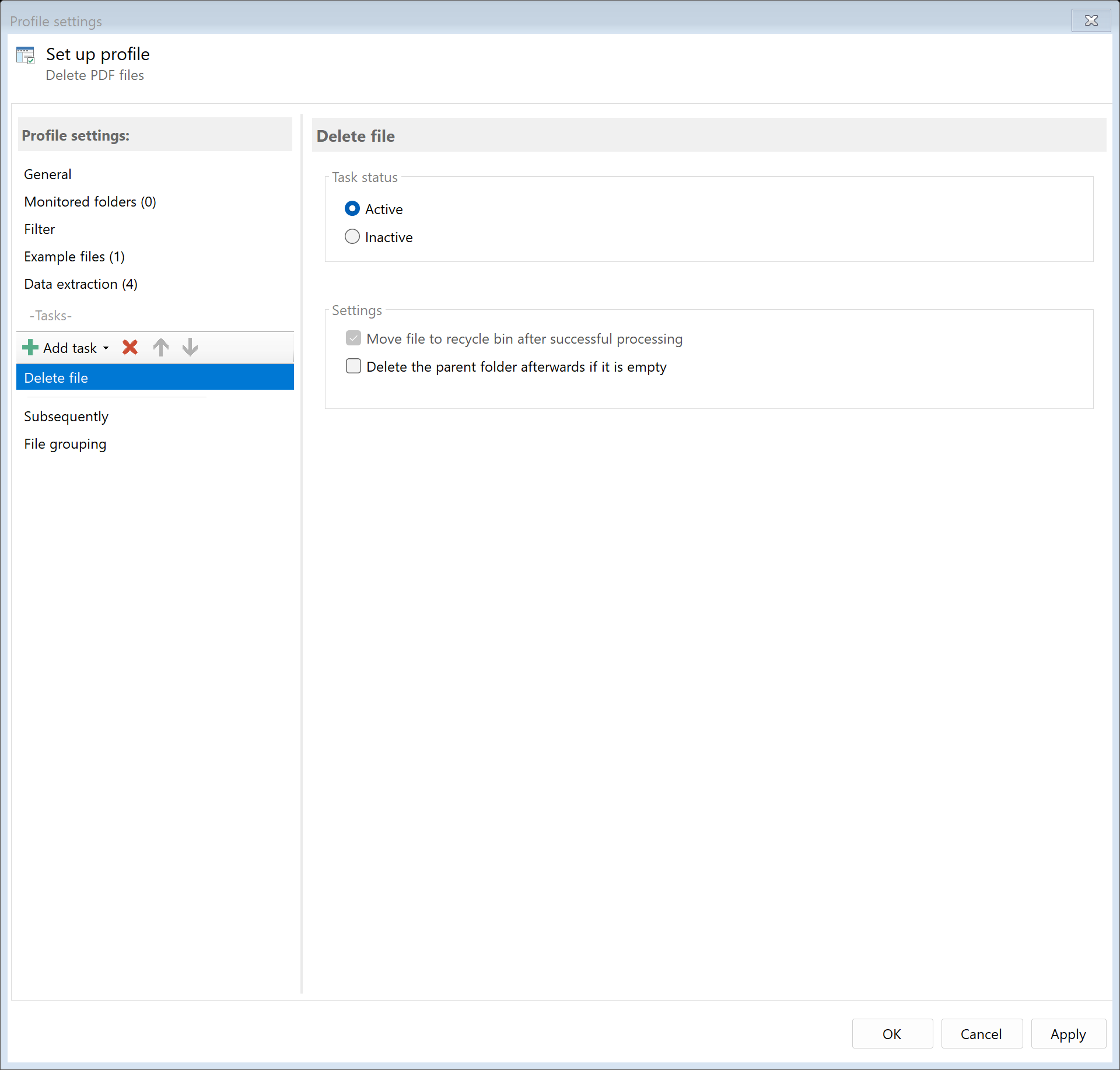 Task: Delete File
14.1 Description
The Delete File task removes the PDF file from its original location. The file is moved to the Windows Recycle Bin and can be restored if needed.
Typical Use Cases
- Cleanup: Automatically empty inbox folders after successful processing
- Workflow: Remove original file after copying/moving
- Storage Space: Automatically dispose of files no longer needed
14.2 General Settings
Enabled
Enable this option so the task is executed for matching PDF files. Disabled tasks are skipped.
14.3 Delete Behavior
 Delete Settings
Move to Recycle Bin
The file is moved to the Windows Recycle Bin and can be restored if needed.
Advantages: - Safety in case of accidental deletion - File can be restored from Recycle Bin
Note: For security reasons, only moving to the Recycle Bin is possible. Permanent deletion without Recycle Bin is not supported to prevent accidental data loss.
14.4 Delete Parent Folder
Delete Parent Folder If Empty
Enable this option to automatically delete the parent folder when it’s empty after deleting the PDF file.
Use Case: PDFs are placed in day-specific subfolders (e.g., Inbox\2024-12-15\Invoice.pdf). After deleting the last file in folder 2024-12-15, this empty folder should also be removed.
Note: Only the immediate parent folder is deleted, not multiple levels.
14.5 Example: Empty Inbox Folder After Processing
Initial Situation
Scanned documents are first copied to the archive. Afterwards, the original files in the scanner folder should be deleted.
Configuration
Profile Tasks: 1. Copy File: To D:\Archive\... 2. Delete File: Move to Recycle Bin
Delete Settings: - Delete option: Move to Recycle Bin - Delete parent folder: No
Result
After processing, the copy is in the archive, and the original file is in the Recycle Bin (if accidentally deleted, it can be restored).
14.4 Tips and Notes
Always as Last Task
The “Delete File” task should always be at the end of the task list. After deletion, the file is no longer available at the original location, and subsequent tasks cannot access it.
Recommended Order: 1. Rename file 2. Copy file (Archive) 3. Copy file (Backup) 4. Send email 5. Delete file (last task)
Create Safety Copy
Before using “Delete File”, ensure that a copy of the file exists at another location. Add a “Copy File” task before the delete task.
Empty Recycle Bin Regularly
If you use the Recycle Bin, remember to empty it regularly to free up storage space. Windows can be configured to automatically empty the Recycle Bin.
Don’t Combine with Move
After the “Move File” task, the original file no longer exists at the original location. A subsequent “Delete File” task would fail. Instead use: - “Move File” without subsequent deletion, or - “Copy File” followed by “Delete File”
Restore from Recycle Bin
If a file was accidentally deleted: 1. Open the Windows Recycle Bin (double-click the Recycle Bin icon) 2. Find the deleted file 3. Right-click → “Restore”
The file is restored to its original location.