12 Copy File
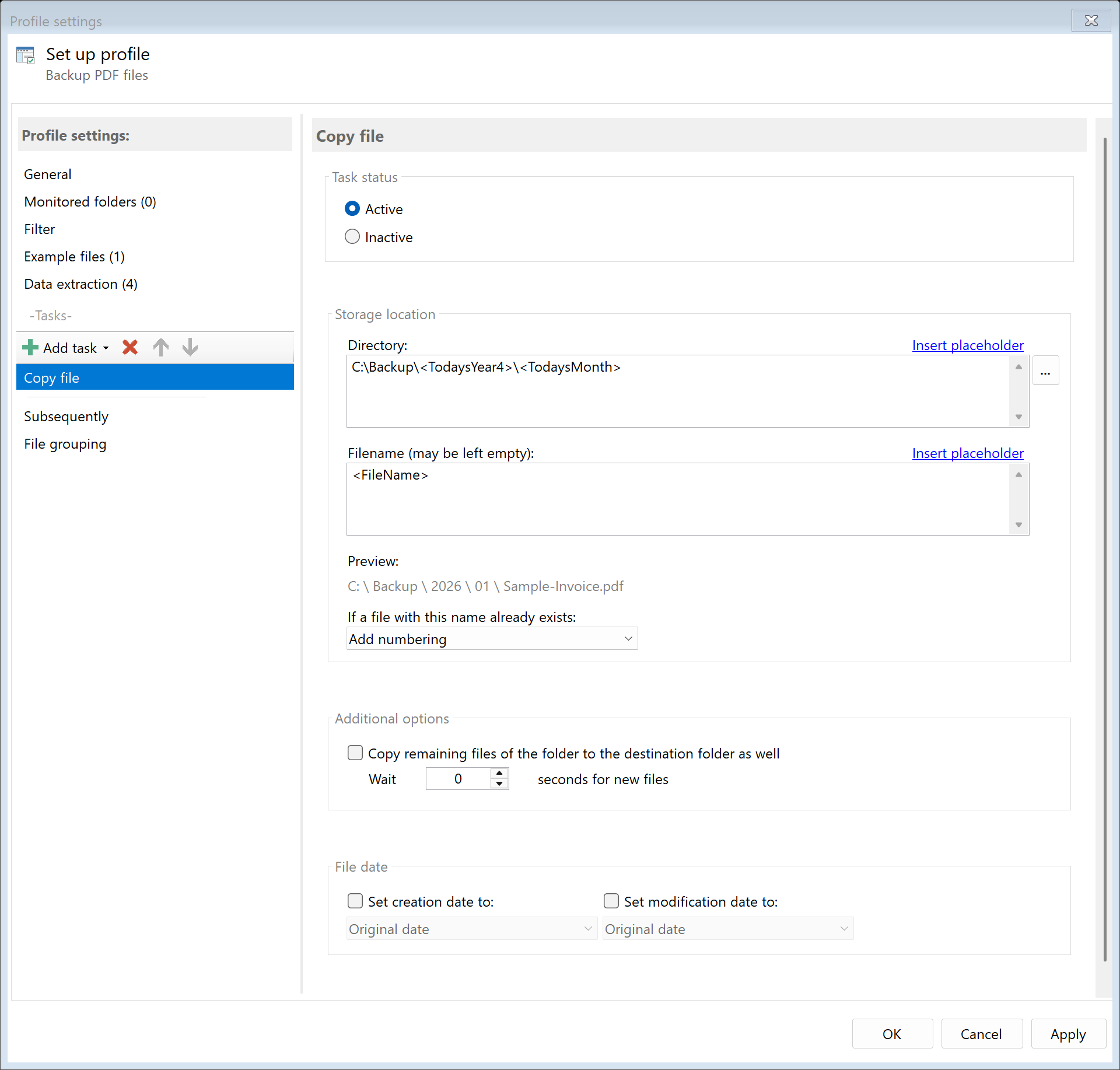 Task: Copy File
12.1 Description
The Copy File task creates a copy of the PDF file at a destination you specify. The original file remains unchanged at its original location.
Typical Use Cases
- Archiving: Copy invoices to a structured archive directory
- Backup: Create copy to a network drive or backup folder
- Distribution: Copy documents to multiple department folders
- Workflow: Pass documents to a processing folder for other applications
12.2 General Settings
Enabled
Enable this option so the task is executed for matching PDF files. Disabled tasks are skipped.
12.3 Storage Location
Directory
Specify the target directory for the copy. You can: - Enter a fixed path (e.g., D:\Archive\Invoices) - Select the folder via Browse… - Use placeholders for dynamic folder paths
Examples with Placeholders:
| Input |
Result |
D:\Archive\<TodaysYear4>\<TodaysMonth> |
D:\Archive\2024\12 |
D:\Customers\<RuleId:1(Customer)> |
D:\Customers\Sample Company Inc |
\\Server\Backup\<FileCreatedYear4> |
\\Server\Backup\2024 |
Note: If you don’t specify a directory, the file is saved in the same folder as the original. However, it’s recommended to use a separate folder for each processing step to ensure clear separation.
Filename
Set the name for the target file. You can: - Leave the field empty (original name is used) - Enter a fixed name - Use placeholders for dynamic names
Examples:
| Input |
Result |
| (empty) |
Scan001.pdf (original name) |
<RuleId:1(Date)>_<RuleId:2(InvoiceNo)> |
2024-12-15_INV-12345.pdf |
Archive_<FileName> |
Archive_Scan001.pdf |
Name Collisions
Choose what should happen if a file with the target name already exists:
| Option |
Description |
| Overwrite |
The existing file is replaced. Caution: Data may be lost! |
| Append number |
Adds a number: File.pdf, File(1).pdf, File(2).pdf |
| Append date |
Adds processing date: File(2024-12-15).pdf |
| Append date and time |
Adds date and time: File(2024-12-15_14-30-25).pdf |
| Cancel operation |
The copy is not created, processing is considered completed |
Recommendation: For most use cases, Append number is the safest option.
12.4 Copy Additional Files
Copy Remaining Files in Folder
Enable this option to copy all other files from the source folder to the target folder in addition to the PDF file.
Use Case: You receive documents together with accompanying files (e.g., a PDF invoice with associated image files). All files should be copied together to the archive.
Wait Time
When you enable this option, you can set a wait time in seconds. The program waits the specified time before copying the additional files. This is useful when accompanying files arrive in the source folder with a delay.
12.5 File Date
Adjust Creation and Modification Date
Optionally, you can change the file date of the copied file:
| Option |
Description |
| Do not change |
The copy automatically receives the current date |
| Creation date of original file |
Uses the original creation date |
| Modification date of original file |
Uses the modification date |
| PDF creation date |
Date from PDF metadata |
| Extracted date |
A date obtained with an extraction rule |
| Current date |
Sets today’s date and current time |
Use Case: When archiving by invoice date, you can set the file date to the extracted invoice date. This way, Windows Explorer displays the correct date.
12.6 Afterwards
Call External Program
After copying, an external program can be started automatically.
Program: Path to the executable file (e.g., C:\Program Files\...\program.exe)
Parameters: Command line parameters. Available placeholders: - <PathIncludingFilename> - Full path of the copied file - <ParentDirectory> - Path of the parent folder - <Filename> - Filename of the copy
Example: Automatically open copied file: - Program: cmd.exe - Parameters: /c start "" "<PathIncludingFilename>"
12.7 Example: Invoice Archive with Year/Month Structure
Initial Situation
Incoming invoices should be automatically copied to a structured folder hierarchy: Archive\Year\Month\Supplier\.
Prerequisites
You have created extraction rules for: - Rule 1: “InvoiceDate” (extracts date) - Rule 2: “Supplier” (extracts company name)
Configuration
- Enabled: Yes
- Directory:
D:\Archive\<RuleId:1(InvoiceDate){Year4}>\<RuleId:1(InvoiceDate){Month}>\<RuleId:2(Supplier)>
- Filename: (empty - keep original name)
- On name collision: Append number
- File date: Extracted date (Rule 1: InvoiceDate)
Result
| Original File |
Destination |
C:\Inbox\Scan001.pdf |
D:\Archive\2024\12\Sample Company Inc\Scan001.pdf |
C:\Inbox\Scan002.pdf |
D:\Archive\2024\12\Smith Corp\Scan002.pdf |
12.8 Creating Multiple Copies
You can add multiple “Copy File” tasks to the same profile to copy a file to different destinations.
Example: Archive and Backup
- Task 1: Copy to local archive (
D:\Archive\...)
- Task 2: Copy to backup server (
\\Server\Backup\...)
- Task 3: Copy to department folder (
\\Server\Department\...)
All three copies are created sequentially.
12.6 Tips and Notes
Using Network Paths
For network paths, use UNC notation: - \\ServerName\Share\Folder
Make sure the program or user running the program has write permissions on the network drive.
Combination with Other Tasks
The “Copy File” task combines well with other tasks:
| Scenario |
Task Order |
| Archive and Backup |
1. Rename, 2. Copy (Archive), 3. Copy (Backup) |
| Process and Keep Original |
1. Copy (Backup), 2. OCR, 3. Move |
| Distribute to Departments |
1. Copy (Accounting), 2. Copy (Management), 3. Delete Original |
Keep Original
Unlike the “Move File” task, “Copy File” preserves the original file. Use “Copy” when: - You need a backup of the original file - The file should be distributed to multiple locations - The original file must remain available for further processing
Avoid Endless Loops
If the target folder for the copy is also a monitored folder, this can lead to an endless loop. In this case, enable the option “Ignore documents created by copying to source folder” in the monitored folder settings.