16 Send Email
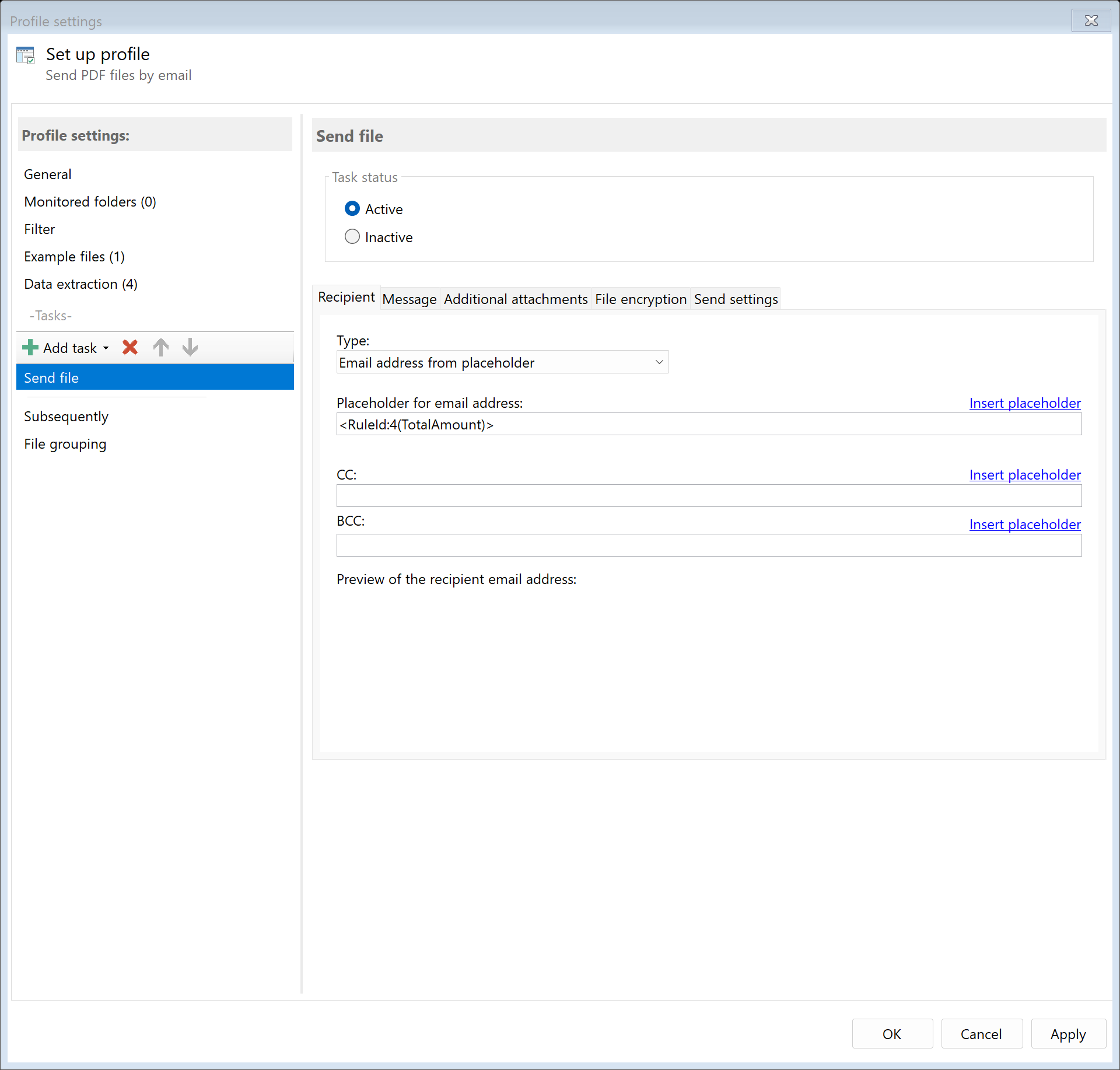 Task: Send Email
16.1 Description
The Send Email task automatically sends the PDF file via email to one or more recipients. You can specify fixed recipients, determine recipients from extracted data, or read them from a CSV file.
Typical Use Cases
- Invoice Delivery: Automatically send invoices to customers
- Document Distribution: Forward reports to departments
- Notification: Forward incoming documents for information
- Archiving: Send copy via email to an email archive
16.2 General Settings
Enabled
Enable this option so the task is executed for matching PDF files. Disabled tasks are skipped.
16.3 Recipients
Recipient Type
You can choose between three methods for determining recipients:
Fixed Email Address
Enter one or more email addresses directly. Separate multiple addresses with semicolon (;).
Example: accounting@company.com; archive@company.com
Placeholder
The email address is determined from extracted data.
Example: <RuleId:1(CustomerEmail)>
The extraction rule must return a valid email address.
CSV File
The email address is determined from an external CSV file based on an extracted key value.
Configuration: - CSV File: Path to the mapping file - Delimiter: Column separator (default: semicolon) - Key Value Column: Column with the search value (e.g., customer number) - Email Address Column: Column with the email address
Example CSV File:
CustomerNo;CompanyName;Email
C001;Sample Company Inc;invoice@sample.com
C002;Smith Corp;accounting@smith.com
The program searches for the extracted key value in the first column and uses the email address from the third column.
CC (Copy)
Additional recipients who receive a copy of the email. These addresses are visible to all recipients.
BCC (Blind Copy)
Additional recipients who receive a copy of the email. These addresses are not visible to other recipients.
16.4 Email Content
Subject
The subject line of the email. You can: - Enter fixed text - Use placeholders
Example: Invoice <RuleId:1(InvoiceNo)> dated <RuleId:2(Date)>
Result: “Invoice INV-12345 dated 12/15/2024”
Message
The body text of the email. You can: - Enter fixed text - Use placeholders for dynamic content - Use line breaks
Example:
Dear Sir or Madam,

please find attached invoice <RuleId:1(InvoiceNo)> for <RuleId:2(Amount)> EUR.

Best regards
Sample Company Inc
HTML Message
Enable this option to format the message as HTML. This allows: - Formatting (bold, italic, underlined) - Colors and fonts - Tables and lists - Embedded images
Example HTML:
<html>
<body>
<p>Dear Sir or Madam,</p>
<p>please find attached <b>invoice <RuleId:1(InvoiceNo)></b>.</p>
<p>Best regards<br>
<i>Sample Company Inc</i></p>
</body>
</html>
16.5 Attachments
Attach PDF File
By default, the processed PDF file is sent as an attachment. You can disable this option if you only want to send other attachments.
Additional Attachments
Add static files that should always be sent: - Terms.pdf - PriceList.pdf - Logo.png
Dynamic Attachments
Files determined from a folder based on a search pattern: - Source Folder: Folder to search in (placeholders possible) - Filename Contains: Search pattern for the filename - Existence: Must exist / Can exist - Wait Time: Seconds to wait for the file
Use Case: Attach related delivery note PDF from another folder to the invoice.
File Group Attachments
If you use file groups, you can add files from secondary subgroups as attachments.
Replace Special Characters in Attachment Names
Enable this option to replace special characters (umlauts, special characters) in attachment names with ASCII characters. This can avoid compatibility issues with some email systems.
16.6 Sending Options
Save as Draft (Outlook only)
The email is not sent immediately but saved as a draft in Outlook. You can review and edit the email before sending.
Note: This option is only available when sending via Outlook, not with SMTP or Exchange Online.
Open Draft (Outlook only)
When “Save as Draft” is enabled, the draft is automatically opened in Outlook.
Note: This option is only available when sending via Outlook.
Task-Specific Send Settings
Enable this option to use different email settings for this task than the global program options. This allows e.g.: - Sending via a different email account - Different SMTP settings - Different Outlook configuration
16.7 Attachment Encryption
Encrypt Attachments
Enable this option to protect PDF attachments with a password before sending.
Password
| Option |
Description |
| Static Password |
Fixed password for all emails |
| Dynamic Password |
Password from extracted data (e.g., customer number) |
16.8 Example: Send Invoices to Customers
Initial Situation
Created invoices should be automatically sent to the respective customer via email. The customer email address is determined from a CSV file.
Prerequisites
- Extraction rule for “CustomerNumber” created
- CSV file with customer data available
Configuration
- Enabled: Yes
- Recipient Type: CSV File
- CSV File:
C:\Data\Customers.csv
- Key Column: 1 (Customer Number)
- Email Column: 3 (Email Address)
- Subject:
Your Invoice <RuleId:1(InvoiceNo)>
- Message: (Standard text with placeholders)
- HTML Message: No
Result
Each processed invoice is automatically sent to the customer’s email address determined from the CSV file.
16.9 Sending Methods
The email can be sent via different methods. Configuration is done in program options or in task-specific send settings.
SMTP
Direct sending via an SMTP server: - Server address and port - Authentication (username/password) - Encryption (SSL/TLS)
Outlook
Sending via locally installed Microsoft Outlook: - Uses the configured Outlook account - Supports drafts and delayed sending - Requires installed Outlook
Exchange Online
Sending via Microsoft 365 / Exchange Online: - OAuth authentication - Tenant ID and Application ID required - No local Outlook installation needed
16.7 Tips and Notes
Validate Email Addresses
When using placeholders or CSV files, ensure that determined email addresses are valid. Invalid addresses lead to sending errors.
Consider Attachment Size
Many email servers limit attachment size (often 10-25 MB). For large PDF files: - Use the “Compress PDF” task beforehand (with a separate profile) - Split large files (with a separate profile) - Use alternative transfer methods (cloud links)
Avoid Spam Filters
To prevent automatically sent emails from being classified as spam: - Use a reputable sender - Avoid typical spam phrases - Configure SPF, DKIM, and DMARC for your domain
Multiple Email Tasks
You can add multiple “Send Email” tasks to the same profile: - Different recipients - Different message texts - Different email accounts
Error Handling
If email sending fails: - Check the connection to the email server - Verify login credentials - Check the email address - See the log file for details