29 Add Stamp/Watermark
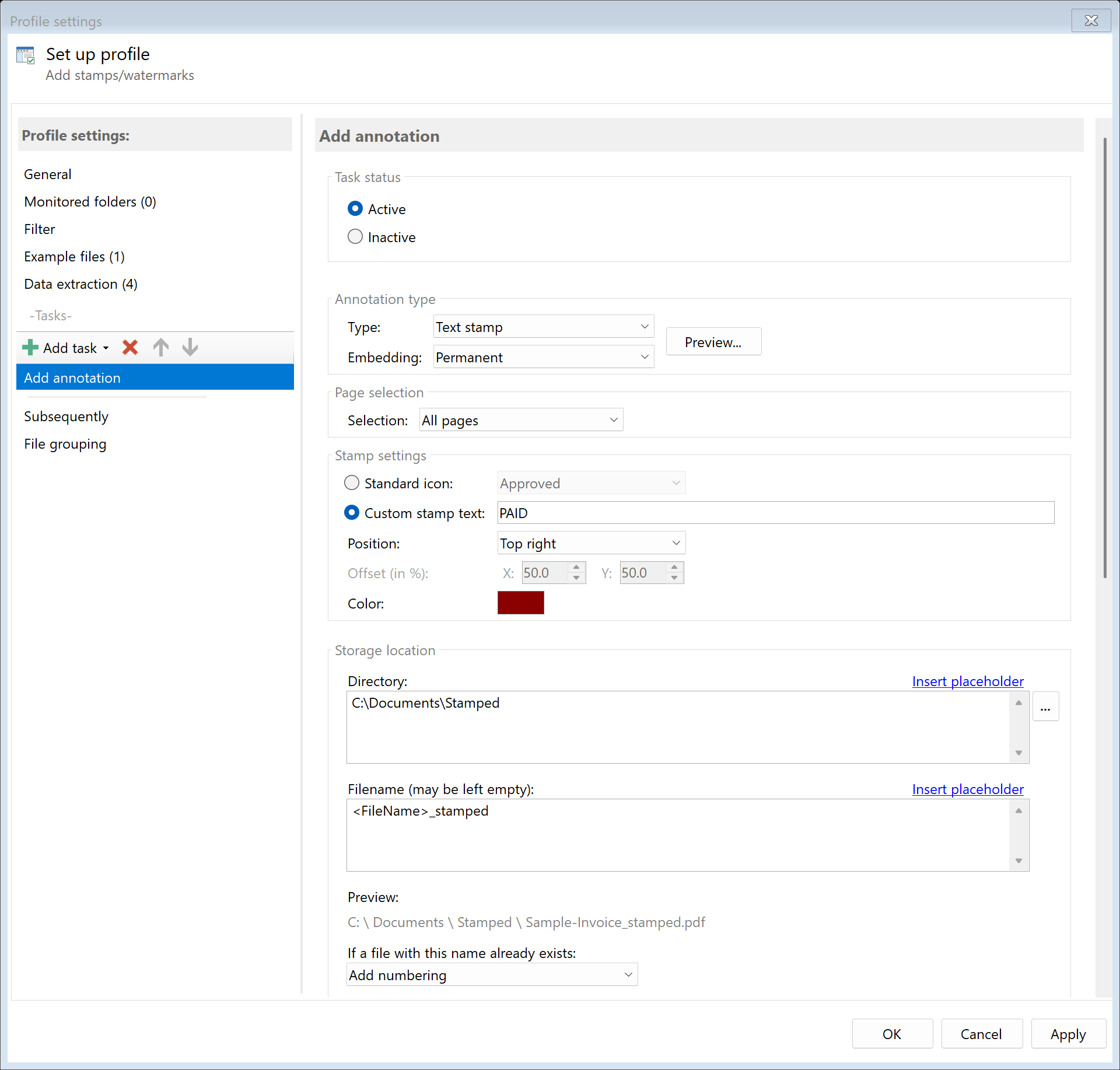 Task: Stamp/Watermark
29.1 Description
The Add Stamp/Watermark task adds stamps or watermarks to PDF documents. You can use predefined standard stamps or define custom text.
Typical Use Cases
- Document Status: Mark documents as “Draft”, “Approved”, or “Confidential”
- Paid Stamp: Mark incoming invoices with “PAID” after payment
- Copyright Protection: Watermarks with company name on documents
- Copy Marking: Mark printed copies as such
- Workflow Status: Add processing status to documents
29.2 General Settings
Enabled
Enable this option so the task is executed for matching PDF files. Disabled tasks are skipped.
29.3 Annotation Type
 Annotation Type
Choose between two annotation types:
| Type |
Description |
Application |
| Stamp |
Rectangular text with optional border |
Paid stamps, status markers |
| Watermark |
Semi-transparent, diagonal text |
Copyright protection, draft marking |
29.4 Stamp Settings
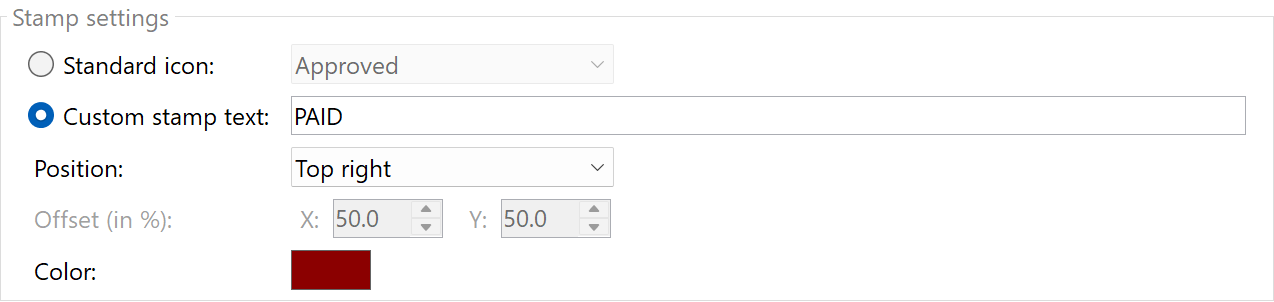 Stamp Settings
Standard Text or Custom Text
You can choose between predefined standard texts and custom text.
Standard Texts
| Icon |
Description |
| Draft |
Draft |
| Approved |
Approved |
| Experimental |
Experimental |
| NotApproved |
Not Approved |
| AsIs |
As Is |
| Expired |
Expired |
| NotForPublicRelease |
Not For Public Release |
| Confidential |
Confidential |
| Final |
Final |
| Sold |
Sold |
| Departmental |
Departmental |
| ForComment |
For Comment |
| TopSecret |
Top Secret |
| ForPublicRelease |
For Public Release |
Custom Text
Enter your own text for the stamp. Placeholders are supported.
Examples: - PAID - PAID on <TodaysDate> - Reviewed by <RuleId:1(Reviewer)> - Copy - <TodaysYear4>-<TodaysMonth>-<TodaysDay>
Position
Select the position of the stamp on the page:
| Position |
Description |
| Top left |
Left upper corner |
| Top center |
Top edge, centered |
| Top right |
Right upper corner (Default) |
| Middle left |
Left edge, vertically centered |
| Middle center |
Page center |
| Middle right |
Right edge, vertically centered |
| Bottom left |
Left lower corner |
| Bottom center |
Bottom edge, centered |
| Bottom right |
Right lower corner |
| Custom |
Free positioning in percent |
Custom Position
When selecting “Custom”, you can specify X and Y coordinates in percent: - X Position: 0% (left) to 100% (right) - Y Position: 0% (top) to 100% (bottom)
Text Color
Set the color of the stamp text: - RGB Values: Red, Green, Blue (0-255 each) - Default: Dark red (139, 0, 0)
29.5 Watermark Settings
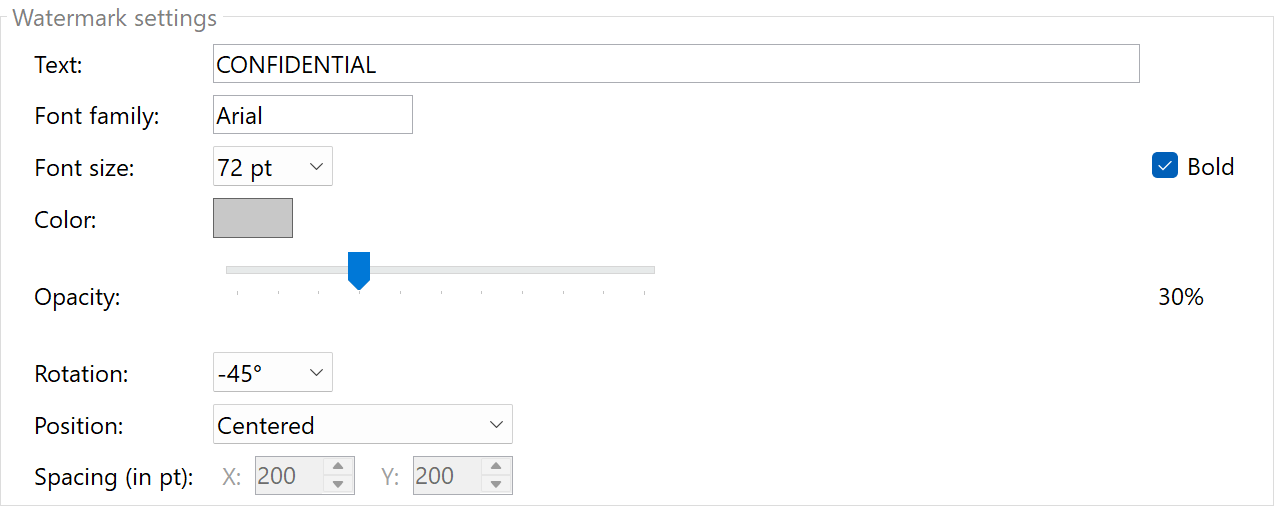 Watermark Settings
Text
Enter the text for the watermark. Placeholders are supported.
Examples: - DRAFT (Default) - CONFIDENTIAL - © Sample Company Inc - COPY
Font
| Setting |
Description |
Default |
| Font Family |
Name of the font |
Arial |
| Font Size |
Size in points |
72 |
| Bold |
Use bold font |
Yes |
Available Font Sizes: 24, 36, 48, 60, 72, 84, 96, 120, 144
Color and Transparency
| Setting |
Description |
Default |
| Text Color (RGB) |
Red, Green, Blue (0-255 each) |
Light gray (200, 200, 200) |
| Opacity |
0.0 (transparent) to 1.0 (opaque) |
0.3 (30%) |
Recommendation: A low opacity (0.2-0.4) ensures the watermark doesn’t cover the document content.
Rotation
Select the rotation angle of the watermark:
| Angle |
Description |
| 0° |
Horizontal |
| -45° |
Diagonal from bottom left to top right (Default) |
| -90° |
Vertical (readable from bottom to top) |
| 45° |
Diagonal from top left to bottom right |
| 90° |
Vertical (readable from top to bottom) |
Available Angles: 0°, ±15°, ±30°, ±45°, ±60°, ±90°
Position
| Position |
Description |
| Centered |
One watermark in the page center |
| Tiled |
Multiple watermarks distributed across the entire page |
Tile Spacing
With tiled arrangement, you can set the spacing between watermarks: - Horizontal Spacing (X): Default 200 points - Vertical Spacing (Y): Default 200 points
29.6 Page Selection
 Page Selection
Determine on which pages the stamp or watermark should appear:
| Selection |
Description |
| All pages |
On every page of the document |
| First page |
Only on the first page |
| Last page |
Only on the last page |
| Page range |
Specific pages or ranges |
| Pages with text |
Pages containing specific text |
| Pages without text |
Pages not containing specific text |
Page Range
Specify pages as a range:
| Input |
Effect |
1 |
Only page 1 |
1-3 |
Pages 1, 2, and 3 |
1, 3, 5 |
Pages 1, 3, and 5 |
1-3, 5, 7-10 |
Pages 1, 2, 3, 5, 7, 8, 9, and 10 |
last |
Only the last page |
last-2 |
The last 2 pages |
8-last |
From page 8 to the end |
Text-Based Selection
For “Pages with text” or “Pages without text”, enter the search text. Extended filter syntax is supported: - AND/OR Logic: Invoice<AND>2024 - Regular Expressions: <BeginOfRegex>INV-\d{5}<EndOfRegex> - Number Ranges: <NumberRange{1,999}>
29.7 Embedding Mode
Select how the annotation should be embedded in the PDF:
| Mode |
Description |
Application |
| As Annotation |
Editable, can be removed later |
Temporary markings |
| Permanent |
Permanently integrated into page content |
Final markings (Default) |
Recommendation: For legally relevant markings (e.g., “PAID”), use “Permanent” mode so the marking cannot be removed.
29.8 Storage Location
Directory
Specify the target directory for the processed PDF file.
Note: It’s recommended to use a separate folder for each processing step to ensure clear separation.
Filename
Set the name for the processed file.
Examples:
| Input |
Result |
| (empty) |
Document.pdf (original name) |
<FileName>_stamped |
Document_stamped.pdf |
Name Collisions
Choose what should happen if a file with the target name already exists.
29.9 File Date
Adjust Creation and Modification Date
Optionally, you can change the file date of the processed file.
29.10 Afterwards
Call External Program
After adding the stamp/watermark, an external program can be started automatically.
Parameters: Available placeholders: - <PathIncludingFilename> - Full path of the processed file - <ParentDirectory> - Path of parent folder - <Filename> - Filename
29.11 Example: Paid Stamp on Invoices
Initial Situation
Incoming invoices should be marked with a “PAID” stamp after payment and archived.
Configuration
- Enabled: Yes
- Annotation Type: Stamp
- Standard Icon: No (custom text)
- Text:
PAID on <TodaysDate>
- Position: Top right
- Text Color: Dark red (139, 0, 0)
- Page Selection: First page
- Embedding Mode: Permanent
- Directory:
D:\Archive\Invoices\Paid
- Filename:
<FileName>
Result
| Original |
Processed |
Invoice_001.pdf |
Invoice_001.pdf (with “PAID on 12/15/2024” on page 1) |
29.12 Example: Watermark for Confidential Documents
Initial Situation
Confidential documents should be marked with a “CONFIDENTIAL” watermark appearing on all pages.
Configuration
- Enabled: Yes
- Annotation Type: Watermark
- Text:
CONFIDENTIAL
- Font Size: 72
- Bold: Yes
- Text Color: Red (255, 0, 0)
- Opacity: 0.2 (20%)
- Rotation: -45°
- Position: Centered
- Page Selection: All pages
- Embedding Mode: Permanent
- Directory:
D:\Documents\Confidential
Result
All pages of the document show a diagonal, semi-transparent “CONFIDENTIAL” watermark in the center.
29.13 Example: Tiled Copyright Watermark
Initial Situation
Documents should be protected with a tiled copyright watermark.
Configuration
- Enabled: Yes
- Annotation Type: Watermark
- Text:
© Sample Company Inc
- Font Size: 36
- Opacity: 0.15 (15%)
- Rotation: -30°
- Position: Tiled
- Horizontal Spacing: 250
- Vertical Spacing: 200
- Page Selection: All pages
Result
The copyright watermark appears multiple times distributed across each page, so it cannot be easily cut out.
29.6 Tips and Notes
Placeholders in Text
Both stamps and watermarks support placeholders: - <TodaysDate> - Current date - <TodaysYear4>, <TodaysMonth>, <TodaysDay> - Date parts - <FileName> - Filename - <RuleId:N(RuleName)> - Extracted data
Text Color for Stamps
For good visibility and professional appearance: - Dark red (139, 0, 0): Classic for “PAID” or status stamps - Dark blue (0, 0, 139): Professional for approvals - Dark green (0, 100, 0): Positive for “Approved”
Watermark Opacity
| Opacity |
Effect |
| 0.1 - 0.2 |
Very subtle, text remains easily readable |
| 0.2 - 0.4 |
Clearly visible, slight readability impact |
| 0.4 - 0.6 |
Dominant, may impair readability |
Permanent vs. As Annotation
- Permanent: More secure, as it cannot be removed. Ideal for legal or final markings.
- As Annotation: More flexible, can be removed if needed. Useful for temporary markings or review processes.
Combination with Other Tasks
Typically place “Add Stamp/Watermark” before tasks like “Send Email” or “Copy File”, so subsequent tasks use the stamped document.