25 Embed Attachments
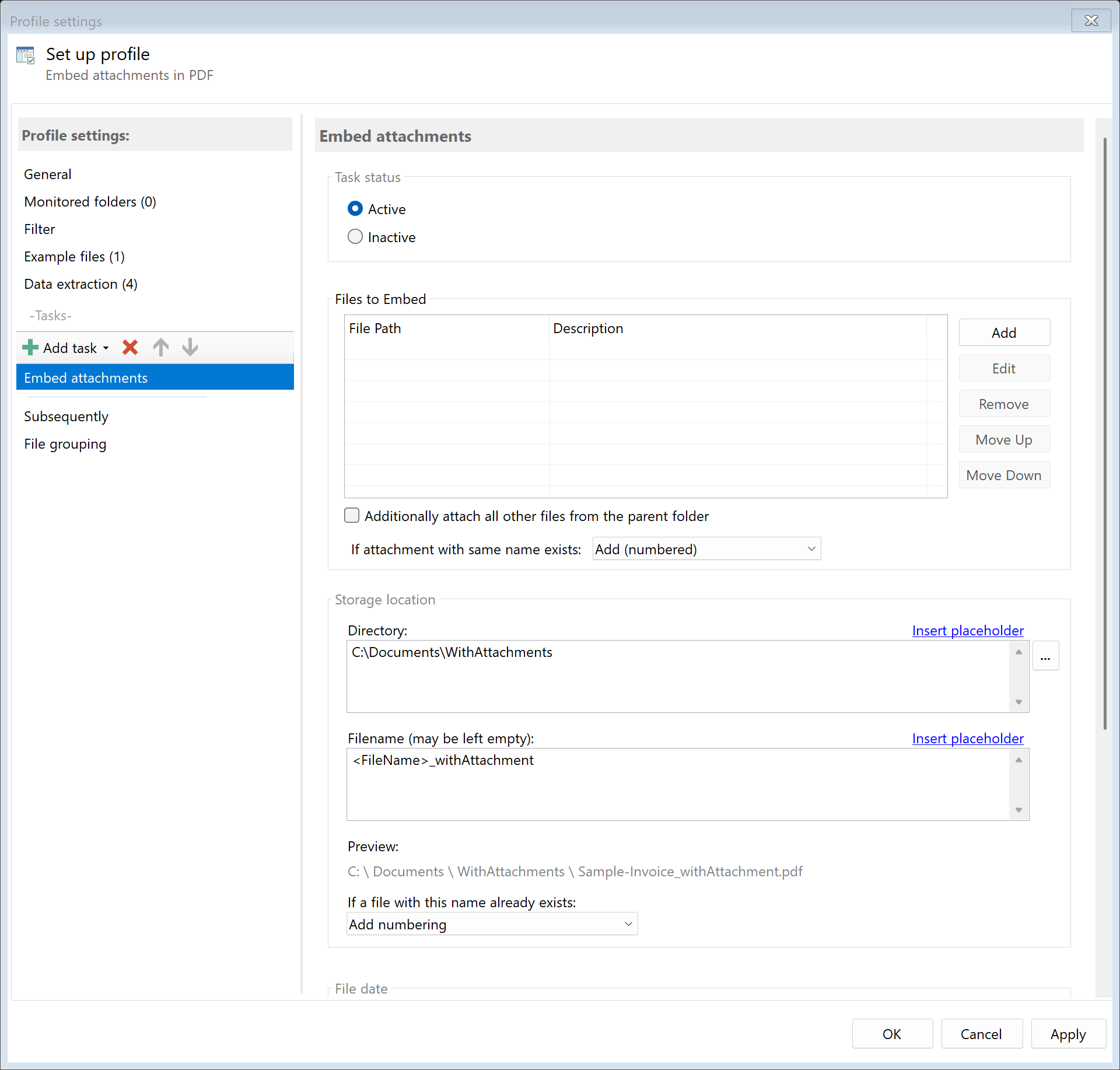 Task: Embed Attachments
25.1 Description
The Embed Attachments task inserts external files as attachments into a PDF document. The embedded files can be any type and are visible as attachments in the PDF viewer.
Typical Use Cases
- Attach Source Files: Add Excel spreadsheets or Word documents to an invoice
- Archive Bundles: Combine multiple related files in one PDF
- Data Attachments: Add XML files or raw data to the PDF
- Supporting Documents: Integrate supplementary documents into the main file
25.2 General Settings
Enabled
Enable this option so the task is executed for matching PDF files. Disabled tasks are skipped.
25.3 Files to Embed
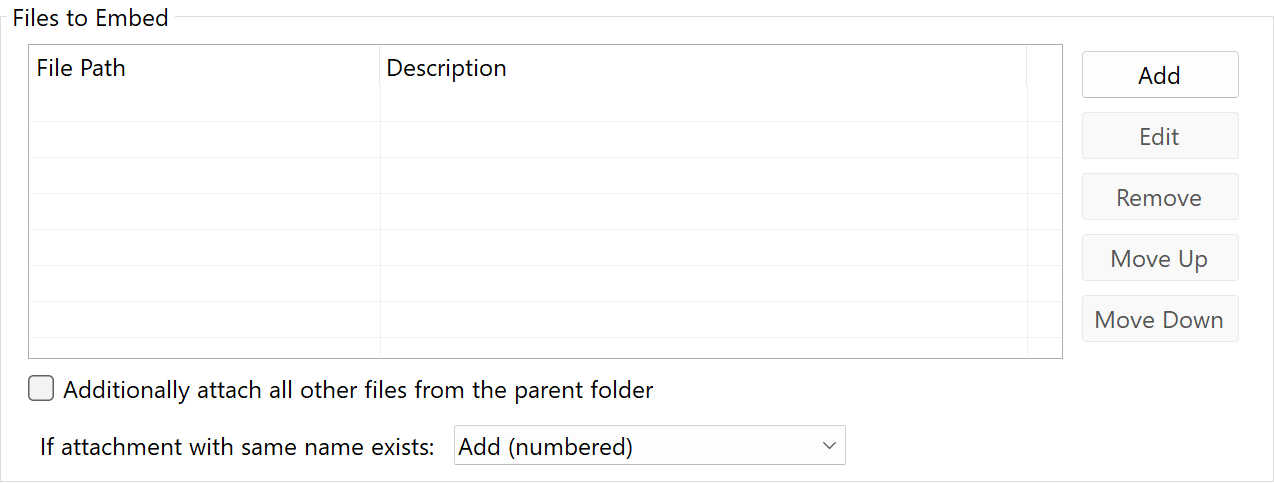 Files to Embed
File List
Add the files that should be embedded in the PDF. For each entry, you can specify:
- File Path: The path to the file (can contain placeholders)
- Description: An optional description displayed in the PDF viewer
Placeholders in File Path
You can use placeholders to create dynamic filenames:
Examples:
| Input |
Result |
D:\Data\<RuleId:1(Customer)>.xlsx |
D:\Data\Sample Company Inc.xlsx |
<ParentDirectory>\<FileName>.xml |
C:\Incoming\Invoice_001.xml |
25.4 Duplicate Handling
Choose what should happen if an attachment with the same name already exists in the PDF:
| Option |
Description |
| Add with numbering |
Adds the file with a number (e.g., file (1).pdf) |
| Overwrite |
Replaces the existing attachment |
| Skip |
The file is not embedded |
25.5 Storage Location
Directory
Specify the target directory for the PDF with embedded attachments.
Note: It’s recommended to use a separate folder for each processing step to ensure clear separation.
Filename
Set the name for the output PDF.
Name Collisions
Choose what should happen if a file with the target name already exists.
25.6 File Date
Adjust Creation and Modification Date
Optionally, you can change the file date of the output file.
25.7 Afterwards
Call External Program
After embedding, an external program can be started automatically.
Parameters: Available placeholders: - <PathIncludingFilename> - Full path of the file - <ParentDirectory> - Path of parent folder - <Filename> - Filename
25.8 Example: Add Excel Raw Data to Invoice
Initial Situation
You create invoices as PDFs and want to embed the associated Excel data directly in the PDF.
Configuration
- Enabled: Yes
- Files:
- Path:
D:\Data\<RuleId:1(InvoiceNo)>.xlsx
- Description: “Invoice Data”
- Duplicate Handling: Add with numbering
- Directory:
D:\Archive\Invoices
- Filename:
<FileName>
Result
The PDF Invoice_2024001.pdf contains the file 2024001.xlsx as an attachment with the description “Invoice Data”.
25.9 Example: Embed Multiple Supporting Files
Initial Situation
Each main document has multiple associated files (attachments, images, supplements) that should all be bundled in the PDF.
Configuration
- Enabled: Yes
- Files:
<ParentDirectory>\<FileName>_Attachment1.pdf - “Attachment 1”<ParentDirectory>\<FileName>_Attachment2.pdf - “Attachment 2”<ParentDirectory>\<FileName>_Data.xlsx - “Source Data”
- Duplicate Handling: Skip (if file doesn’t exist)
- Directory:
D:\Archive\Complete
Result
All existing supporting files are embedded in the PDF. Non-existing files are skipped.
25.5 Tips and Notes
Consider File Size
Embedded attachments increase the PDF size accordingly. Keep this in mind with large attachments.
Supported File Types
Any file type can be embedded: - Office documents (Word, Excel, PowerPoint) - Images (PNG, JPG, TIFF) - PDF files - XML, JSON, CSV - Archives (ZIP) - And all other file types
Non-Existing Files
If a file doesn’t exist, it is skipped. Processing does not fail.
Dynamic Filenames
Use placeholders to embed files based on extracted values. This way you can automatically assign customer-related files.
Viewing Attachments
Embedded attachments are accessible in PDF viewers via the paperclip icon or an attachments panel.