13 Move File
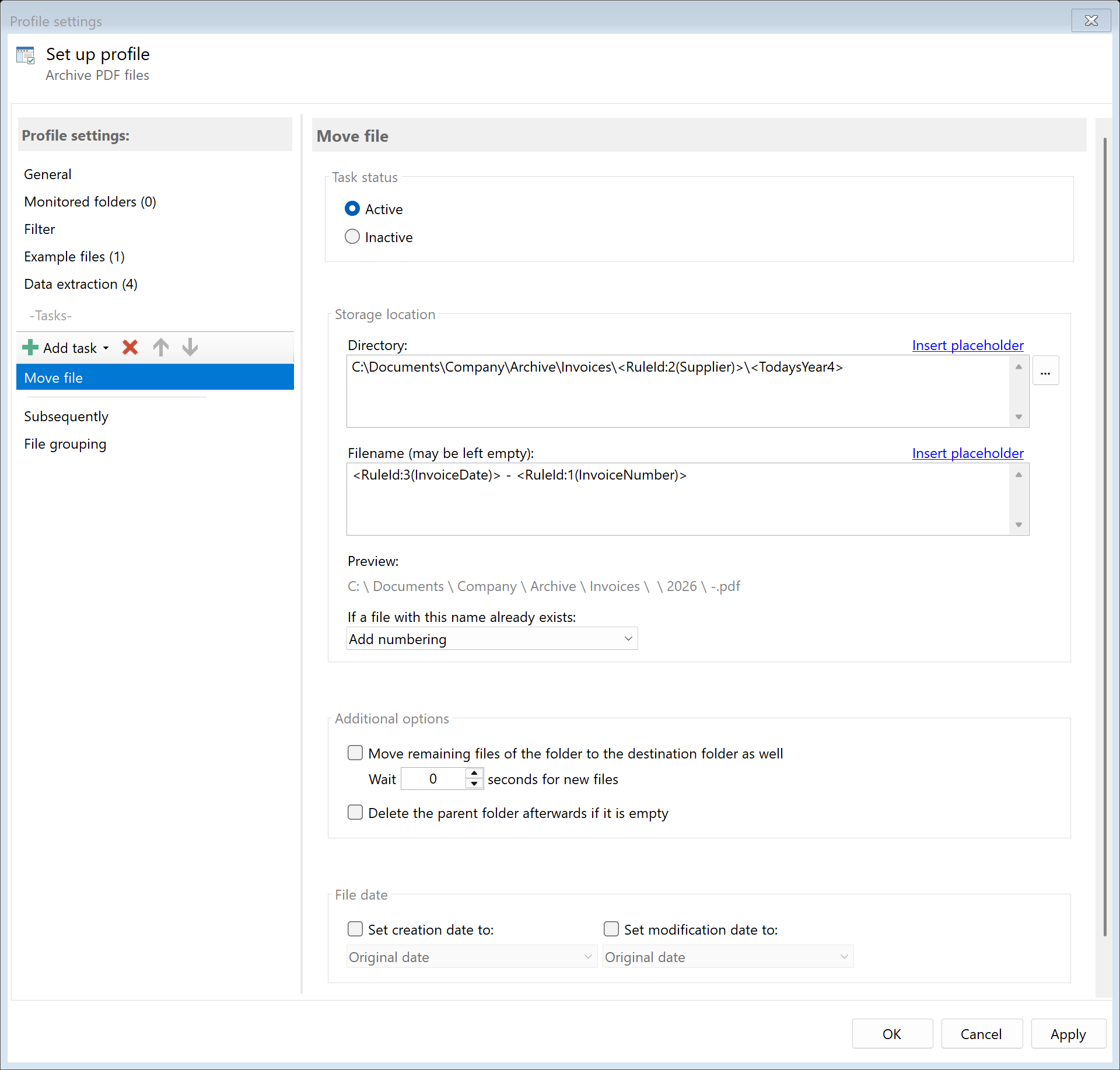 Task: Move File
13.1 Description
The Move File task moves the PDF file from its original location to a destination you specify. Unlike copying, no file remains at the original location.
Typical Use Cases
- Archiving: Move processed invoices to an archive directory
- Sorting: Sort documents into different folders by type or date
- Cleanup: Automatically empty inbox folders after processing
- Workflow: Pass documents to the next processing step
13.2 General Settings
Enabled
Enable this option so the task is executed for matching PDF files. Disabled tasks are skipped.
13.3 Storage Location
Directory
Specify the target directory. You can: - Enter a fixed path (e.g., D:\Archive\Invoices) - Select the folder via Browse… - Use placeholders for dynamic folder paths
Examples with Placeholders:
| Input |
Result |
D:\Archive\<TodaysYear4>\<TodaysMonth> |
D:\Archive\2024\12 |
D:\Customers\<RuleId:1(Customer)> |
D:\Customers\Sample Company Inc |
\\Server\Archive\<FileCreatedYear4> |
\\Server\Archive\2024 |
Note: It’s recommended to use a separate folder for each processing step to ensure clear separation.
Filename
Set the name for the target file. You can: - Leave the field empty (original name is used) - Enter a fixed name - Use placeholders for dynamic names
Examples:
| Input |
Result |
| (empty) |
Scan001.pdf (original name) |
<RuleId:1(Date)>_<RuleId:2(InvoiceNo)> |
2024-12-15_INV-12345.pdf |
Archive_<FileName> |
Archive_Scan001.pdf |
Name Collisions
Choose what should happen if a file with the target name already exists:
| Option |
Description |
| Overwrite |
The existing file is replaced. Caution: Data may be lost! |
| Append number |
Adds a number: File.pdf, File(1).pdf, File(2).pdf |
| Append date |
Adds processing date: File(2024-12-15).pdf |
| Append date and time |
Adds date and time: File(2024-12-15_14-30-25).pdf |
| Cancel operation |
The file is not moved, processing is considered completed |
Recommendation: For most use cases, Append number is the safest option.
13.4 Move Additional Files
Move Remaining Files in Folder
Enable this option to move all other files from the source folder to the target folder in addition to the PDF file.
Use Case: You receive documents together with accompanying files (e.g., a PDF invoice with associated image files). All files should be moved together to the archive.
Wait Time
When you enable this option, you can set a wait time in seconds. The program waits the specified time before moving the additional files. This is useful when accompanying files arrive in the source folder with a delay.
Delete Parent Folder If Empty
Enable this option to automatically delete the parent folder when it’s empty after moving.
Use Case: PDFs are placed in subfolders (e.g., Inbox\2024-12-15\Invoice.pdf). After moving the invoice, the then-empty folder 2024-12-15 should be automatically deleted.
13.5 File Date
Adjust Creation and Modification Date
Optionally, you can change the file date of the moved file:
| Option |
Description |
| Do not change |
File date remains unchanged |
| Creation date of original file |
Uses the original creation date |
| Modification date of original file |
Uses the modification date |
| PDF creation date |
Date from PDF metadata |
| Extracted date |
A date obtained with an extraction rule |
| Current date |
Sets today’s date and current time |
Use Case: When archiving by invoice date, you can set the file date to the extracted invoice date. This way, Windows Explorer displays the correct date.
13.6 Afterwards
Call External Program
After moving, an external program can be started automatically.
Program: Path to the executable file (e.g., C:\Program Files\...\program.exe)
Parameters: Command line parameters. Available placeholders: - <PathIncludingFilename> - Full path of the moved file - <ParentDirectory> - Path of the parent folder - <Filename> - Filename at new location
Example: Automatically open moved file: - Program: cmd.exe - Parameters: /c start "" "<PathIncludingFilename>"
13.7 Example: Sort Invoices by Supplier
Initial Situation
Incoming invoices from the scanner folder should be automatically moved to supplier-specific folders.
Prerequisites
You have created an extraction rule for: - Rule 1: “Supplier” (extracts company name from invoice)
Configuration
- Enabled: Yes
- Directory:
D:\Archive\Invoices\<RuleId:1(Supplier)>
- Filename: (empty - keep original name)
- On name collision: Append number
- Delete parent folder: No
Result
| Original File |
Destination |
C:\Scanner\Scan001.pdf (Sample Company Inc) |
D:\Archive\Invoices\Sample Company Inc\Scan001.pdf |
C:\Scanner\Scan002.pdf (Smith Corp) |
D:\Archive\Invoices\Smith Corp\Scan002.pdf |
The scanner folder is automatically emptied.
13.8 Difference from Copy
| Aspect |
Move |
Copy |
| Original is preserved |
No |
Yes |
| Inbox folder is emptied |
Yes |
No |
| Multiple destinations possible |
No (only one destination) |
Yes (multiple tasks) |
| Suitable for archiving |
Yes |
Yes (with backup function) |
| Suitable for distribution |
No |
Yes |
When to use Move: - The inbox folder should be automatically cleaned up - The file should only exist in one location - The original file is no longer needed after processing
When to use Copy: - The original file should be preserved - The file should be distributed to multiple locations - A backup should be created before further processing
13.6 Tips and Notes
Consider Order
Place the “Move File” task typically at the end of the task list. After moving, the file is no longer available at the original location.
Recommended Order: 1. Rename file (if desired) 2. Copy file (for backup, if desired) 3. Send email (if desired) 4. Move file (as last task)
Network Paths
For network paths, use UNC notation: - \\ServerName\Share\Folder
When moving to a network drive, the file is first copied and then deleted at the original location. This may take longer for large files or slow network connections.
Don’t Combine with Delete
The “Delete File” task after “Move File” is not meaningful since the file no longer exists at the original location. If you want to delete the file after moving, use “Copy File” followed by “Delete File” instead.