Step-by-step instructions for secure payslip distribution
Payslips contain sensitive personal information and must be protected during distribution.
With Automatic PDF Processor, you can automatically password-protect payslips using
employee-specific passwords (e.g., Social Security number or employee ID) and send
them via email.
Video tutorial: Automatically password-protect PDF files (with narration and optional subtitles)
Key features
- Automatic password protection using extracted data
- Individual passwords per employee (SSN, employee ID, birthdate)
- Direct email delivery to employee addresses
- Customizable email templates
- Bulk processing for entire payroll runs
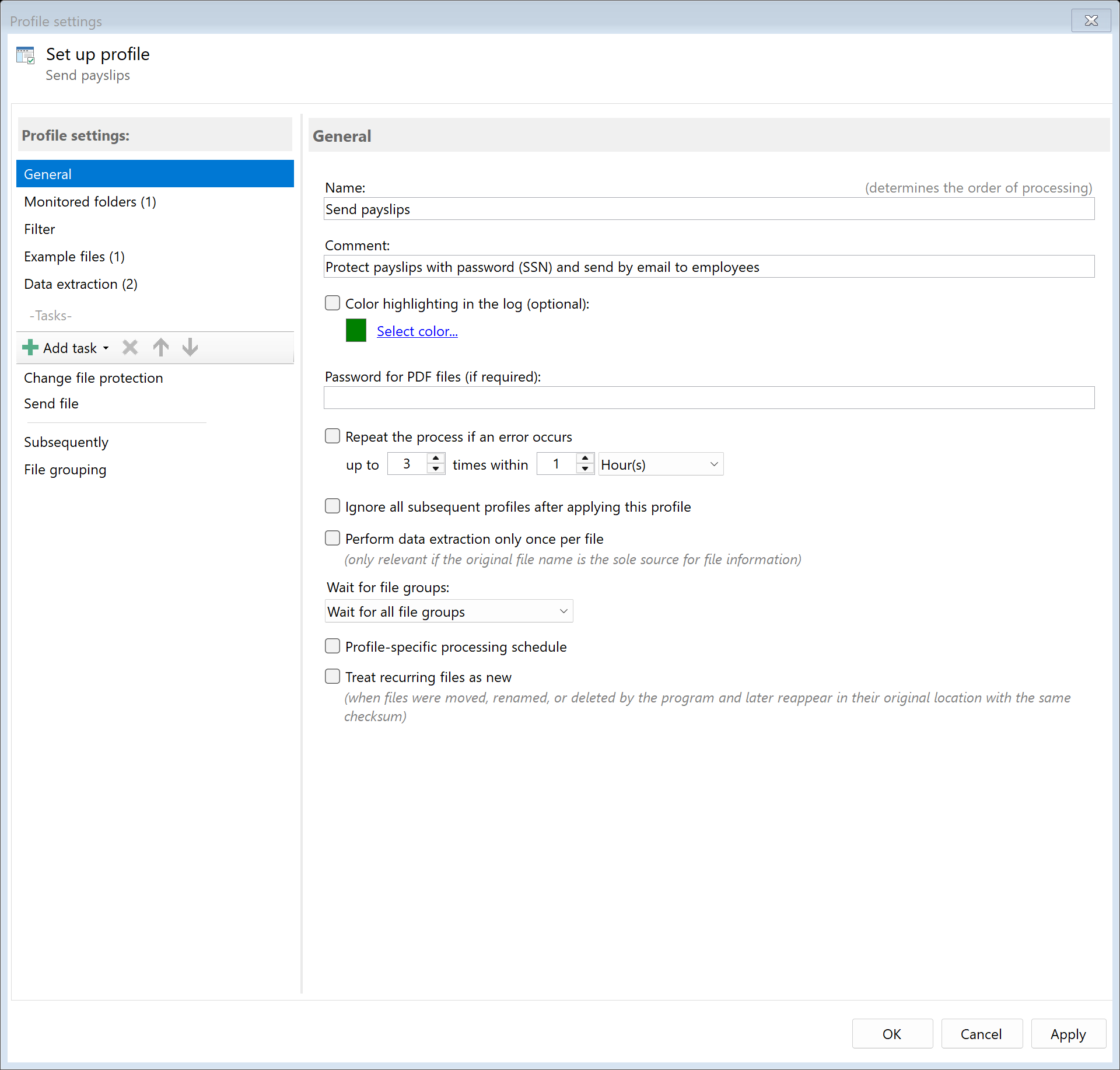
Step 1: Create a new profile
Create a new profile with a descriptive name such as "Send payslips".
Set up the monitored folder where payslip PDFs are generated.
Step 2: Create extraction rules
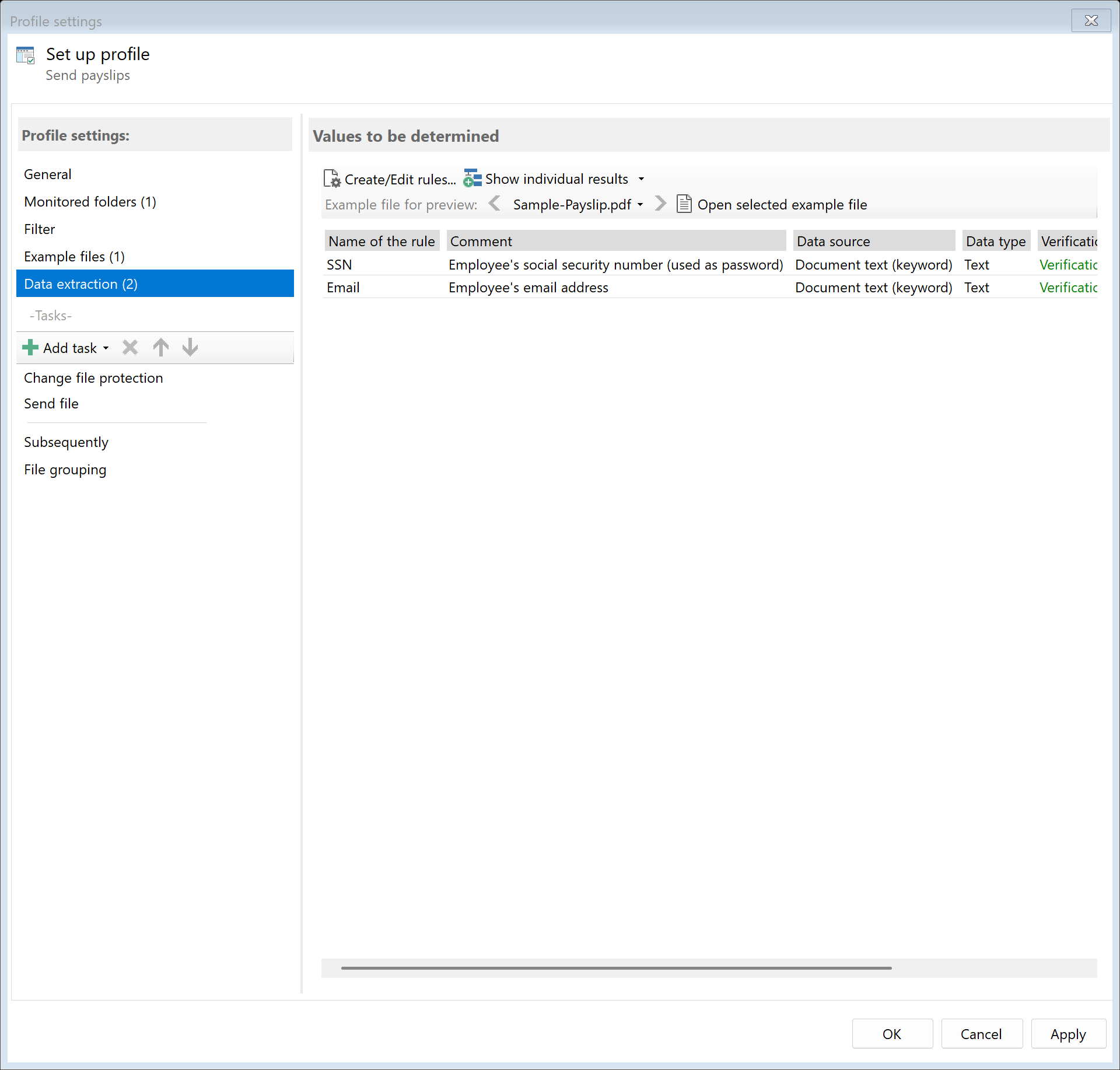
Create extraction rules to identify employee information:
- Employee name: For the email greeting
- Employee ID or SSN: For the password (e.g., last 4 digits)
- Email address: Destination for the payslip
- Pay period: For the email subject line
Learn more about data extraction
Step 3: Configure password protection
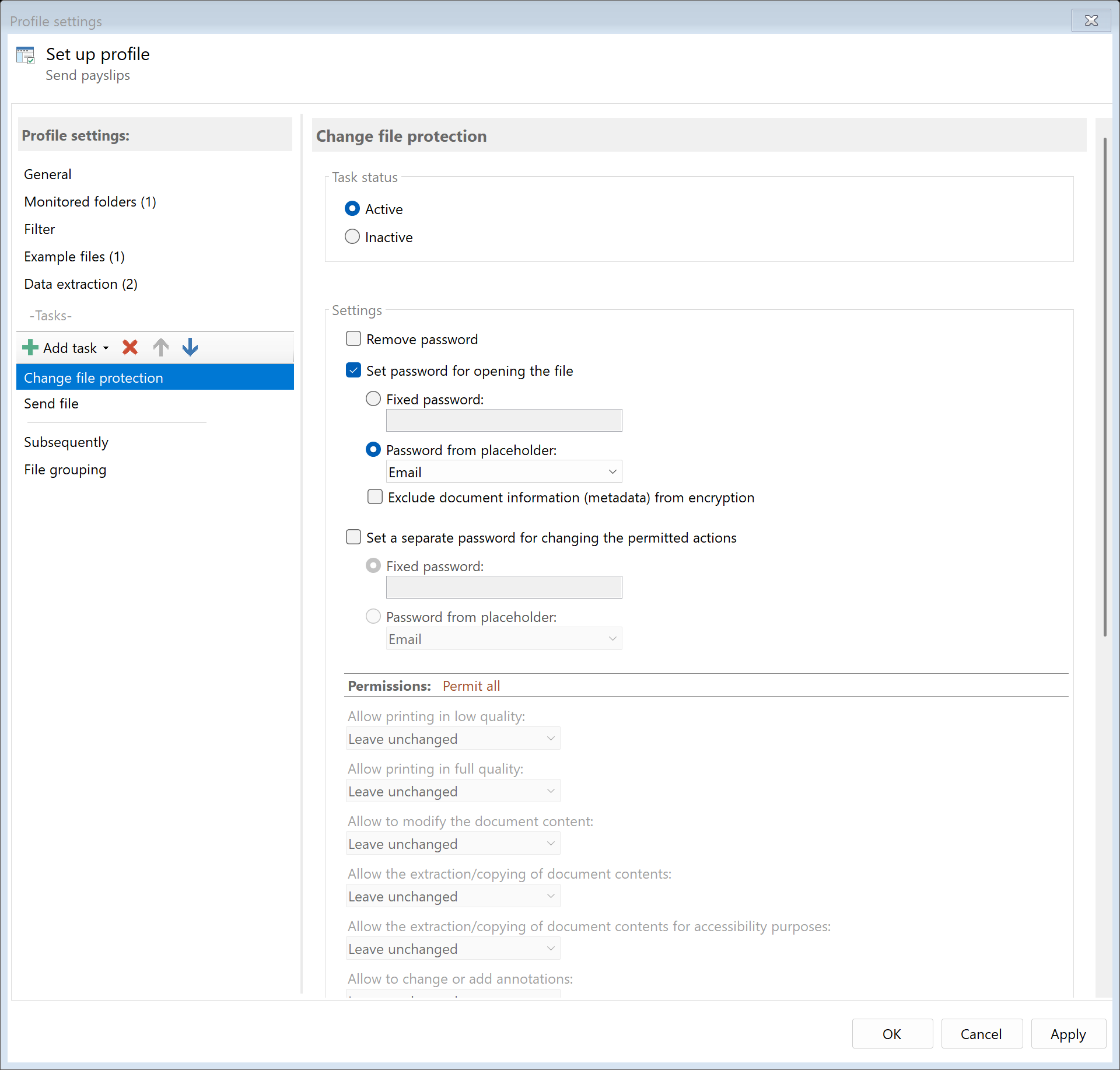
Add the "Change File Protection" task and configure dynamic passwords:
Password options:
| Option |
Description |
Example |
| Extracted data |
Use SSN or employee ID from PDF |
<RuleId:2(SSN)> |
| Partial extraction |
Use only part of the extracted value |
Last 4 digits of SSN |
| CSV lookup |
Look up password from employee database |
By employee ID |
Step 4: Configure email delivery
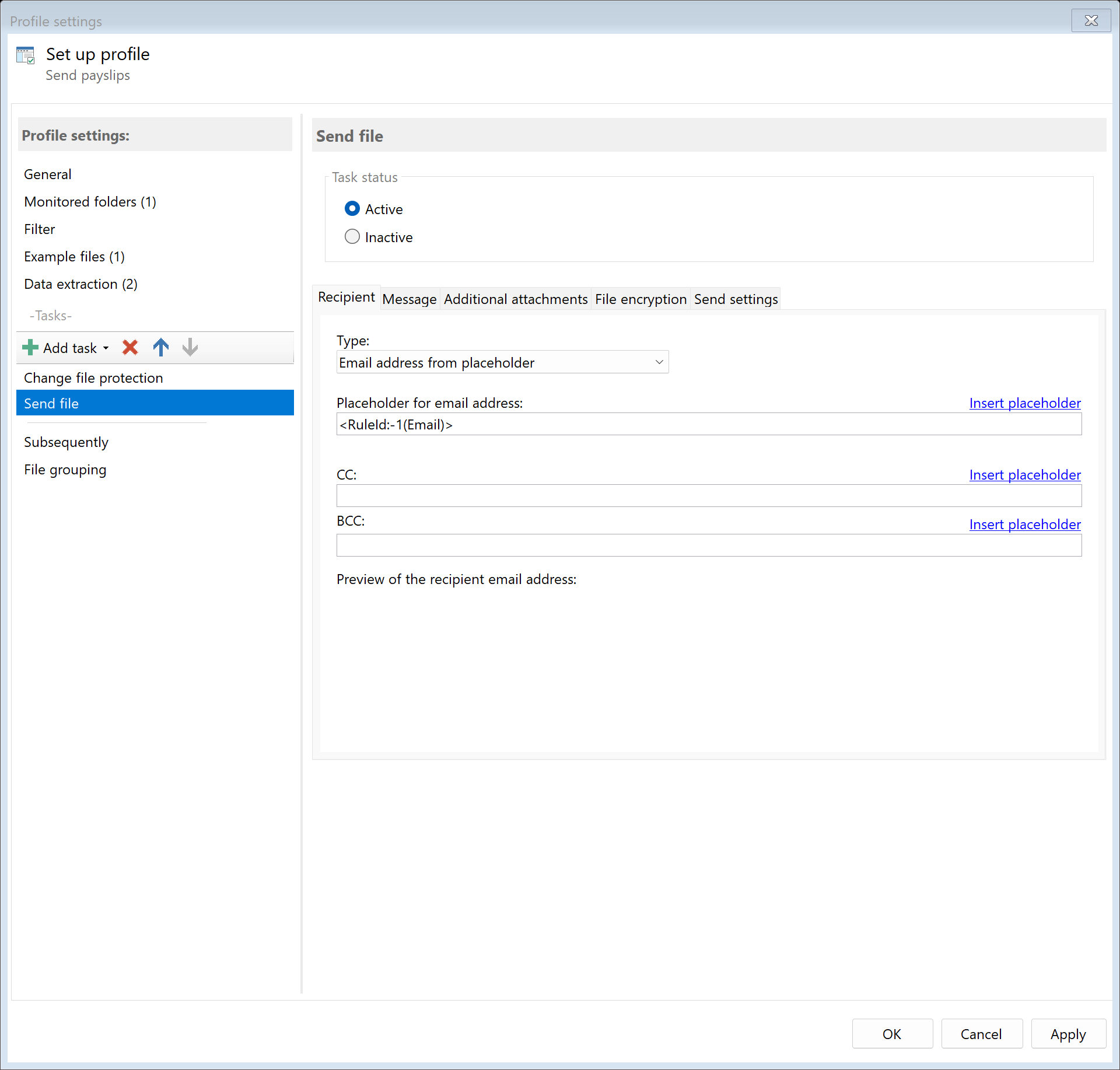
Add the "Send Email" task and configure the email settings:
Email configuration:
- To:
<RuleId:3(Email)> - Employee's email address
- Subject:
Your Payslip for <RuleId:4(Period)>
- Body: Customizable template with placeholders
Sample email body:
Dear <RuleId:1(Name)>,

Please find attached your payslip for <RuleId:4(Period)>.

The PDF is password-protected. Your password is the last 4 digits
of your Social Security number.

Best regards,
HR Department
Step 5: Configure email account
Set up the email account for sending in Program Options:
- SMTP: Direct SMTP server configuration
- Outlook: Use local Outlook installation
- Exchange Online: Microsoft 365 with OAuth
Result
After configuration, all payslip PDFs placed in the monitored folder are automatically:
- Employee data extracted from the document
- PDF password-protected with employee-specific password
- Email composed with personalized content
- Sent to the employee's email address