Step-by-step instructions for automated invoice archiving
Efficient invoice archiving is essential for accounting and tax compliance.
With Automatic PDF Processor, you can automatically organize incoming invoices
into a structured folder hierarchy based on supplier, date, or invoice number.
Video tutorial: Archive invoices automatically (with narration and optional subtitles)
Typical use cases
- Organize invoices by supplier name
- Create year/month folder structure
- Rename invoices with standardized naming convention
- Convert to PDF/A for long-term storage
- Extract data for accounting software
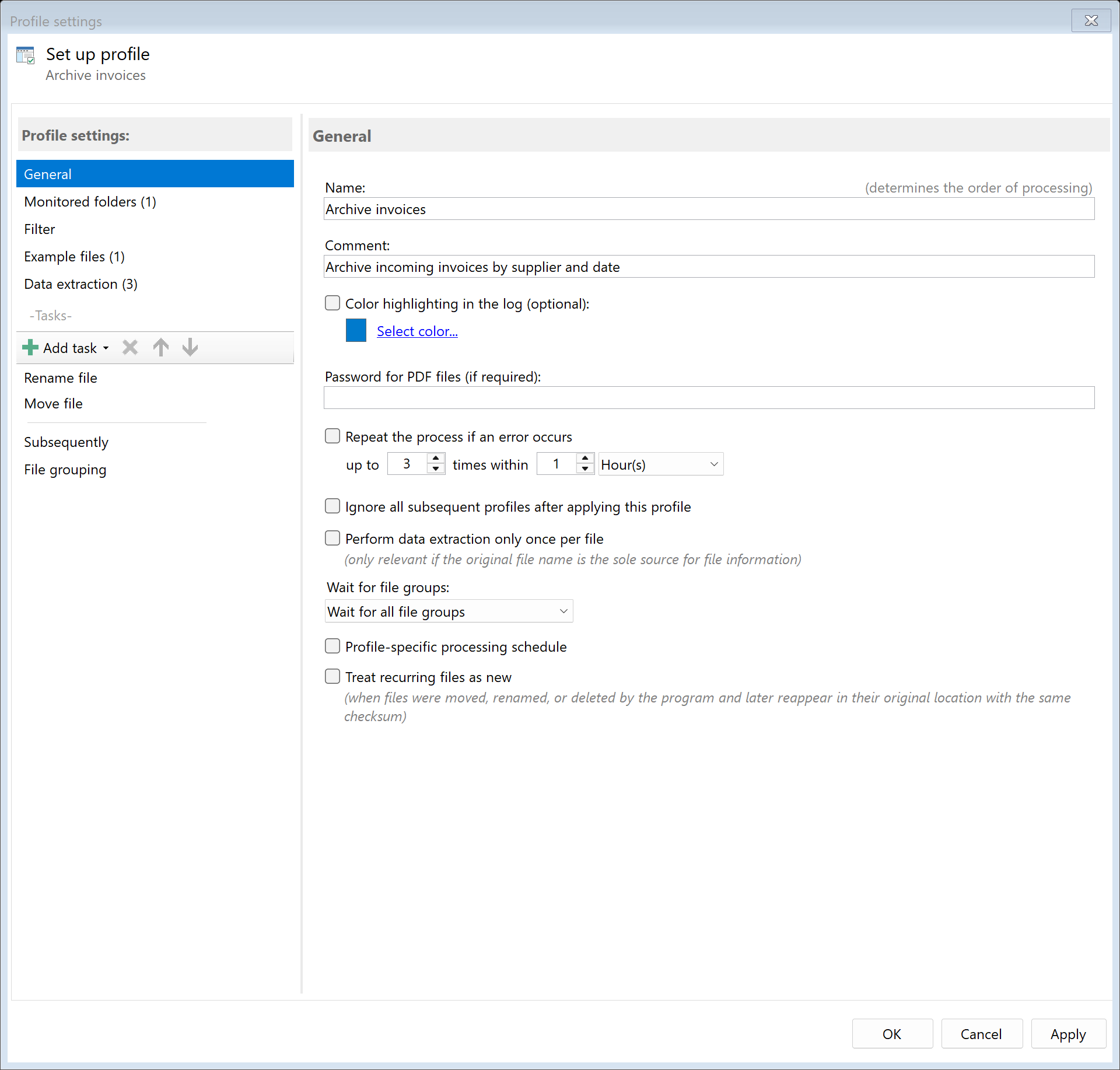
Step 1: Create a new profile
Create a new profile with a descriptive name such as "Archive invoices".
Set up the monitored folder where incoming invoices are placed (e.g., scanner output folder).
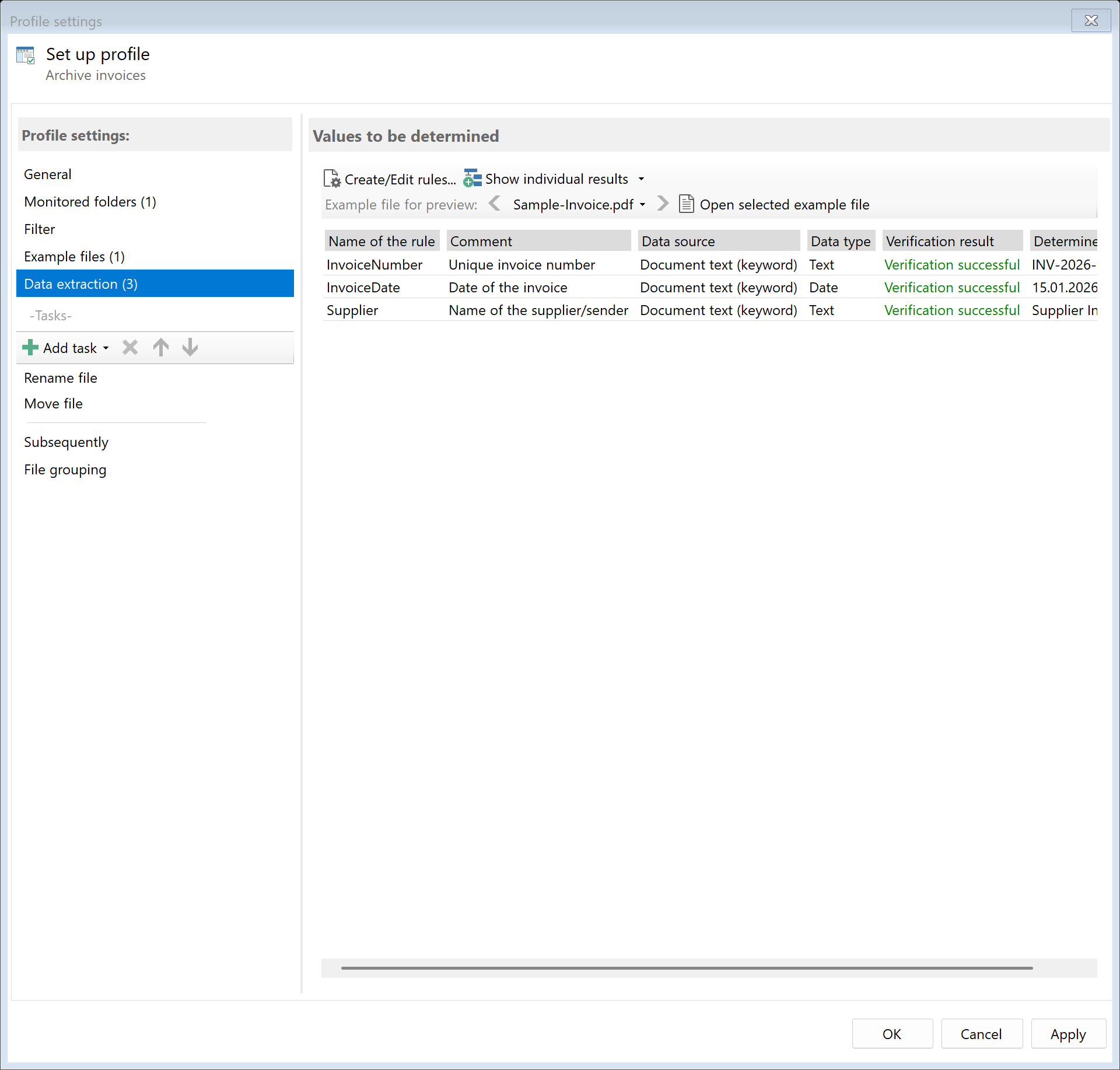
Step 2: Create extraction rules for invoice data
Create extraction rules to identify key invoice information:
- Supplier name: Company name from the invoice header
- Invoice number: Unique invoice identifier
- Invoice date: Date of the invoice
- Amount: Total invoice amount (optional)
Learn more about data extraction
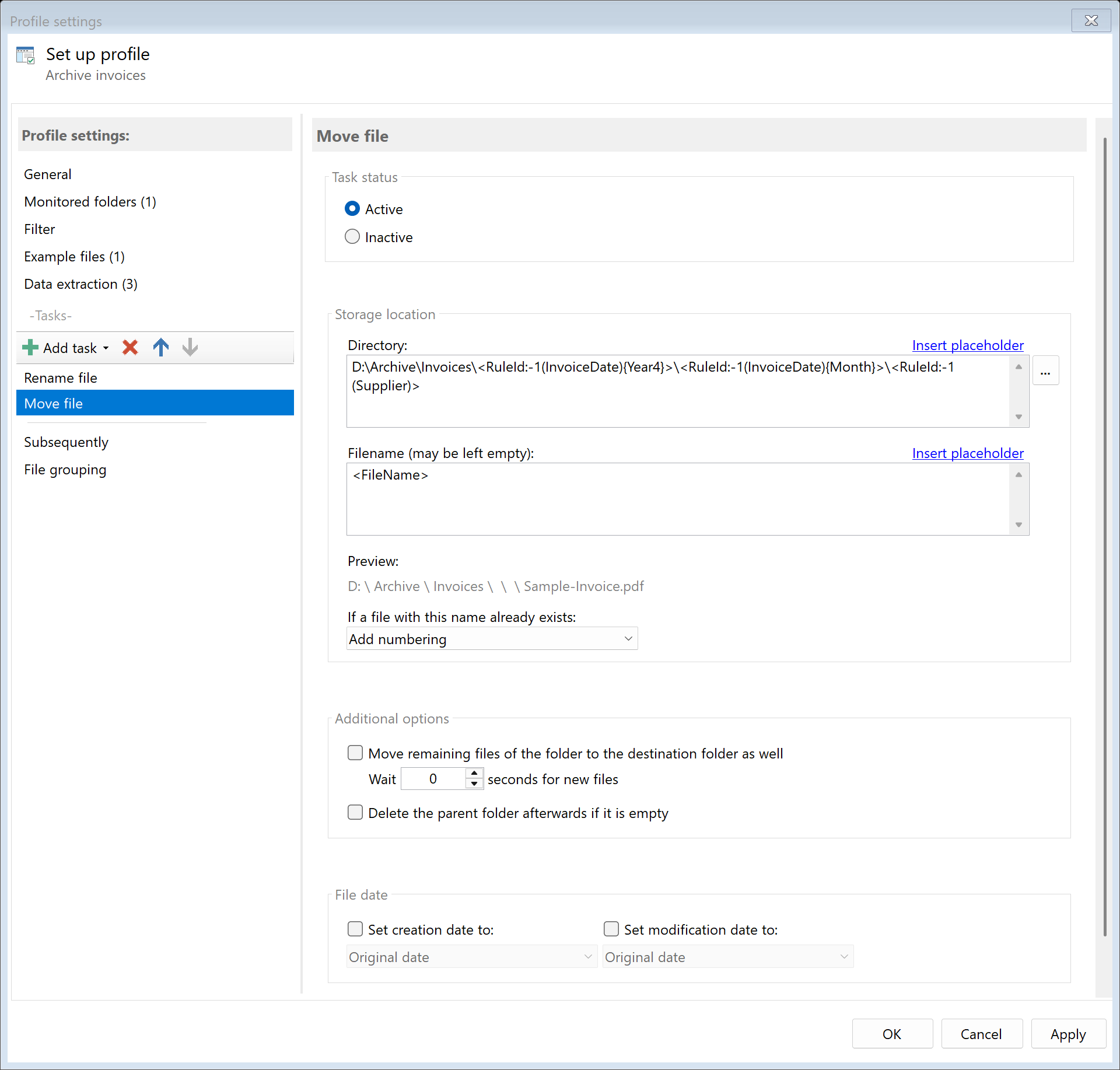
Step 3: Configure the destination folder structure
Use placeholders to create a dynamic folder structure:
Example folder structures:
| Structure |
Path example |
Result |
| By year/month |
D:\Invoices\<TodaysYear4>\<TodaysMonth>\ |
D:\Invoices\2024\01\ |
| By supplier |
D:\Invoices\<RuleId:1(Supplier)>\ |
D:\Invoices\ACME Corp\ |
| Combined |
D:\Invoices\<RuleId:1(Supplier)>\<TodaysYear4>\ |
D:\Invoices\ACME Corp\2024\ |
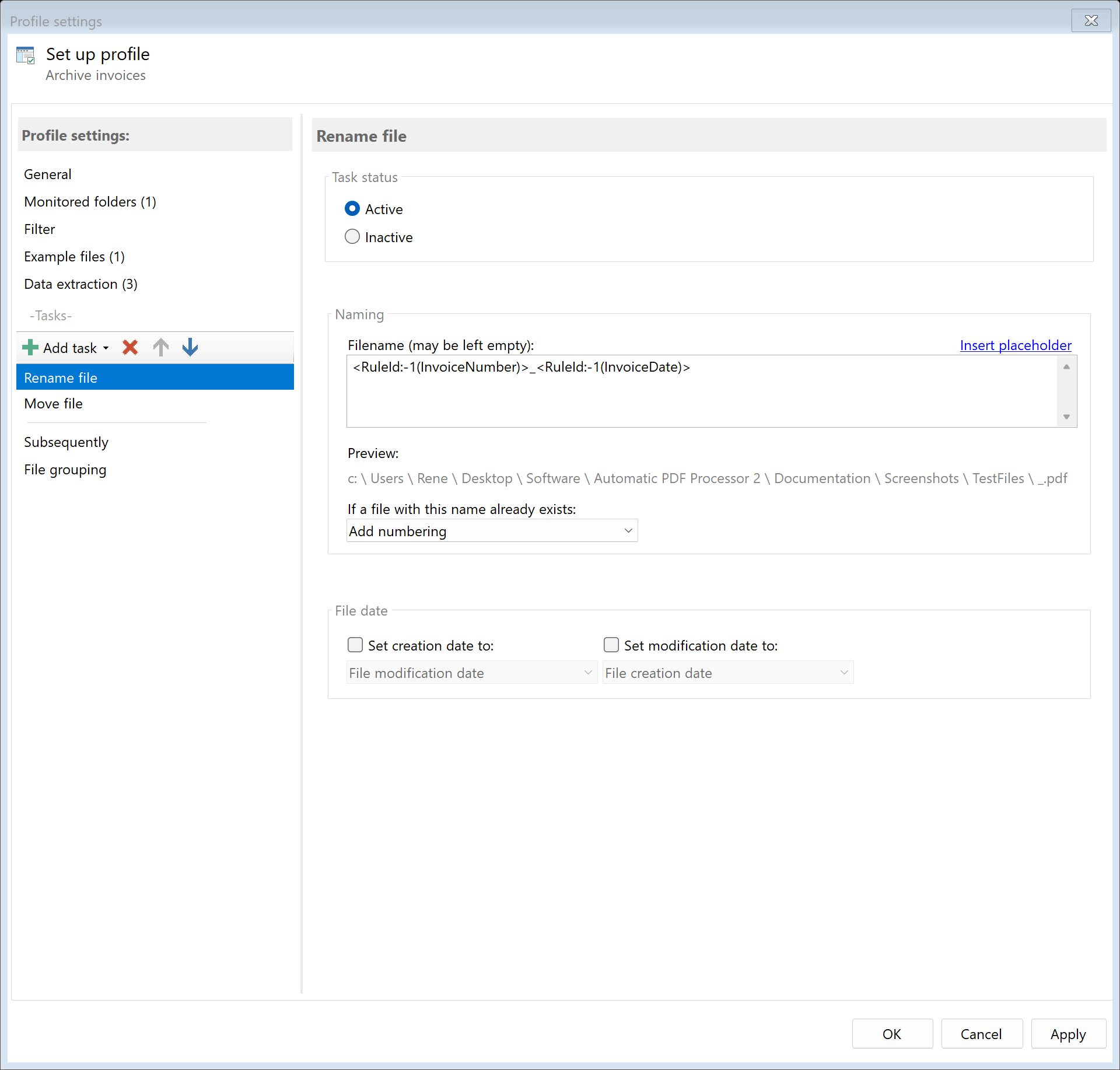
Step 4: Configure file naming
Create a standardized naming convention for your invoices:
Example naming patterns:
<RuleId:1(Date)>_<RuleId:2(Supplier)>_<RuleId:3(InvNo)>- Result:
2024-01-15_ACME Corp_INV-2024-001.pdf
<RuleId:2(Supplier)> - <RuleId:3(InvNo)>- Result:
ACME Corp - INV-2024-001.pdf
Step 5: Optional - Convert to PDF/A
For long-term archiving compliance, add the "Convert to PDF/A" task to ensure
documents remain readable for years to come.
Learn more about PDF/A conversion
Step 6: Optional - Export data to CSV
Use the "Save Extractions" task to create a CSV file with invoice data
for import into your accounting software.
Result
After configuration, all incoming invoices are automatically:
- Data extracted (supplier, invoice number, date, amount)
- Renamed according to your naming convention
- Moved to the appropriate folder in your archive structure
- Optionally converted to PDF/A for long-term storage
- Optionally logged to a CSV file for accounting