Step-by-step instructions for creating electronic invoices
ZUGFeRD (Central User Guide of the Forum for electronic Invoice Germany) is a standard
for electronic invoices that combines a PDF document with embedded structured XML data.
Factur-X is the Franco-German extension of this standard.
Benefits of ZUGFeRD
- Human-readable PDF plus machine-readable XML
- Automatic processing by accounting software
- Compliance with e-invoicing regulations
- Reduced manual data entry errors
- Faster payment processing
Step 1: Create a new profile
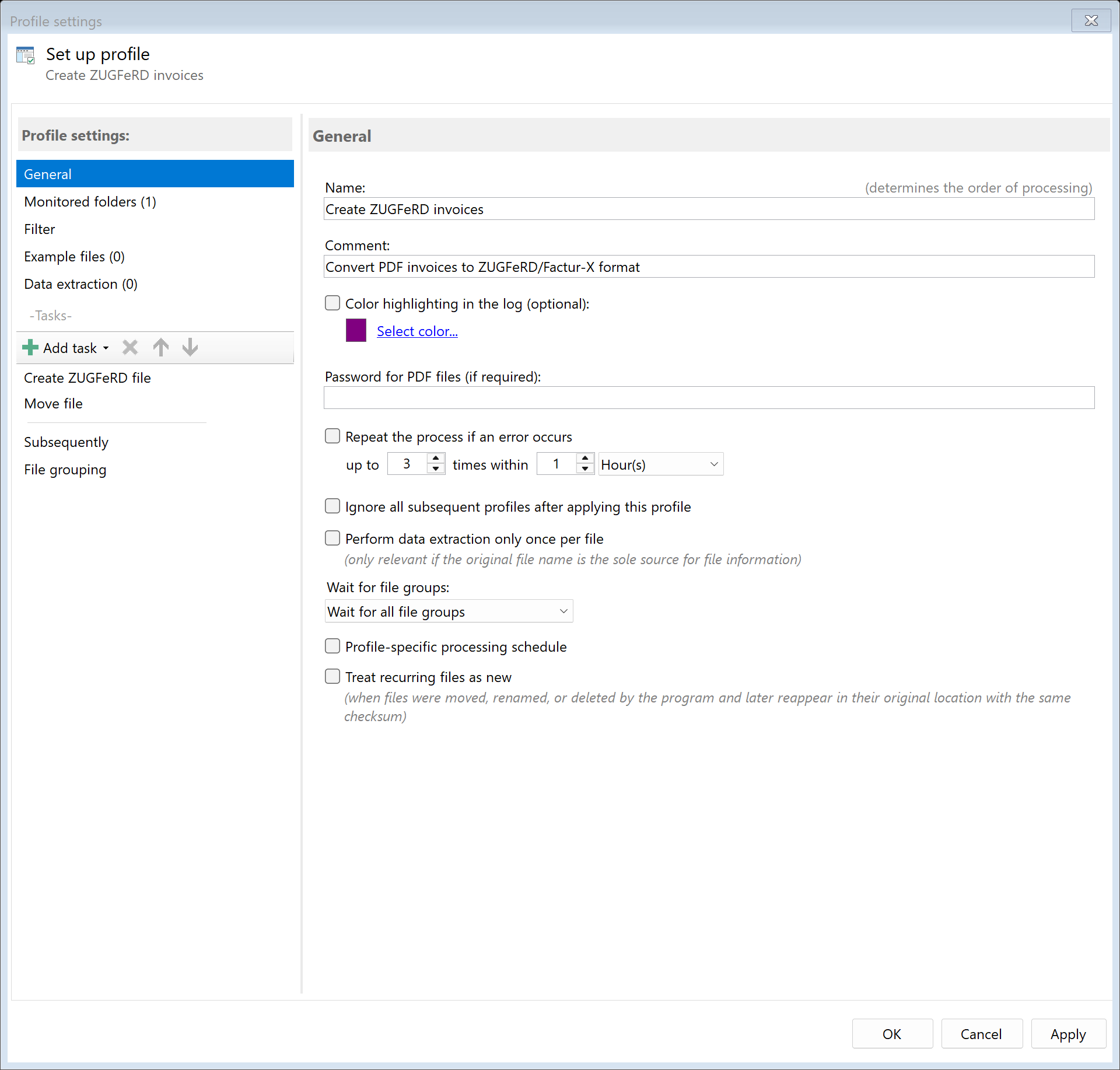
Create a new profile with a descriptive name such as "Create ZUGFeRD invoices".
Set up the monitored folder where PDF invoices are placed.
Step 2: Create extraction rules for invoice data
ZUGFeRD requires specific invoice data to be extracted from the PDF.
Create extraction rules for:
- Invoice number: Unique invoice identifier
- Invoice date: Date of the invoice
- Seller information: Name, address, VAT ID
- Buyer information: Name, address
- Line items: Description, quantity, unit price
- Tax amounts: Net, VAT, gross amounts
Learn more about data extraction
Step 3: Activate the "Create ZUGFeRD" task
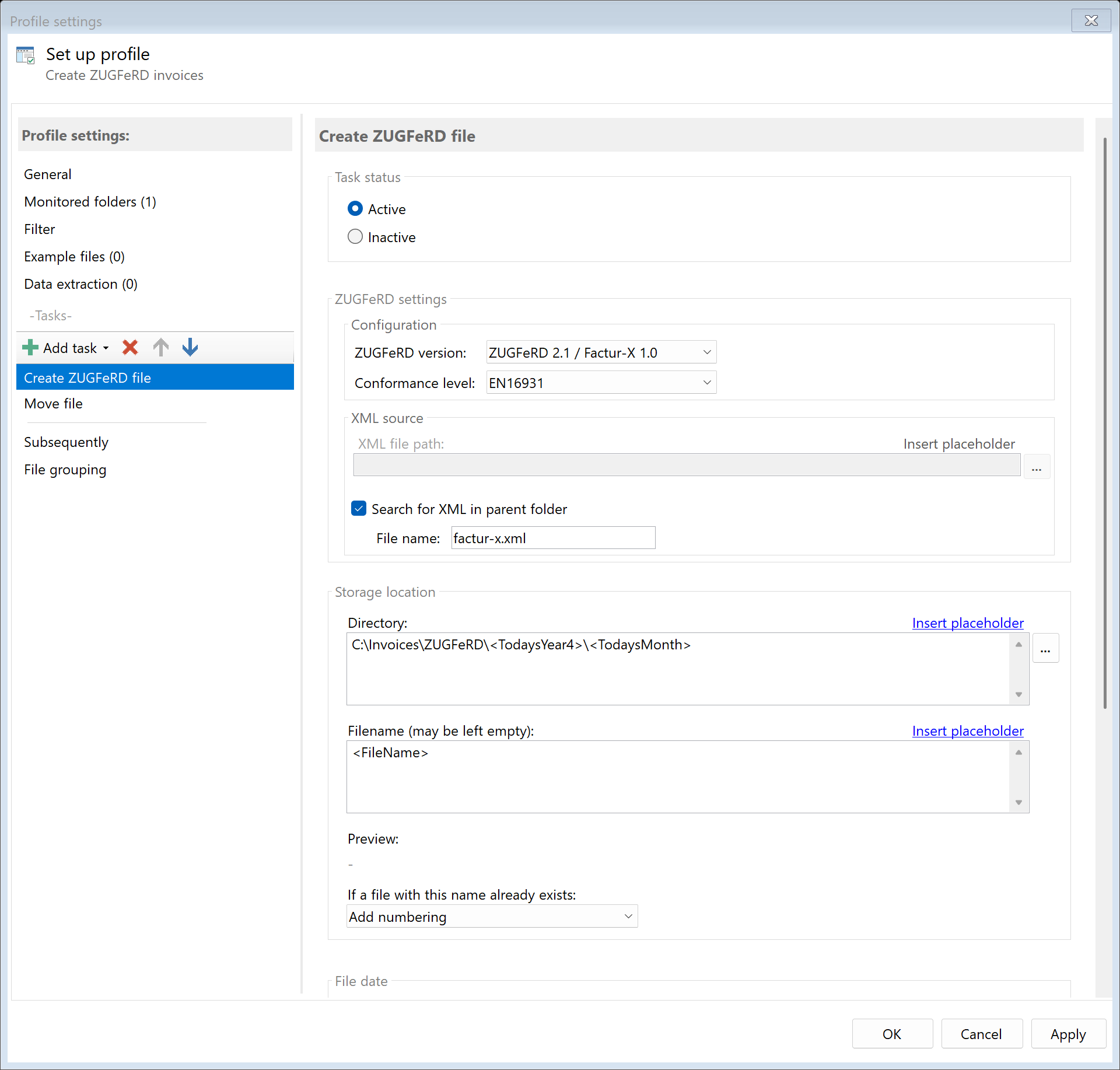
Go to the task view and select the "Create ZUGFeRD" task.
Activate the task and configure the ZUGFeRD settings.
Step 4: Select ZUGFeRD profile
Choose the appropriate ZUGFeRD profile for your needs:
| Profile |
Data |
Use case |
| Minimum |
Basic invoice data |
Simple invoices |
| Basic |
Standard invoice data |
General use |
| Comfort |
Extended data |
Detailed invoices |
| Extended |
Full data set |
Complex business scenarios |
Step 5: Map extraction rules to XML fields
Configure how extracted data maps to ZUGFeRD XML fields:
- Invoice number → BT-1 (Invoice number)
- Invoice date → BT-2 (Invoice issue date)
- Seller name → BT-27 (Seller name)
- Total amount → BT-112 (Invoice total amount with VAT)
The mapping is done through placeholders in the task configuration.
Step 6: Configure XML source
Specify where the XML file should be obtained from:
Option A: Search in parent folder
Enable "Search in parent folder" and specify the filename (e.g., "factur-x.xml").
The program will automatically search for this file in the same folder as the PDF.
Option B: Path with placeholders
If your XML files have a name matching the PDF (e.g., "Invoice_12345.xml" for
"Invoice_12345.pdf"), you can specify the path with placeholders:
C:\XML-Files\<FileName>.xml

Step 7: Configure storage location
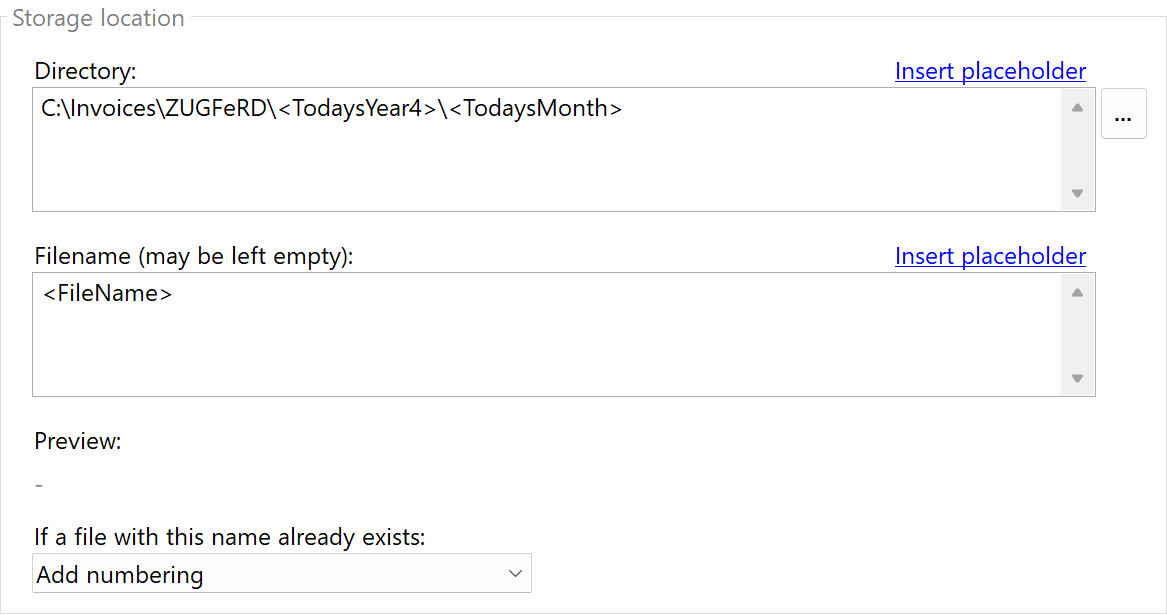
Determine where the created ZUGFeRD invoices should be saved.
You can specify a fixed folder or use placeholders:
D:\Outgoing-Invoices\ZUGFeRD\<TodaysYear4>\<TodaysMonth>
Step 8: Convert to PDF/A (recommended)
ZUGFeRD 2.0+ requires PDF/A-3 format. Enable the "Convert to PDF/A" option
or add a separate PDF/A conversion task before the ZUGFeRD task.
Result
After configuration, all PDF invoices placed in the monitored folder are automatically:
- Invoice data extracted according to rules
- XML file generated in ZUGFeRD format
- PDF converted to PDF/A-3 (if enabled)
- XML embedded into the PDF
- Saved as a compliant ZUGFeRD invoice