8 Profile Settings
8.1 Overview
The Profile Settings window is the central configuration window for profiles. Here you define which folders are monitored, which files should be processed, which data is extracted, and which tasks are executed.
Opening: Click New Profile... or Edit in the Profile Toolbar.
Window Structure
The window is divided into two areas:
| Area |
Description |
| Navigation (left) |
List of all categories showing configured elements |
| Content (right) |
Settings for the selected category |
Categories
| Category |
Description |
| General |
Name, comment, activation status, color |
| Advanced |
Rarely needed settings: processing times, retries, file group wait mode, delay, warning when processing stops |
| Monitored Folders |
Folders monitored for new PDF files |
| Temp. OCR Support |
Temporary text recognition for files without a text layer (e.g. scans), optionally also for text in images |
| Filter |
Criteria for which PDFs are processed |
| Example Files |
Test PDFs for rule preview |
| Data Extraction |
Rules for extracting data from PDFs |
| Tasks |
Actions applied to matching PDFs |
| File Grouping |
Grouping of related files |
| Subsequently |
Notifications and follow-up operations |
| Overview |
Summary of the profile with notes on missing folders, recipients or placeholders |
| Button |
Description |
| OK |
Saves changes and closes the window |
| Cancel |
Discards all changes and closes the window |
| Apply |
Saves changes, keeps the window open |
8.2 General
The General tab contains basic profile settings.
8.2.1 Name
The name of the profile. Use meaningful names that describe the purpose of the profile.
Examples: - "Archive Incoming Invoices" - "Order Confirmations to Purchasing" - "Process Scanned Receipts with OCR"
Optional free text field for additional information about the profile. The comment is displayed in the Profile List.
8.2.3 Active
Activates or deactivates the profile. Only activated profiles monitor folders and process files.
8.2.4 Profile Color
Assigns a color to the profile, which is displayed as a colored bar in the Log List. Useful for visual grouping of profiles.
8.3 Advanced
The Advanced tab bundles rarely needed profile settings (formerly at the end of the "General" page): processing times, retries on errors, file group wait mode, recurring files, delay before processing, filter check before each task, continuation of the task chain, and the warning when processing stops. The category name shows in parentheses how many of these settings deviate from the default, e.g. "Advanced (2)".
8.3.1 Processing Times
Allows restricting processing to specific time windows.
Use Profile-Specific Processing Times
When enabled, only the profile's own processing times apply to it. The processing period of the program options (section 36.3) does not matter for this profile: if processing is restricted there to 8:00 to 18:00, for example, a profile with the time point 22:00 still processes its files at 22:00. Profiles without their own processing times rest outside the processing period; the same applies to retries after errors (section 8.3.2).
Schedule Configuration
| Setting |
Description |
| Repeat |
Every day, Every X days, On specific weekdays |
| Weekdays |
Active weekdays (Mon-Sun) |
| Time Type |
"At" (point in time) or "From-To" (time range) |
| Time |
Start time and optionally end time |
Time Type "At" (Point in Time)
Processing occurs once at the specified time. The program does not have to hit it to the minute: the time point remains valid for two check intervals, at least 5 minutes. If processing starts within this time, it processes all waiting files, even if that takes longer. If the program is still busy with other files at the time point, it processes the files of this profile right afterwards. Files detected later wait until the next time window.
Catch-Up Function: When enabled, missed processing is caught up if the program starts within the catch-up time.
Example: Time 09:00, Catch-up 30 minutes - Program starts at 09:15 → Processing is performed - Program starts at 09:35 → Processing is missed, next time point is used
Time Type "From-To" (Time Range)
Processing occurs continuously during the specified time range. New files are processed immediately. If the end time is earlier than the start time (for example 22:00 to 06:00), the time range extends past midnight.
Time Windows Past Midnight
A time window belongs to the day on which it starts. "Monday to Friday, 22:00 to 06:00" therefore also applies in the night from Friday to Saturday, but not in the night from Sunday to Monday. The same applies to the catch-up time of a time point shortly before midnight: with 23:50 and a catch-up time of 60 minutes, processing is caught up until 00:50.
8.3.2 Retries on Errors
Configures automatic retry attempts on errors.
| Setting |
Description |
| Active |
Enable retry function |
| Maximum Attempts |
Number of retry attempts (default: 3) |
| Time Period |
Period over which attempts are distributed |
A retry runs only the tasks that were still pending; tasks already completed are not executed again.
More Information: See Chapter 37.5 (Retries on Errors)
8.3.3 File Group Wait Mode
Determines how the profile interacts with file groupings from other profiles.
| Mode |
Description |
| Wait for all |
Waits for all profiles with file grouping (default) |
| Wait for selected |
Waits only for specific file group profiles |
| Wait for none |
Processes immediately without waiting for file groups |
8.3.4 Recurring Files
| Option |
Description |
| Reprocess recurring files |
When enabled, files that reappear at the same location (after moving/deleting) are processed again |
| Additional iterations for the file |
When enabled, after successful processing the file is presented again to all profiles for the next N iterations — including those that already processed it. This allows profiles to run multiple times on the same file — useful when one profile modifies the file so that subsequent profiles re-evaluate (e.g. OCR produces text that an extraction rule can now detect). The counter is decremented by 1 per iteration and deleted when it reaches 0; after that normal deduplication kicks in again. Cannot be used together with tasks that have "Overwrite original file" enabled (would cause infinite loops; the save dialog blocks the combination). |
8.3.5 Delay Before Processing
| Option |
Default |
Description |
| Delay before processing (seconds) |
0 |
Wait time in seconds before the tasks of this profile are executed. Useful when files come from slow sources (e.g., scanners, network drives) and you need to ensure they are completely written. 0 = no delay.
Note: The delay pauses only this single profile and does not change the order of multiple profiles relative to each other. To control the print or processing order across multiple profiles, sort them via the alphabetical order of their profile names (e.g. 01 Profile A, 02 Profile B). |
8.3.6 Revalidate Filter Before Each Task
| Option |
Default |
Description |
| Revalidate filter before each task |
No |
When enabled, the filter is not only checked once at the start of the profile, but is re-evaluated before each individual task. This is useful when a task modifies the file in a way that could change the filter result for subsequent tasks (e.g., when the "Remove Pages" task removes pages containing text that is used as a filter criterion). |
Note: For existing profiles (before version 2.0.43), this option is enabled by default to maintain the previous behavior. For new profiles, it is disabled.
Interaction with the file name filter: The "Scope" selection at the file name filter (see section 8.6.2) determines which name is used for these checks. Be careful when combining them: If the profile itself renames the file in a way that matches its own exclusion with the scope "also after renaming", the remaining tasks of the profile are aborted when this option is enabled. If a renaming should act as a done marker for subsequent profiles only, leave this option disabled.
8.3.7 Continue with the Remaining Tasks Even If a Task Wrote Nothing
| Option |
Default |
Description |
| Continue with the remaining tasks even if a task wrote nothing (not overwritten) |
No |
If a task reports "Not overwritten" because the target file already existed with the option "Cancel" or no page remained when splitting, the remaining tasks of the profile are skipped, exactly as after an error. This way, a subsequent task "Delete file" does not delete a file that never arrived anywhere. When enabled, the task chain continues anyway. |
Note: For existing profiles (before version 2.9.6), this option is enabled to maintain the previous behavior. For new profiles, it is disabled. Enable it only if the chain should deliberately continue, for example to delete duplicates after a copy that was not overwritten.
8.3.8 Warning When Processing Stops
If the profile has not processed a file regularly for a longer time, the program can warn you (see Program Options, section "Check profiles for regular processing"). Here you define the deadline for this profile:
| Selection |
Meaning |
| Default (n days) |
Deadline and highlighting from the program options |
| Custom deadline |
Own deadline in days; highlighting is active for this profile even if it is switched off in the options |
| No warning |
This profile is never highlighted or reported, for example for profiles that only rarely receive files |
An email when processing stops is configured like the other status notifications under Subsequently (section 8.11.4).
8.4 Monitored Folders
The Monitored Folders tab defines which folders are monitored for new PDF files.
8.4.1 Folder List
Shows all configured monitored folders.
Buttons:
| Button |
Description |
| Add |
Adds a new folder |
| Remove |
Removes the selected folder |
8.4.2 Adding Folders
When adding a folder, you can: - Select local folders - Enter network paths (UNC paths: \\Server\Share\Folder) - Use environment variables (e.g., %USERPROFILE%\Documents)
8.4.3 Include Subfolders
When enabled, files in subfolders of the monitored folder are also processed.
8.4.4 Ignore Documents in Source Folder
This option prevents infinite loops when OCR, compression, splitting, or merging creates new documents in the same monitored folder.
When enabled, such files are added to the list of known files and ignored in the next scan.
Recommendation: This option should remain enabled (default) unless you intentionally want to reprocess the generated files.
8.4.5 Important: Have Each Folder Monitored by Only One Program Instance
A monitored folder must only be processed by one installation of Automatic PDF Processor. If the program runs on two computers or under two Windows user accounts at the same time and monitors the same folder (e.g. a network share), both instances process the same files. This results in duplicate output, such as emails being sent twice, or error messages because one instance "snatches" the file away from the other.
Especially after moving the program to a different computer or user account, make sure the old installation is closed and its autostart is disabled. On the same computer, the program automatically detects an already running processing instance - across computers, however, this detection is technically not possible.
8.5 Temp. OCR Support
Text filters and extraction rules require the text of the document - for scanned files without a text layer, they therefore come up empty. The Temp. OCR Support category solves this problem: If a file has no text layer, the program temporarily recognizes the text via text recognition (OCR) so that the filter check and data extraction can evaluate the file.
8.5.1 How It Works
- The recognition is performed on a temporary copy - the original file remains completely unchanged. The copy is deleted automatically once processing is complete.
- The recognized text applies to the entire processing of the file: Both the filter check and the data extraction - and therefore the placeholders of the tasks (e.g.
<RuleId:1(InvoiceNumber)> when renaming) - use the same recognized values.
- Files that already have a text layer are used unchanged - no text recognition takes place for them. If required, the program additionally recognizes the text in images of such files, for example a letterhead, or recognizes all of their text anew if the text layer cannot be read correctly (section 8.5.5).
- A file with hardly any text (fewer than 20 characters per page on average) is treated like a file without a text layer: It is recognized, and the recognized text then applies to filters and data extraction in place of the existing text layer. This is the same classification as in the "OCR recommended" column of the example files. Section 8.5.5 describes an exception ("Files with a text layer that is hard to read").
- The previews also use the temp. OCR support: the rule editor (checkbox at the bottom left, preset with this category - chapter 9.1), the results preview of the filter, the extraction results overview of the "Data Extraction" category, and the placeholder previews (e.g. storage location, email recipients, stamp, barcode, and redaction preview). Each example file is recognized only once per opened profile settings window (with progress display).
8.5.2 Activation and Page Limit
Enable the option "Perform temporary text recognition for files without a text layer".
The selection "Files with a text layer" below it is described in section 8.5.5.
Page limit: By default, only the first 5 pages are recognized (plus the last page so that rules with the page determination "last page" work). This speeds up the processing of extensive scans considerably and is almost always sufficient for filter decisions. If required, you can increase the number or disable the limit.
8.5.3 OCR Settings
The same settings are available as for the task "Make file searchable": language(s) of the document content, image enhancements (deskew, sharpen, contrast), page orientation, character restriction, and the DPI of the output.
Troubleshooting tip: If a value is not recognized as expected, temporarily create a task "Make file searchable" with the same OCR settings and look at the recognized text of the output file - this shows exactly what the filter check "saw".
8.5.4 Important Notes
- Processing time: Depending on the size of the file, text recognition can noticeably extend the processing time (typically a few seconds per page).
- Files without text sorted out globally? The program options "Ignore/move/send files without text" (under Processing) take effect BEFORE the filter. If they are active, a scan never reaches the temp. OCR support - disable these options if scans are to be processed via the temp. OCR support.
- The recognition is performed only once per file, even if several profiles with the same OCR settings check the file.
- Scan detection: To see whether an example file is affected, check the "Character count" and "OCR recommended" columns in the "Example Files" category. If it says "Yes" there, the temp. OCR support performs the text recognition for this file.
- Windows 7: Text recognition requires Windows 8 or newer. On Windows 7 it is skipped; the file appears in the processing log with the note "Text recognition is not available on this Windows", and the main window shows a hint bar.
8.5.5 Files with a Text Layer
The selection "Files with a text layer" determines how the temp. OCR support handles files that already have a text layer. Below it, a short note describes the selected setting.
| Setting |
Effect |
| Use as is (default) |
The text layer is read, no text recognition takes place. |
| Also recognize text in images |
The text layer is kept, the text in images on the pages is added - for example a letterhead shown as an image. |
| Recognize all text anew |
The text layer is not used, all text is recognized anew - for files whose text cannot be read correctly. |
Also Recognize Text in Images
Many files have a text layer but show part of their content only as an image. Typical examples are the letterhead and footer (name and address of the sender, bank details, VAT identification number) or individual scanned pages between text pages. This text is not part of the text of the document - a filter on the supplier name in the letterhead therefore does not match, and a rule does not find it.
In this case, select "Also recognize text in images":
- The existing text layer remains unchanged and is still read character by character. In addition, the program recognizes the text in the images of the pages and adds it to the temporary copy at the position where it appears in the image. Filters, extraction rules (also with a data area) and the previews evaluate it like ordinary text.
- Recognition takes place only inside images and only where there is no text yet. Pages without an image are not recognized and cost no time.
- The page limit (section 8.5.2) applies here as well: Recognition takes place on the first pages and on the last page. The existing text of all pages remains readable in any case.
- In the text of the document, the added text of a page follows its existing text.
- The image enhancement "Correct skew" and the automatic correction of the page orientation have no effect here: The recognized words must stay at their position on the page.
- Logos and photos can produce individual character strings without meaning. Therefore, select this setting only in profiles that need the text from images.
Recognize All Text Anew
Some files have a text layer that cannot be read correctly: Copying the text only produces meaningless characters because the font is stored incorrectly in the file or the text layer comes from a faulty text recognition of the scanner. Filters and extraction rules then find nothing, although the text on the page is easy to read. Because such files contain many characters, they count as files with a text layer ("OCR recommended" column: No) and are not recognized with the default setting.
In this case, select "Recognize all text anew":
- The existing text layer is not used. In the temporary copy, the pages are converted to images beforehand and recognized completely - filters, extraction rules and the previews evaluate only the recognized text.
- The page limit (section 8.5.2) applies as with scans: The first pages and the last page are recognized. The text of the remaining pages is then not available to filters and rules.
- Text recognition takes time (typically a few seconds per page) and reads less accurately than an intact text layer. Therefore, select this setting only in profiles whose files have an unusable text layer.
- A simple test shows whether a file is affected: Copy some text of the file in a PDF program and paste it into a text program. If meaningless characters appear, the text layer is unusable.
Files with a text layer that is hard to read: From PDF files created by some programs, the program can read only individual characters despite visible text ("OCR recommended" column: Yes), because the page content is stored in an unusual form. The temp. OCR support detects such files and makes their text readable in the temporary copy - character by character, without the reading errors of text recognition. Only the text in images is then recognized. You do not need to set anything for this. All other files with hardly any text are still recognized completely as before.
8.6 Filter
The Filter tab defines criteria for which PDF files should be processed.
Detailed Documentation: See Chapter 8.6 (Filter) in the separate file.
8.7 Example Files
The Example Files tab allows adding test PDFs for previewing extraction rules.
8.7.1 Purpose
Example files serve to: - Test extraction rules in the rule preview - Verify results before production use - Identify problems with data extraction
8.7.2 Adding Files
| Button |
Description |
| Add |
Selects one or more PDF files |
| Remove |
Removes the selected example file |
| Remove All |
Removes all example files |
Tip: Add representative examples that cover different variants of your documents to be processed.
Columns of the file list:
| Column |
Description |
| Exists |
Indicates whether the file is present at the specified path |
| Character count |
Number of text characters in the document ("-" if the file cannot be read) |
| OCR recommended |
"Yes" if the file contains no or hardly any text characters - probably a scan without a text layer. In this case, enable the "Temp. OCR Support" category (section 8.5) or use the task "Make file searchable" (for files with individual text characters with the setting "Process files with hardly any text") |
8.7.3 Preview
The example files are used in the data extraction rules to show keyword locations, etc. You can switch between example files to test the rules with different documents.
8.8 File Grouping
The File Grouping tab enables processing related PDF files as a group.
8.8.1 Use Cases
- Process invoice with associated delivery note
- Merge main document with attachments
- Combine multiple pages of a scanned document
8.8.2 Primary File Group
The primary file group contains the main files to be processed.
| Option |
Description |
| Subgroup can contain multiple files |
Allows grouping multiple PDFs with identical extraction value and fulfillment of filter criteria |
| Process files individually |
Each file is processed separately |
| Subsequent tasks apply to all files in primary subgroup |
All files in the group receive the listed tasks |
8.8.3 Secondary Subgroups
Secondary subgroups define additional files belonging to a main file.
| Setting |
Description |
| Existence Type |
Must exist / Can exist |
| Multiple Matches |
Process all / Newest / Oldest / Report error |
| Validations |
Optional comparisons of placeholder values between different groups (same customer number in primary and secondary document) |
Important - file group or folder chain? A file group is meant for files that belong together and exist at the same time (e.g. invoice and delivery note). If a second profile is instead meant to process the output of the first one, do not add it as a secondary subgroup; simply let it monitor the destination folder of the move or copy task. As a subgroup, the first profile would wait for the waiting time on every file and then report "No matching file", because the associated file never exists at the same time. The program points out this constellation when saving.
8.8.4 Maximum Wait Time
The time in seconds to wait for additional files of a group (default: 20 seconds).
The wait time starts when the program discovers the first file of the group. If it has not expired by the end of a check run, the run waits up to one minute for it and then processes the group immediately. Only for longer remaining wait times is the group processed in the next check run (see check interval in the program options).
Tip: Increase the wait time if files arrive with a delay (e.g., with a slow scanner).
The Data Extraction tab shows the configured extraction rules.
8.9.1 Rule List
Shows all defined rules with the following information:
| Column |
Description |
| Name |
Name of the rule |
| Source |
Data source (document text, barcode, etc.) |
| Data Type |
Text, date, number, or query |
| Button |
Description |
| Add |
Creates a new rule |
| Edit |
Opens the selected rule for editing |
| Duplicate |
Creates a copy of the selected rule |
| Remove |
Deletes the selected rule |
| Move Up/Down |
Changes the order of rules |
8.9.3 Rule Order
The order is important when rules reference each other (e.g., through placeholders). Rules being referenced must be defined before the referencing rules.
More Information: See Chapter 9 (Extraction Rules)
8.10 Tasks
The Tasks tab shows all available task types and enables their configuration.
8.10.1 Task List
Tasks are displayed as an expandable list. Each task type can be added multiple times.
8.10.2 Task Order
The order of tasks determines the execution order. Tasks are processed from top to bottom.
Tip: Place critical tasks (e.g., email sending) at the end so they are only executed when all previous tasks were successful.
Detailed Documentation: See Chapters 10-30 for individual task types.
8.11 Notifications
The Subsequently tab contains notification settings among other things.
8.11.1 Notification Types
| Event |
Description |
| On Success |
Notification on successful processing |
| On Error |
Notification on processing errors |
| On Exhausted Retries |
Notification when all retries have failed |
| When Processing Stops |
Notification when the profile has not processed a file regularly for longer than the deadline (deadline under "Advanced", section 8.3.8) |
The notification when a file could not be assigned to any profile is a global setting since version 2.10.0 under Options > Processing > Files Without Profile Match.
8.11.2 Email Notification
For each notification type, you can: - Specify email recipients (multiple separated by semicolon) - Configure subject and text of the email - Use placeholders for dynamic content
8.11.3 Sound Notification
Enable sound notification to receive an audible alert for certain events.
| Setting |
Description |
| Enable Sound |
Enables sound playback |
| WAV File |
Path to the sound file to play |
8.11.4 Notification When Processing Stops
The row when processing stops (after n days) in the block "Status notification by email" sends an email to the specified recipients when the profile has not processed a file regularly for longer than the deadline. The deadline comes from the program options or from the profile's own deadline (page "Advanced", section 8.3.8); if "No warning" is selected there, the row is disabled. The notification is repeated only after another deadline has passed; after reactivation, import or a critical change of the profile it waits 15 minutes so that you can catch up first. Without the check mark, a gray note shows what applies instead: the notification from the program options to its recipients, or no notification.
Independently of this, a notification to central recipients can be enabled under Options > Processing > Check profiles for regular processing. If a profile has its own notification configured here, the email for this profile goes only to the recipients specified here.
8.12 Follow-up Operations
The Subsequently tab also contains settings for actions on errors or non-matches.
8.12.1 On Errors
| Option |
Description |
| Move Files |
Moves files with errors to a separate folder |
| Target Folder |
Folder for failed files |
8.12.2 On No Match
| Option |
Description |
| Move Files |
Moves files without matching filter to a separate folder |
| Target Folder |
Folder for unassigned files |
Note: These profile-specific settings take precedence over global settings in the Program Options.
8.13 Overview
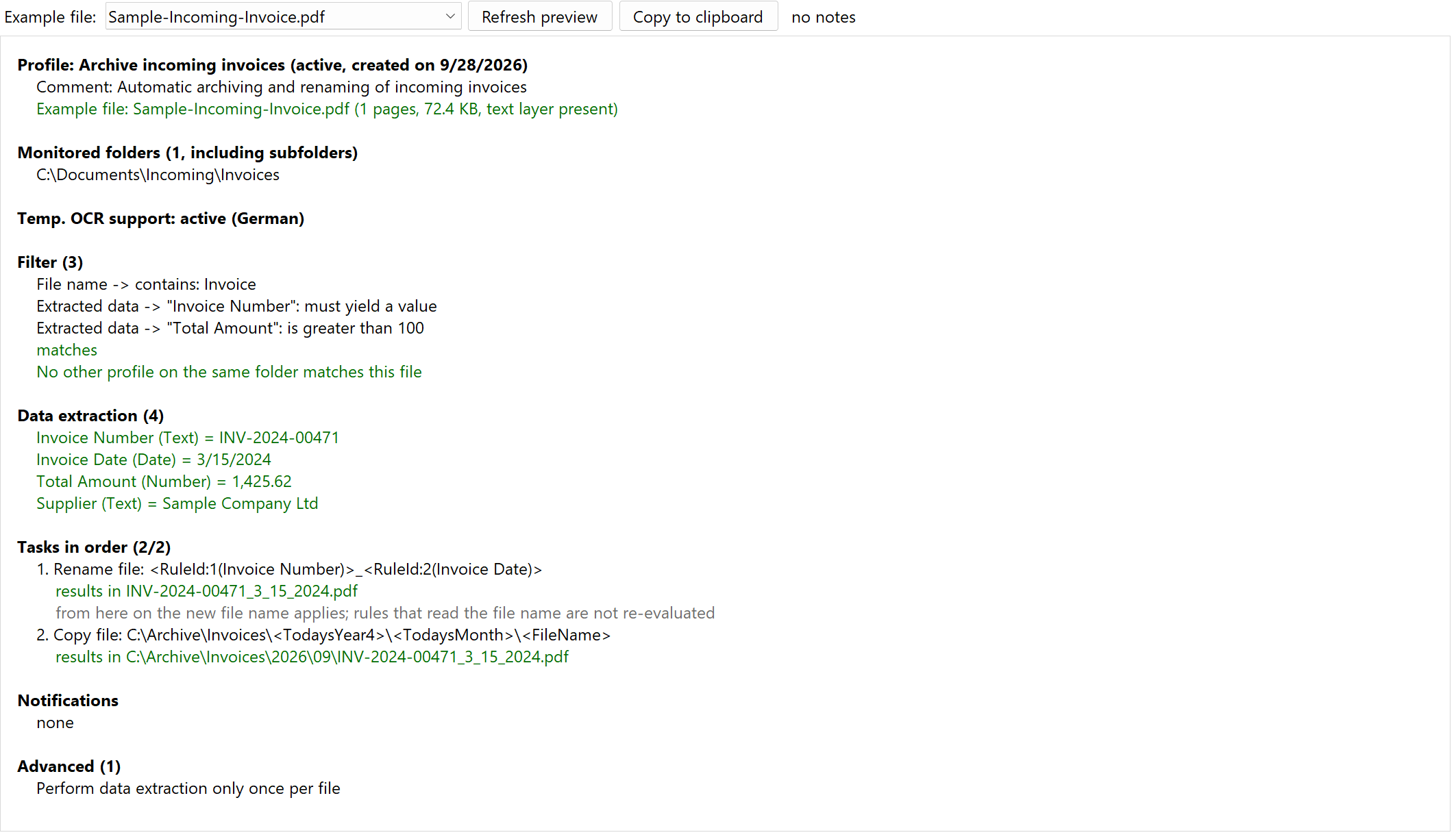 Overview
The Overview page summarizes the entire profile on one page: status, monitored folders, temp. OCR support, filter criteria, extraction rules, the tasks in their order with their most important parameter (target path, printer, recipient, table), notifications, follow-up operations, file grouping and all advanced options that deviate from the default. It always shows the current editing state, even before saving.
Notes are shown in red with an exclamation mark in front, for example:
- A monitored folder does not exist.
- A notification is switched on but has no recipient.
- A file name or target path contains a placeholder for which no rule exists.
- The profile has no active task.
- Text recognition is not available on this Windows.
- "Delete file" precedes further active tasks - the file goes to the recycle bin before these tasks run. When saving, the program asks for confirmation in this case.
- "Delete file" follows "Move file" - the file just moved to the target folder would be deleted.
- The target folder of a task lies within the monitored folder of this profile, and "Treat recurring files as new" is switched on - the file can be processed again. Without this option, this is only shown in gray: the file counts as recurring there and is not processed again.
- The template file of "Use template" is not found.
Deactivated tasks are shown in gray. They do not count as notes because they are not executed during processing. For "Split file", the task line names active page exclusions, such as "discards pages with fewer than 2 characters", so it stays visible what is dropped when splitting.
Each task shows its most important settings: for stamps and watermarks the text, for barcodes the format and content, for file protection the passwords (fixed or from a rule - never the value itself) and the changed permissions, for "Use template" the template file and the number of replacements. If a task runs an external program afterwards, this is shown below it with path and parameters. If the target folder of a task lies within a folder monitored by another profile, the overview names that profile - the file is processed further there if its filter matches. Filters on extracted data are listed with their criteria per rule. If the profile has its own processing times, the Processing times section shows them; otherwise it shows the processing period of the program options, if one is set.
Check before saving
When saving, the program checks the profile as a whole and shows all objections in one message - no longer one after the other. What prevents saving, such as a missing monitored folder, a filter on a deleted rule or the combination of "Treat recurring files as new" with "Overwrite original file", you have to fix. For the remaining points, such as "Delete file" before further tasks or a stop profile that covers other profiles, the program asks once whether to save anyway. The overview shows the same points in advance in the section Check before saving:
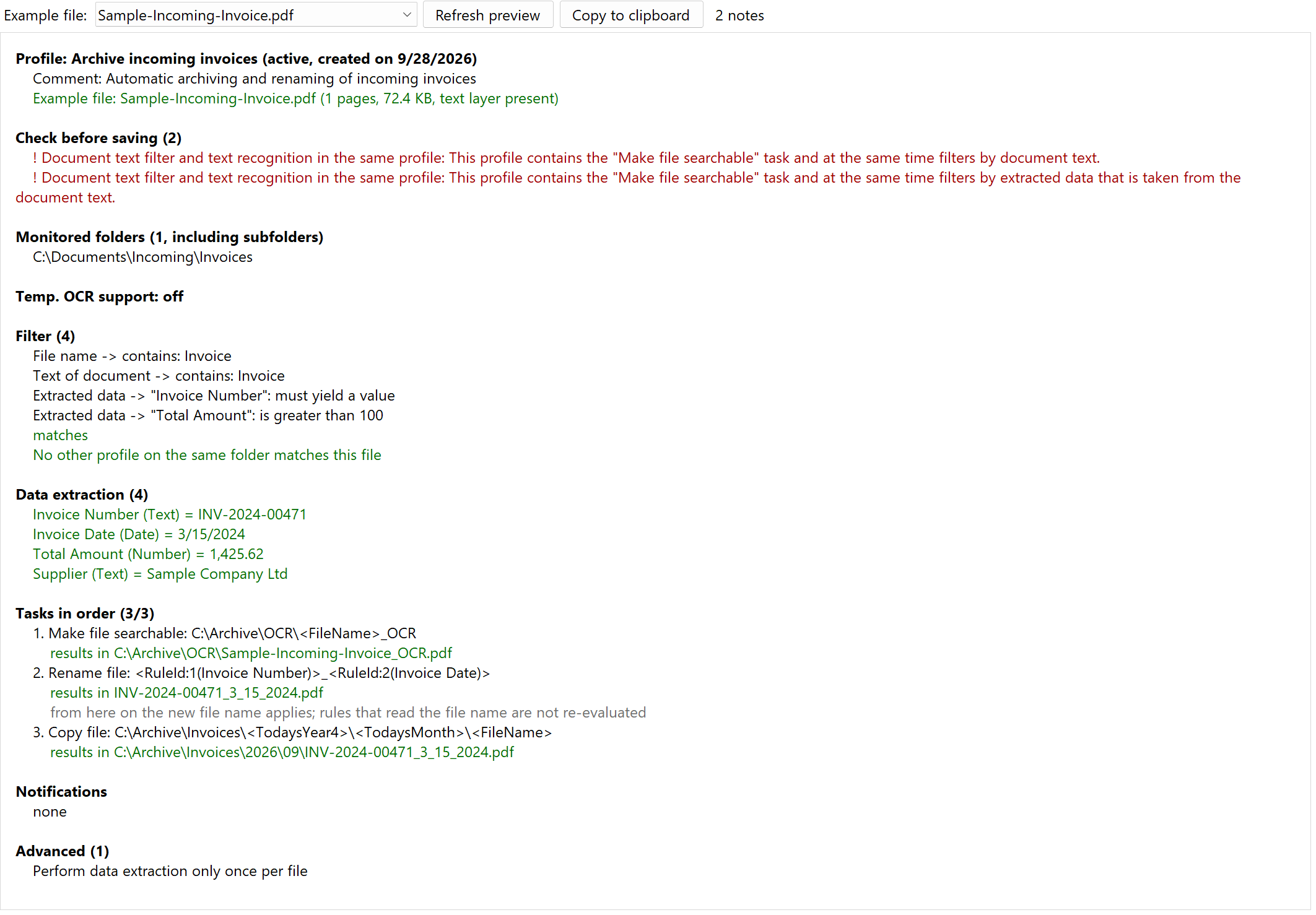 Overview with check before saving
The checks of the individual pages, such as a missing recipient of a task, still run on the respective page.
Clicking a line
A click on a line of the overview opens the corresponding page: the folder line opens the monitored folders, a task or one of its lines opens that task, a criterion on extracted data opens the filter tab. Over lines with a target, the mouse shows a hand. To select text, drag with the mouse as usual.
Preview with an example file
Select an example file at the top (page "Example files"), and the overview additionally shows in green what would happen with exactly this file:
- Example file: page count, file size and whether a text layer is present. With hardly any text, it says "hardly any text (treated like a scan)".
- Filter: whether the filter matches; if not, which criterion is not met. If the profile has several example files, it also shows for how many of them the filter matches, and the criterion for each non-match. In addition, which other profiles match the file (see below).
- Data extraction: the value determined by each rule. A rule without a result is shown as a note.
- Tasks: the concrete result of each task, for example the resolved target path with file name, the printer with the pages to be printed, recipient and subject of an email, the database command with its values, the resolved text of a stamp, watermark or barcode and the arguments of a program call. For "Split file", the overview carries out the split as a trial run and names each partial document with its pages and file name, plus discarded pages and parts that the page exclusion discards entirely. After "Rename file" and "Move file", the following tasks use the new name and folder, just as during processing. If a resolved target folder lies within a folder monitored by another profile, this is shown there.
- Processing times: if the current time is outside the time windows, this is shown in gray - the file would wait.
The preview is calculated when the page opens; nothing is saved, printed or sent - splitting also runs only as a trial in a temporary folder, and not at all from 300 pages. Use Refresh preview to recalculate after changes. External programs are not started, only their arguments are shown.
Other profiles matching the same file
With the example file, the overview also checks the other active profiles that monitor the same folder. If further profiles match the file, it lists them in processing order - the profiles are processed sorted by their name - with their active tasks and the position of this profile:
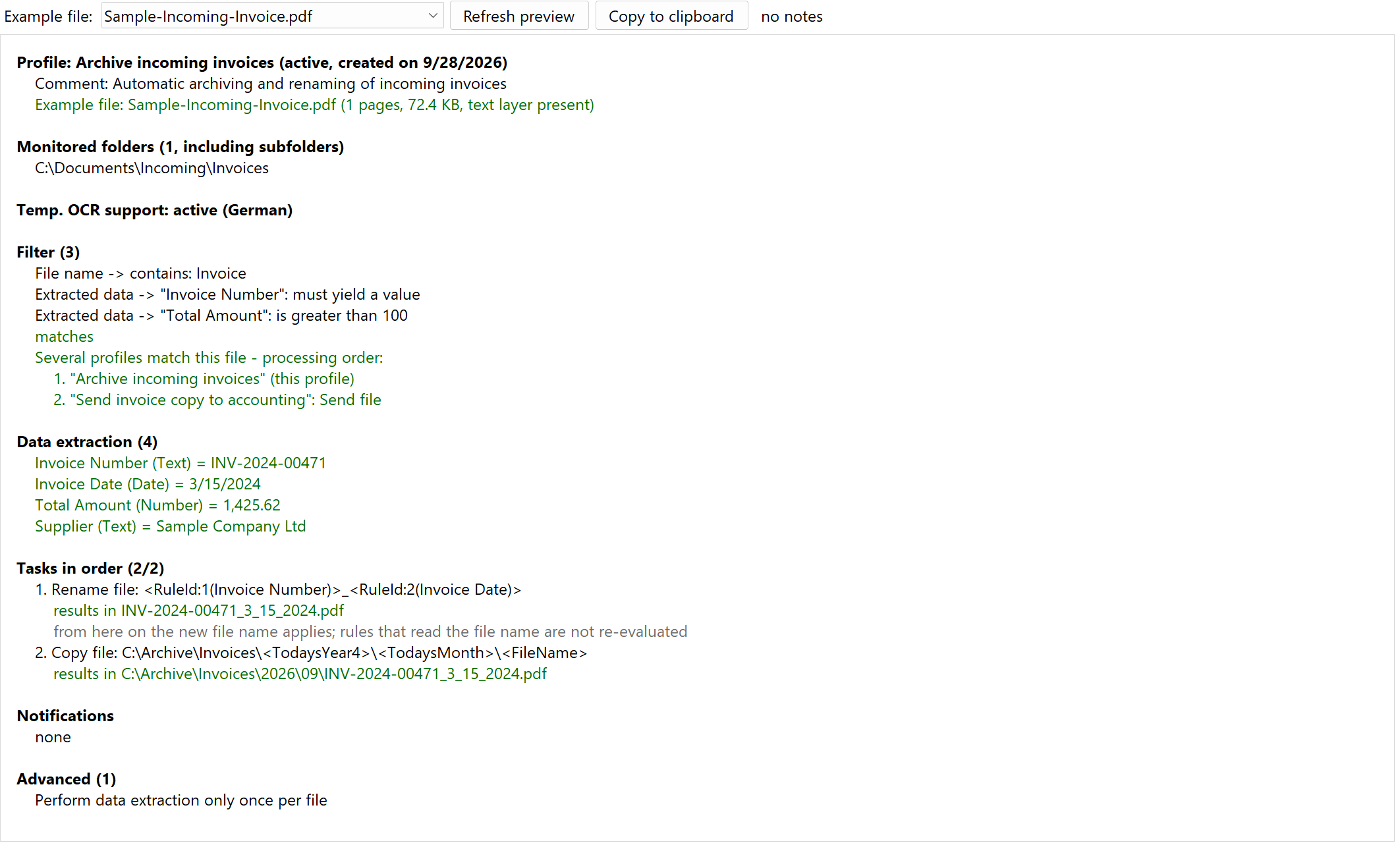 Overview with other profiles
- Profiles with the setting "Ignore all subsequent profiles after applying this profile" (page "General") are marked with "blocks the following profiles".
- Shown in red: a profile that runs before this one blocks the following profiles or deletes the file - the file then does not reach this profile.
- If a profile that runs before this one moves or renames the file, this profile continues with the moved file; this is shown as a gray note.
- If the filter of this profile does not match, the overview instead names the profiles that would process the file - or states that no profile would.
Multiple processing itself is not a note, because it is often intended, for example a chain of renaming and sending in two profiles. The check is limited to a few seconds; profiles whose rules would need their own text recognition are skipped and counted.
File grouping in the overview
If the profile has a file grouping (chapter 8.8), the File grouping section appears before the tasks, because the group determines what the tasks process. It lists the subgroups with their requirement ("File must exist" or "File can exist") and the tasks of the secondary profiles. With an example file, the overview builds the group like the processing does:
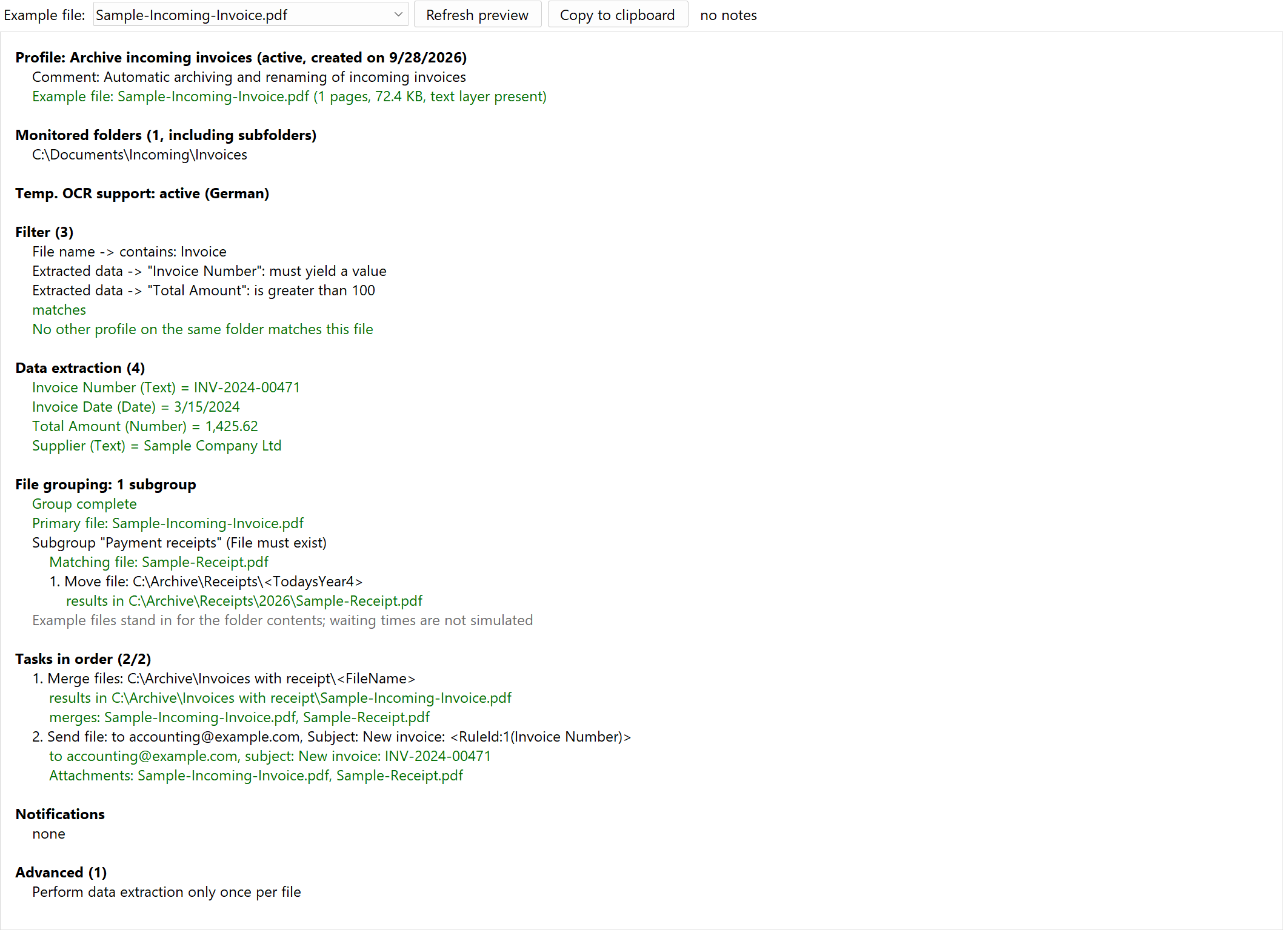 Overview with file grouping
- Group complete, or in red Group incomplete with the reason, such as a missing mandatory file. As long as the group is incomplete, the tasks are not executed.
- The primary file or the files of the primary group, and for each subgroup the file found. A missing mandatory file and forbidden multiple matches appear in red.
- The results of the tasks of the secondary profiles for each file found, for example the target path when archiving; with several files, the file name precedes each result line. For a primary group with individual processing, the same applies to the tasks of the profile itself: one result line per primary file. The preview calculates at most 10 files per subgroup.
- For Merge files, the files in their order; for Send file, the attachments including the group attachments.
The example files stand in for the folder contents: for the primary group the example files of this profile, for each subgroup the example files of the secondary profile. Waiting times are not simulated; a creation date deviation is measured on the example files. "All PDFs or images from the folder" when merging appears as a note, not as a file list. The group is only determined for an example file that matches the filter.
With Copy to clipboard you take over the overview as text, for example for a support request. The same overview of all profiles is included as the file "Profiluebersicht.txt" in the backup for support (main menu, "Create backup for support..."). When creating the backup, the program asks whether the overview should also show what would happen with the first example file of each profile - this can take a few minutes with many profiles or scanned example files.