Report invalid e-invoices back to the issuer automatically
An e-invoice that fails the formal check is not a proper invoice. The issuer has to correct and resend it. Instead of writing to every supplier by hand, let the program do the feedback: a profile detects invalid invoices and sends the issuer an email with the result, the list of findings and the validation report as an attachment.
This guide shows where the recipient address comes from (CSV mapping, invoice or fallback recipient), how to build the message with the validation placeholders and how to check the sending via the draft folder first.
At a Glance
- Difficulty: Advanced
- Time required: about 20 minutes
- Prerequisites: Automatic X-Invoice Processor version 2.5 or later; email sending set up (Menu → Options... → Email sending, see chapter 40.4); validation enabled (see the how-to "Validate e-invoices and save validation reports")
- Features used: "Validation result" filter criterion, "Send file" task (recipient from CSV mapping with fallback to the invoice address, attach validation report), placeholders
<ValidationSummary> and <ValidationFindings>, draft folder
Video tutorial: Notify issuers of invalid e-invoices (with narration and optional subtitles)
Step 1: Decide where the recipient address comes from
The program can determine the issuer's address in three ways. They can be combined:
- From the invoice: Many e-invoices name a seller contact email (BT-43) or an electronic address (BT-34). The program takes the contact email first, otherwise the electronic address if it is an email address.
- From a CSV mapping: A text file maps a property of the invoice - for example the seller's VAT ID - to an email address. This way you decide yourself who receives the feedback. Example
recipients.csv:
DE123456789;invoices@supplier-a.example
DE987654321;accounting@supplier-b.example
- Fallback recipient: If neither the CSV file nor the invoice provides an address, the message goes to an internal mailbox such as
clarification@my-company.com. From there you forward it manually.
Recommendation: CSV mapping for the most important suppliers, fallback to the address from the invoice, fallback recipient for the rest.
Step 3: Set up the "Send file" task
Click Add → Send file in the task list and fill in the Message tab:
- Type: Email address from CSV mapping. Enter the CSV file,
<SellerVATaxRegistration> as the placeholder, ; as the delimiter, column 1 for the placeholder value and column 2 for the email address. If you only want to use the address from the invoice, choose the type Fixed email address instead and enter <SellerContactEmailAddress>.
- Check If no match: use the email address from the invoice.
- Enter the internal mailbox as the fallback recipient, for example
clarification@my-company.com.
- The preview shows the address that would apply to the profile's first example invoice - with the source in brackets, such as
DE123456789 → invoices@supplier-a.example or ... → office@supplier.example (address from the invoice).
- BCC: your internal mailbox, so every feedback message also reaches you.
- Subject: for example
Your invoice <InvoiceId> dated <InvoiceDate>: formal check failed
- Message: Use the placeholders
<ValidationSummary> (result with counts) and <ValidationFindings> (list of findings). Both are in the placeholder menu under Invoice data → Validation. An example:
Dear Sir or Madam,

Your e-invoice <InvoiceId> dated <InvoiceDate> did not pass the formal check according to EN 16931.
Result: <ValidationSummary>

Findings:
<ValidationFindings>

Please find the complete validation report attached. Kindly send us a corrected invoice.

Kind regards
Accounting, My Company Ltd.
- Check Attach validation report (HTML). For every finding, the report names the rule, the rule text and the location as well as the hash of the checked data; the issuer can reproduce it with the KoSIT validator.
- For the introduction, also check Do not send message, but only save it in the draft folder. This way you review the first feedback messages before anything leaves the house.
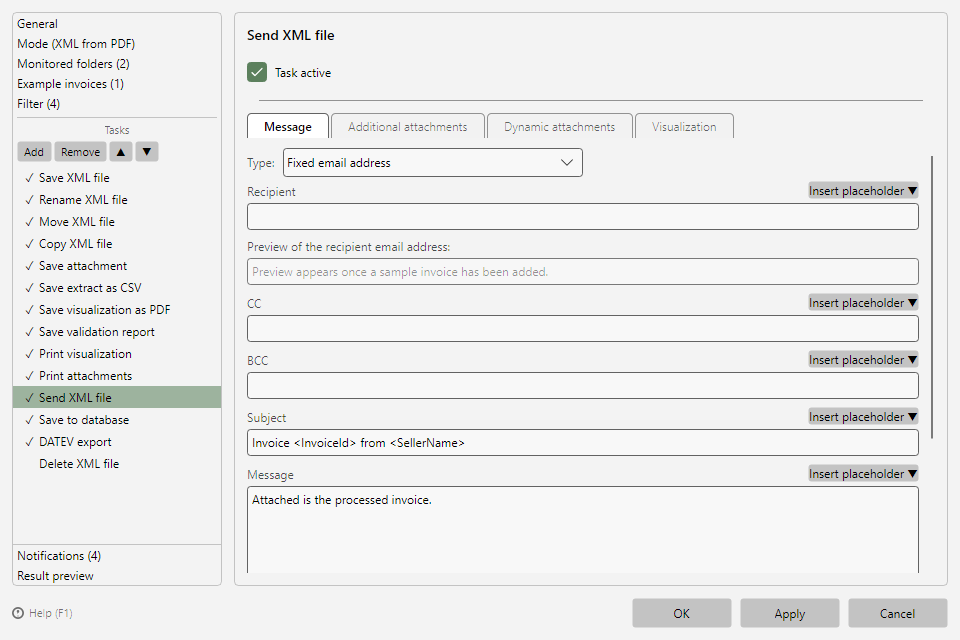 Send file task with Message tab, recipient, subject and message
If you format the message as HTML (Format message as HTML), the program inserts the list of findings with line breaks (<br>). In plain-text messages, every finding is on its own line.
Step 5: Enable sending
Remove the check mark Do not send message, but only save it in the draft folder. Keep the BCC recipient. If you send many feedback messages, the pause between email transmissions in the program options helps against your provider's sending limits (see chapter 40.4).