40.6 Processing
40.6.1 Overview 
The Processing page controls the pace and robustness of the background processing as well as the handling of problematic files.
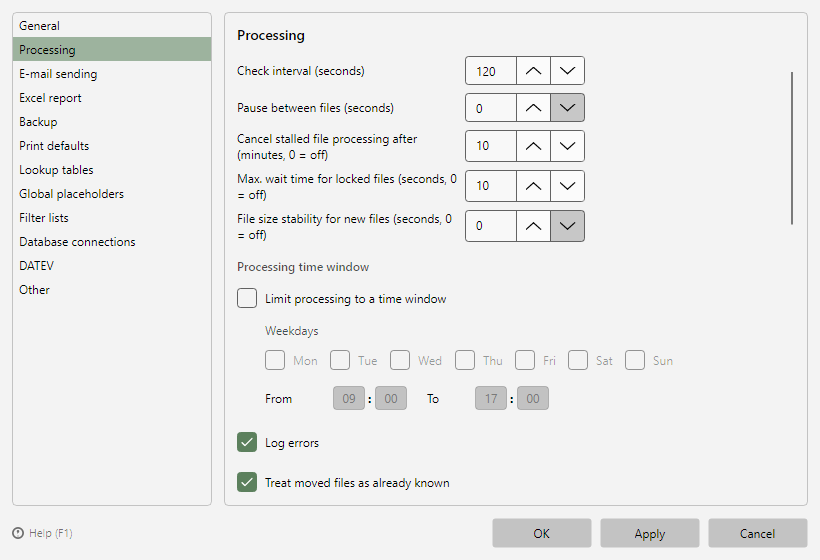 Program options, Processing page
40.6.2 Pace and limits 
| Setting |
Meaning |
| Check interval (seconds) |
Interval between two checks of the monitored folders; the countdown appears in the status bar (see chapter 7.2.4) |
| Pause between files (seconds) |
Optional wait time after each processed file - e.g. to go easy on slow network drives or printers |
| Cancel stalled file processing after (minutes, 0 = off) |
If processing a file makes no progress for that long (e.g. a hanging email or print call), the file is logged as an error and skipped. Regular wait times (dynamic attachments, send pause) count as progress. |
| Max. wait time for locked files (seconds, 0 = off) |
Waits before processing until a locked file has been released (e.g. virus scanner, copy operation in progress). If it remains locked, it is silently deferred to the next check run and retried then. |
| File size stability for new files (seconds, 0 = off) |
A freshly written file is only processed once its size and modification date have remained unchanged for the specified duration - detects copy operations still in progress, e.g. on network shares. |
40.6.3 Time window 
Limit processing to a time window: processing only runs within the given times (from/to) and weekdays. Outside the window the program waits; new files are caught up at the next window.
40.6.4 Filing of problematic files 
For three cases, a target folder can be configured to which affected files are moved - the inbox folder stays clean and nothing gets lost:
| Case |
Option |
| Files with errors |
Move files with errors to: ... |
| Files without a match |
Move files without a filter match to: ... |
| Files without invoice data |
Move files without invoice data to: ... (additionally: log errors) |
40.6.5 Duplicate handling 
| Option |
Effect |
| Skip new files with already processed invoice data as duplicates |
Recognizes e.g. a re-exported or copied PDF of the same invoice by invoice number, invoice date, and seller, and skips it. The check does not apply during catch-up with "process already processed files again". |
| Treat moved files as already known |
A file moved by a task is not processed again at its new location if that location is monitored as well |
40.6.6 Email notifications and malfunction notification 
Under Email notifications, four program-wide messages can be enabled (sent via the account from Options → E-mail sending; recipients separated by semicolons or commas):
| Option |
Effect |
| Send message on processing errors |
Reports general processing errors (e.g. a file that cannot be processed or a file timeout) by email to the given recipients. Identical error causes are reported again after 15 minutes at the earliest. |
| Send message for files without invoice data |
Reports files from which no invoice data could be read (once per file). |
| Send message for files without a filter match |
Reports files that none of the responsible profiles has processed (No match tab, once per file). The message names the file and the profiles checked. No message is sent for files that were processed before and reappear, or during catch-up processing. Up to version 2.2, this was a setting per profile (see chapter 8.12.2). |
| Send message for invalid e-invoices (validation) |
Reports once per file when validation found errors (result Invalid or Schema error, see chapter 50.5). The message names the file, profile, invoice number, result, rule set, and the first ten findings; the HTML validation report is attached. Warnings do not trigger a message. |
The ▼ button next to each recipient field lets you pick from the recently used recipients (the same history as on the Notifications profile page); when the options are saved, the entered addresses are added to this history.
Under Malfunction notification you enable the early warning for unattended operation: Send message if no processing for x minutes. If processing shows no sign of life for longer than the given time span, an email goes to the stored recipients - you learn about a problem without having to check yourself. The detection itself always runs (error log, notice in the main window, Windows Event Viewer); the email is opt-in. The monitoring works both in normal operation (by the main program) and in service/headless operation (by the supervisor process, see chapter 60.1.4).
Tip: use a simple, reliable sending account for these warnings if possible - if the sending path itself fails, the error log and the Windows Event Viewer remain as channels.
40.6.7 Check profiles for regular processing 
From version 2.3.0 on, the program warns when an active profile has not processed any invoice for longer than a period - typically because a supplier has changed its name, only sends plain PDFs without an e-invoice, or the invoices end up in a different folder, so that the filter criteria no longer match.
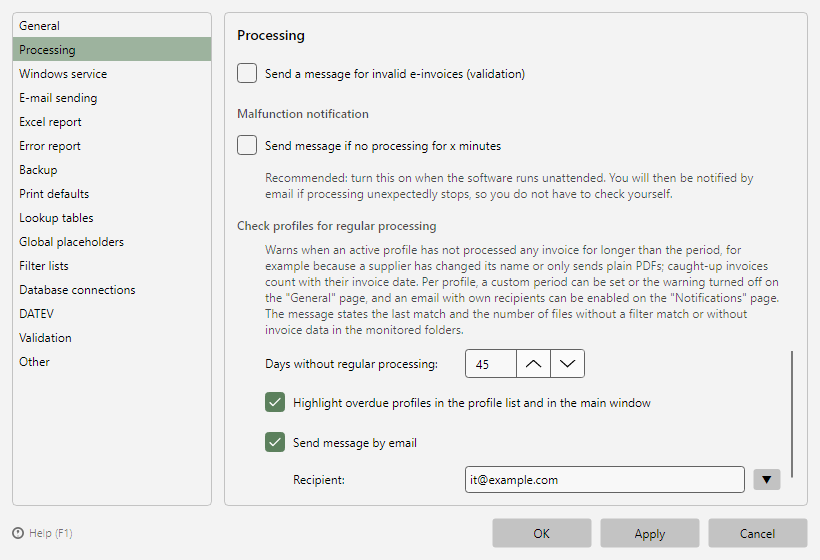 Program options, Processing page, section "Check profiles for regular processing"
| Option |
Effect |
| Days without regular processing |
The period (default 45 days, 1 to 3650). |
| Highlight overdue profiles in the profile list and in the main window |
Warning symbol in the Last run column and a wine-red notice bar below the profile list (see chapters 4.2 and 4.6). Default: on. |
| Send message by email |
A message to the specified recipients as soon as a profile exceeds the period. Default: off. Without recipients, a hint appears - profiles without own recipients then stay silent. |
What counts as a match: the last regular processing (Last run column). When catching up and with Process file again, the invoice date of the matched invoice counts, not the time of processing - otherwise every profile would look active after catching up, even if the newest invoice is months old. A profile without any match counts from Created/Modified (column of the profile list); after saving in the profile editor, the period for such a profile therefore starts again.
The message states the profile, the period, the last match and the number of files in the profile's monitored folders that have remained without a filter match or without invoice data since then (No match and No invoice data tabs of the log). This shows you whether nothing arrived at all or something arrived but bypassed the profile. It is sent once per profile and only again after another full period; the highlighting remains as long as the profile is overdue. If sending fails, this is recorded in the error log, and the program tries again at the next check.
The check runs in the processing process at most once per hour, also during the waiting times between check runs and in the Windows service without an open program window. After a profile has been activated, the email comes no earlier than after 15 minutes: the highlighting appears immediately as a reminder to catch up, and if catching up finds a recent invoice in the meantime, the email is not sent.
Per profile, you set a custom period or turn the warning off on the General page (see chapter 8.6.6); the email with own recipients is enabled on the Notifications page (see chapter 8.12.2).