50.2 Set Up Microsoft 365 (Graph)
50.2.1 Overview 
For mailboxes operated with Microsoft 365 (formerly Office 365, Exchange Online), the program uses the Microsoft Graph API instead of classic IMAP. This has several advantages: no app passwords needed, OAuth sign-in with two-factor authentication, modern permission management via Azure AD, and full access to Microsoft 365-specific features such as categories, flags, and shared mailboxes.
50.2.2 Required Inputs 
In the account editor (account type: Microsoft 365) you configure:
| Field |
Description |
| Display name |
Freely chosen name |
| Email address |
The Microsoft 365 address to be monitored later |
| Mailbox address (optional) |
Address of a shared mailbox if a jointly used mailbox is used instead of the personal mailbox (see chapter 50.2.6) |
| Client ID / Tenant ID (optional) |
Fill in only if your organization uses its own app registration in Microsoft Entra ID (see chapter 50.2.4); empty fields use the program's default registration |
Then click Sign in with Microsoft - the OAuth flow starts.
50.2.3 OAuth Sign-In 
When you click Sign in with Microsoft, a browser window opens with the Microsoft sign-in form. There you:
- Enter credentials (email address + password + two-factor code if applicable)
- Confirm the permission request - on the first sign-in, Microsoft asks whether the app may access the mailbox (see chapter 50.2.4)
- After a successful sign-in, the browser closes automatically and the OAuth status in the account editor changes to "Signed in"
If the account is already entered in the "Email address" field, Microsoft skips the account selection and signs in that account directly. If the browser does not return to the program (for example because the sign-in page keeps jumping back to the account selection), the program cancels the attempt after 10 minutes; during this time, clicking Sign in with Microsoft again reports that the sign-in is already in progress. The course of the sign-in is recorded in the diagnostics log that accompanies the error report.
Sign-in with a different account: If a different account signs in in the Microsoft window than the one entered in the Email address field, for example an administrator account via the link "Have an admin account? Sign in with that account", the program asks which mailbox to monitor. The buttons name both accounts. Here <entered> stands for the entered mailbox and <signed-in> for the signed-in account.
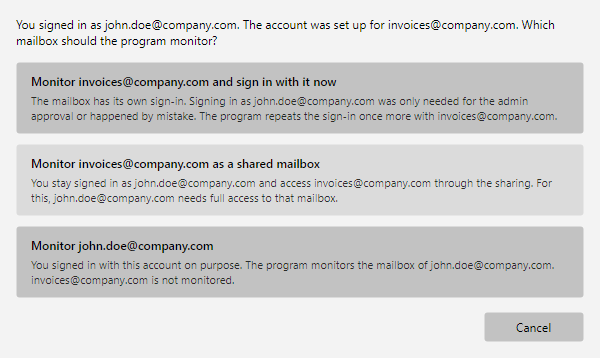 Prompt after signing in with a different account: three buttons with explanations of which mailbox to monitor
| Choice |
Effect |
Monitor <entered> and sign in with it now |
The entered mailbox has its own sign-in. The sign-in with the other account is discarded and immediately repeated with the entered mailbox. This is the right way after an admin approval (chapter 50.2.4). |
Monitor <entered> as a shared mailbox |
The signed-in account becomes the sign-in account, and the entered mailbox moves to the Mailbox address field (chapter 50.2.6). The sign-in account needs full access to that mailbox. |
Monitor <signed-in> |
You signed in with this account on purpose. It is adopted into the Email address field. The previously entered mailbox is not monitored. |
With Cancel, the entered mailbox stays and the sign-in is discarded. You can repeat it afterwards. The same prompt appears when signing in again from the Unreachable Accounts tab. If a shared mailbox is already entered, there is no prompt, because sign-in account and mailbox may then differ.
The program does not store a password - instead, a refresh token is saved locally; with it, the program later obtains new access tokens on its own. The token store is located in the AppData directory of the Windows user and is encrypted.
Windows sign-in broker (WAM), as of version 4.2.0: If your organization enforces security policies with token protection (Conditional Access), browser sign-in fails with the message AADSTS53003. In that case, enable the option Use Windows sign-in broker (WAM) in the account editor - sign-in then runs via the sign-in service built into Windows, which issues device-bound sign-ins and satisfies these policies. After switching, a one-time new sign-in is required. When running as a Windows service, the sign-in broker is not available; if it is not available on the system, the program automatically falls back to the browser.
50.2.4 Permissions 
On the first sign-in, the program requests the following permissions:
| Scope |
Purpose |
| Mail.ReadWrite |
Read, move, copy, delete, flag emails, set categories on your own mailbox |
| Mail.ReadWrite.Shared |
Same operations on a shared mailbox or a user mailbox with FullAccess delegation |
| Mail.Send |
Send emails from your own mailbox (for Forward, Reply, Send read receipt) |
| Mail.Send.Shared |
Send emails as or on behalf of a shared mailbox or delegated user mailbox |
| User.Read |
Read display name and email address of the signed-in user |
| MailboxSettings.Read |
Read master categories of the mailbox (for auto-completion when setting categories) |
| offline_access |
Standard permission for background operation: the program can renew expired access tokens without a new sign-in (shown in the Microsoft consent dialog as "Maintain access to data you have given it access to") |
All permissions are delegated: the program always acts in the context of the signed-in user and can only access mailboxes that this user can access themselves. There are no application permissions (app-only) and no tenant-wide access.
Verified publisher: The application is registered with Microsoft as an application of a verified publisher (publisher verification through the Microsoft Cloud Partner Program). The consent dialog therefore shows the blue verified badge next to the publisher name "Gebrüder Marco & René Gillmeister GbR". Company policies that only allow consent for applications of verified publishers thus permit the sign-in. The requested permissions remain exactly those listed above and are enforced by Microsoft regardless.
In companies with centrally administered Azure AD tenants, these permissions may need to be approved beforehand by an administrator consent - when in doubt, ask the IT department.
Approval required (admin consent): If Microsoft shows the message "Approval required" during sign-in, your organization does not allow users to consent to applications themselves. A separate app registration in Microsoft Entra ID is not required; an administrator grants consent once as follows:
- In the account editor, click Sign in with Microsoft... again and sign in at the Microsoft sign-in page with an administrator account of the organization.
- In the consent dialog, select the checkbox Consent on behalf of your organization and confirm.
- The program detects that a different account signed in than the one entered and asks which mailbox to monitor (chapter 50.2.3). Choose Monitor
<entered> and sign in with it now: the sign-in is repeated with the actual account and now completes without an approval prompt. If the administrator account was already entered in the Email address field, enter the actual account instead and sign in again.
After consent has been granted, the application appears in the Entra admin center under "Enterprise applications", where it can be reviewed or revoked at any time. All permissions are delegated, so the program does not receive any tenant-wide application access.
Central approval without signing in to the program: Alternatively, an administrator can grant consent directly in the Entra admin center - useful when IT administration is located at a different site and cannot sign in at the user's workstation: Under Enterprise applications, open the application Automatic Email Processor (app ID 7ace474d-bb44-4e05-9c3f-fc28e1bad648; the entry appears there after a user's first sign-in attempt) and grant admin consent under Permissions. Via the application's user assignment, usage can be restricted to specific users if desired.
"Request approval" button: If the Microsoft dialog offers to request approval, this request only reaches an administrator if reviewers are configured in the Entra admin center under Enterprise applications > Admin consent settings. If no one is configured there, the request goes nowhere - in that case, ask your IT department directly for the approval (see above).
Own app registration (optional): Organizations that do not want to consent to the vendor's default app can register their own app in their own Microsoft Entra tenant and enter its values in the account editor under Client ID and Tenant ID (empty fields use the default registration). Requirements for the registration: platform Mobile and desktop applications with redirect URI http://localhost, plus the delegated Graph permissions listed above. If the Windows sign-in broker (WAM) is to be used as well, the redirect URI ms-appx-web://microsoft.aad.brokerplugin/<client ID> must also be configured. Approval control then lies entirely with your organization; after entering the IDs, a new sign-in is required.
50.2.5 Token Cache and Refresh 
The token cache is stored in the file:
%LOCALAPPDATA%\Automatic Email Processor 4\msal_token_cache.bin
It is encrypted with the Windows Data Protection API (DPAPI) and can only be read under the Windows user account that runs the program. It is managed by the program - no manual intervention needed. When the token expires, an automatic refresh happens in the background. Only if the refresh token itself becomes invalid (e.g. password changed, 90 days of inactivity, account lockout) does the account editor again show "Sign-in required" and you must click Sign in with Microsoft again.
50.2.6 Shared Mailbox and Delegated User Mailbox 
Both a shared mailbox (a Microsoft 365 mailbox without its own license, used by several users - typically info@firma.de or support@firma.de) and a regular user mailbox with FullAccess delegation can be monitored. Conversion to a shared mailbox is not required.
In the program you configure this as follows:
- Email address: Your personal Microsoft 365 address (with which you sign in)
- Mailbox address: Address of the target mailbox (e.g.
info@firma.de)
- Click Sign in with Microsoft - sign in with your personal account
The program then authenticates with your token but reads from and sends through the target mailbox (Microsoft Graph impersonation). Prerequisites:
- Your sign-in account has an Exchange Online mailbox of its own (a license that includes Exchange Online). A pure administration account without a mailbox cannot access any other mailbox - Microsoft then reports that the mailbox is not reachable or that the inbox cannot be found.
- Your account has FullAccess delegation on the target mailbox (Microsoft 365 Admin Center → mailbox → Delegation → "Read and manage").
- For the Send path: your account additionally has "Send as" or "Send on behalf of" permission on the target mailbox. If this permission is missing, the connection test reports a warning; retrieving from the mailbox still works, only replies, forwards and notifications sent through this account do not.
- The Azure AD app registration grants the scopes
Mail.ReadWrite.Shared and Mail.Send.Shared (admin consent for the tenant).
After full access has been granted, it can take up to 60 minutes until Microsoft 365 applies the permission. The same applies to a mailbox that has only just been created, licensed or converted to a shared mailbox. If the program reports during this time that the inbox cannot be opened, wait, then open the account in the program again and confirm with OK - the program then resumes retrieval immediately instead of waiting out the pause it applies after the error. If the target mailbox has its own sign-in (a regular user mailbox), the simplest way is to sign in directly with that address and leave the Mailbox address field empty.
If the folder dialog shows only the top level of the shared mailbox although Outlook shows subfolders, full access is usually missing: sharing granted per folder in Outlook does not apply to subfolders. The dialog points this out; the steps are described in chapter 50.6.6.
If an existing account configured before May 2026 shows 403 ErrorAccessDenied after the update, click Remove credentials in the account editor and sign in again - the renewed token then contains the new shared scopes.
50.2.7 Remove Credentials 
In the account editor there is a Remove credentials button. It deletes the refresh token from the cache. The account remains set up in the program, but on the next connection attempt a fresh sign-in is required.
Useful when token problems are suspected or when switching the signed-in Microsoft account.
50.2.8 Use Case 
Central Service Mailbox (Shared Mailbox)
Display name: "Incoming invoices". Email address: max.mustermann@firma.de (sign-in account). Mailbox address: rechnungen@firma.de (monitored account). Sign in with max.mustermann@firma.de - access then takes place on the shared mailbox.
50.2.9 Tips 
- For centrally managed Azure AD tenants, administrator consent may be necessary. If sign-in fails with "Permission denied", contact IT
- In service mode, the sign-in uses the token cache of the service user - ideally test the OAuth sign-in once interactively under the later service account