40.6 General
40.6.1 Overview 
In the General area you define basic settings: the program language, the color scheme, the behavior on program startup and shutdown, a centrally managed profile file as well as the mode for password storage.
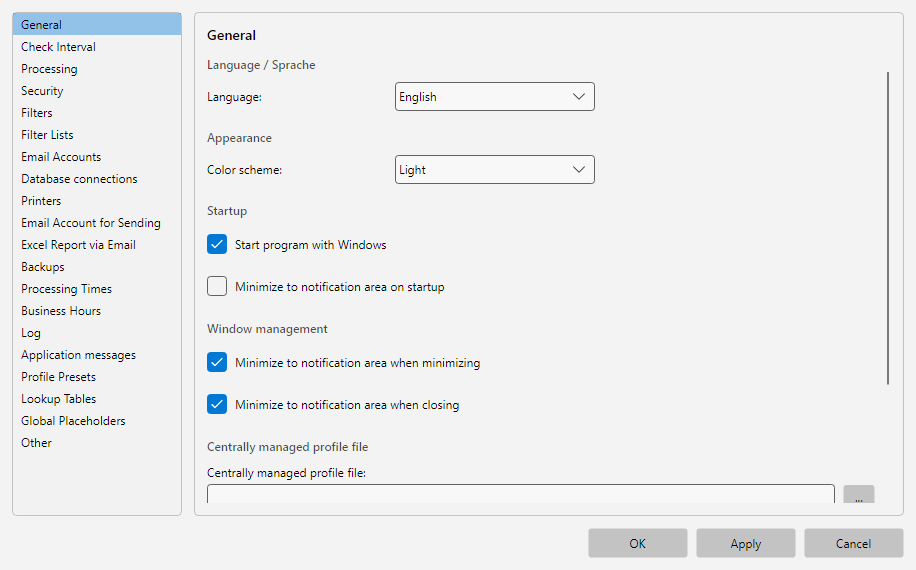 Program options, General area: program language, color scheme, behavior on startup and shutdown, plus password storage
40.6.2 Language 
Selects the display language of the program.
| Choice |
Effect |
| German |
Program and dialogs in German |
| English |
Program and dialogs in English |
Note: A language change takes full effect on the next start. Already open windows keep the old language until they are closed.
40.6.3 Appearance 
| Color scheme |
Description |
| System |
Adopts the Windows setting (light or dark depending on the system mode) |
| Light |
Forces the light color scheme |
| Dark |
Forces the dark color scheme |
40.6.4 Program Start 
| Option |
Description |
| Start with Windows |
Starts the program automatically when you sign in to Windows |
| Start in notification area |
Starts without the main window, only as a tray icon |
Use case: On a processing server the program should start automatically on login and run in the background - both options enabled produce the invisible continuous operation.
40.6.5 Window Management 
| Option |
Description |
| Minimize to notification area |
When minimized, the window moves from the taskbar to the notification area |
| Close to notification area |
When you click X, the program stays active in the notification area (instead of exiting) |
Note: Even with Close to notification area enabled, the program can be fully closed via Menu - Exit.
Service operation: If a configured Windows service handles the processing (operating mode "External processor", see chapter 60.3), as of version 4.6.4 both options have no effect: minimizing places the window in the taskbar as usual, closing exits the program. A window kept alive in the notification area would provide no benefit in this constellation but permanently occupy memory - the service processes even without an open program window. The Start in notification area option is not affected by this.
40.6.6 Central Profile File 
With central profile management you can maintain profiles on a network drive, so that multiple installations use the same profile configuration.
| Field |
Description |
| Central profile file |
Path to the central Profiles.json (UNC path or mapped drive) |
| Admin mode |
When enabled, profiles may also be changed on this installation. Otherwise the central profiles are read-only |
| Export profile file... |
Exports the current profile file for use as a central file |
| Set admin password... |
Protects the settings of the centrally managed profiles with a password (as of version 4.7.0, see below) |
Use case: In an accounting department with several clerks, the central profile file is on a network share. One person has admin mode enabled and maintains the profiles centrally; everyone else uses them read-only.
If the central profiles point to the same mailbox for several users of the same computer, only one of them processes it (see section 60.3.10). With the "default account of this installation" as the monitored account, every user processes their own mailbox.
Note: For centrally managed profiles, a lock symbol appears in the profile toolbar of the main window, and buttons for editing profiles are disabled unless admin mode is set.
Admin password
Without password protection, any user can enable admin mode themselves and thereby edit the central profile file. With an admin password, these actions first require a password entry:
- enabling admin mode
- changing or removing the path of the centrally managed profile file
- changing or removing the admin password itself
- optionally also opening the program options (you are asked about this when setting the password)
The password is set via the Set admin password... button. It automatically applies to all workstations that use the same centrally managed profile file - no per-workstation setup is required. Setting the password requires write access to the directory of the central profile file; the password itself is never stored in plain text, only as a verification value. After a correct entry, the current program session remains unlocked, so the password is not requested repeatedly while working through the settings. To remove the protection, simply leave the new password empty in Set admin password....
Recommendation: The admin password protects against accidental changes by employees. For maximum security, combine it with the NTFS permissions of the network share: give the workstations read-only access to the directory of the central profile file (reading is sufficient for loading the profiles) and write access only to the administrators. Then the central file cannot technically be overwritten by unauthorized users either.
Note: The password protection is available as of version 4.7.0 - make sure that all workstations use at least this version.
40.6.7 Password Storage 
Controls how the program stores passwords for email accounts and database connections.
| Mode |
Description |
| Encrypted in profile file |
Passwords are stored encrypted in EmailAccounts.json and DatabaseConnections.json - portable between users and computers |
| Windows Credential Manager |
Passwords are stored in the Windows Credential Manager - the JSON files contain only a reference |
Tip: The Windows Credential Manager mode is more tightly bound (passwords can only be decrypted by the respective Windows user) and is often the preferred choice for compliance requirements. A later mode switch is possible - existing passwords will be migrated to the new mode on the next save.
Note: In service mode or with centrally managed profiles, the Credential Manager mode may be restricted, because the vault is bound to a user context.